Microsoft Copilot Studio is Microsoft’s low-code platform for building, customising, and deploying AI-powered agents directly from your browser — no […]
Microsoft Copilot Studio is Microsoft’s low-code platform for building, customising, and deploying AI-powered agents directly from your browser — no deep coding required. For organisations running Dynamics 365 or Power Platform, it is the fastest path to AI agents grounded in your own data, integrated with your existing systems, and tailored to your workflows — whether you are automating customer support, enabling self-service HR queries, or orchestrating complex multi-agent processes.
At MTC, we have helped clients across manufacturing, professional services, and financial sectors deploy Copilot Studio agents that connect directly to Dynamics 365, SharePoint, and Azure AI Search. This guide walks through the five key configuration areas every builder needs to master: Instructions, Knowledge, Tools, Agents, and Topics.
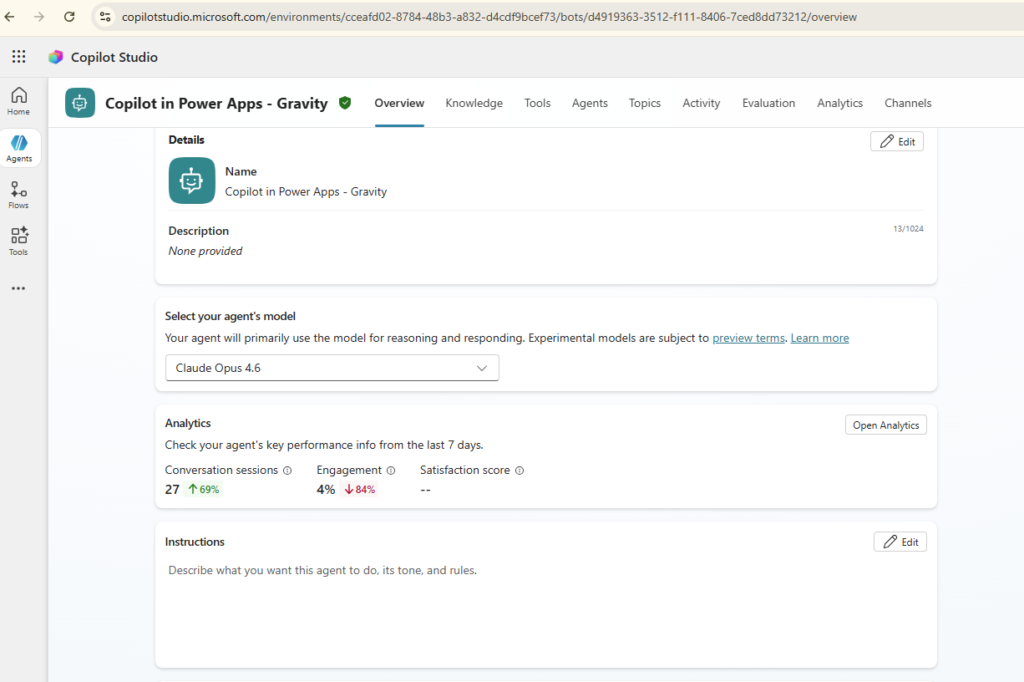
The Instructions section on the Overview tab is your agent’s system prompt. It defines the agent’s personality, tone, and behavioural guardrails — essentially, you are telling the agent what it is and how it should respond.
Here you can configure:
What the agent should do — e.g., answer accounting questions, assist with bank reconciliation, or guide users through a Dynamics 365 process
The tone it should use — professional, friendly, concise, or whatever fits your use case
Rules and guardrails — e.g., never fabricate data, always confirm before posting journal entries, escalate to a human agent when confidence is low
Click Edit to open the instructions editor and begin shaping your agent’s behaviour. Think of this as the foundation — every other configuration area builds on top of it. Poorly written instructions are the single most common cause of inconsistent agent behaviour, so invest time here before moving on.
MTC Tip: Write instructions as if you are onboarding a new employee. Be explicit. “Answer only questions related to financial reporting in Business Central” is more reliable than “be helpful with finance topics.”
2. Knowledge — Connecting Your Agent to Real Data
Knowledge tab
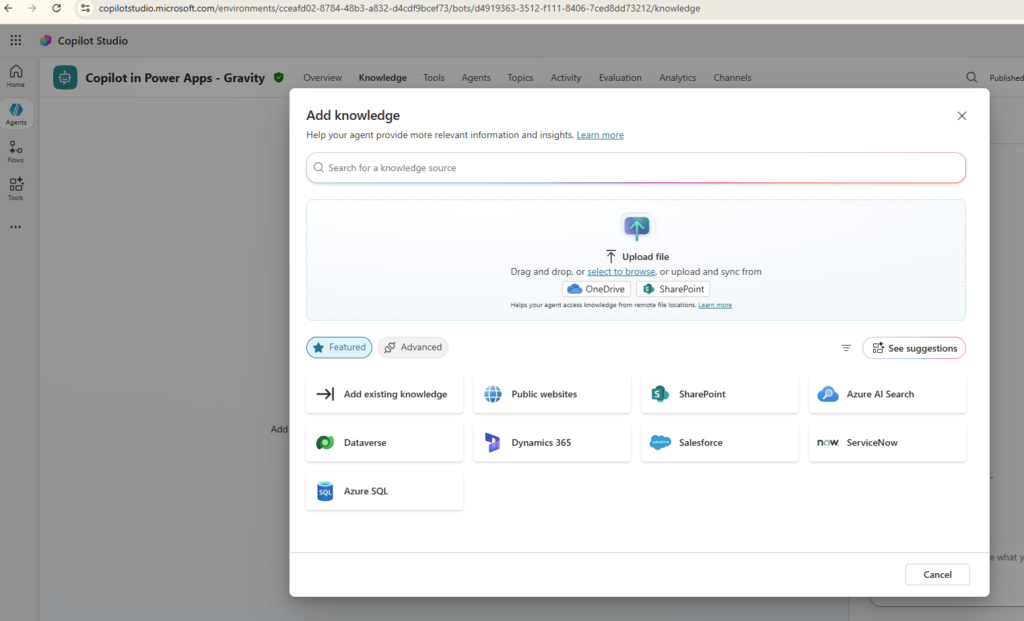
A base language model is smart, but it does not know your business. The Knowledge tab is where you fix that — by connecting your Copilot Studio agent to the data sources that matter to your organisation.
You can add knowledge from a wide variety of sources:
Microsoft sources
Upload files — Drag and drop documents directly, or pull from OneDrive / SharePoint
SharePoint — Connect to your organisation’s SharePoint sites for internal documentation
Azure AI Search — Leverage an existing search index for enterprise-scale retrieval
Dataverse — Tap into your Power Platform data tables
Dynamics 365 — Ground responses in live CRM and ERP data — sales records, customer cases, inventory
Azure SQL — Query structured data from Azure SQL databases
Third-party & custom sources
Public websites — Point your agent at public web pages to index
Salesforce / ServiceNow — Integrate with third-party CRM and ITSM platforms
This is what transforms your agent from a general assistant into a subject matter expert for your business — without knowledge sources, it can only speak in generalities. With them, it speaks your language.
For organisations running Dynamics 365 Business Central or Dynamics 365 Sales, connecting Dataverse and Dynamics 365 as knowledge sources means your agent can answer questions about real business data — open invoices, customer records, project status — without any custom code.
Answering questions is only half the story. With the Tools tab, you can give your Copilot Studio agent the ability to take action — triggering workflows, calling APIs, and interacting with external systems in real time.
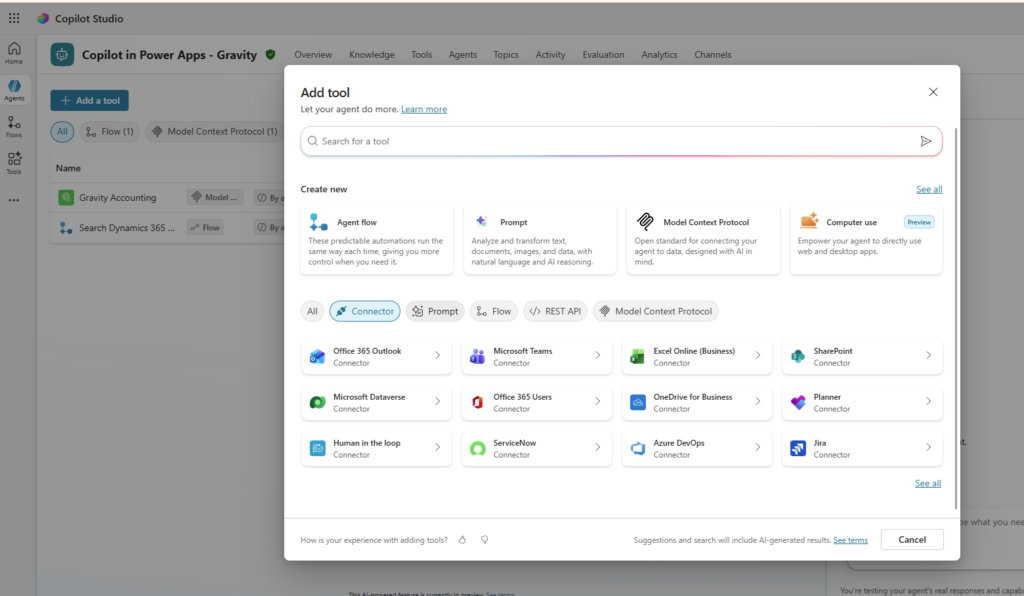
Available tool types include:
Agent flow — Predictable automations powered by Power Automate flows, ideal for structured business processes
Prompt — Analyse and transform text, documents, images, and data using AI reasoning
Model Context Protocol (MCP) — An open standard for connecting your agent to external data and services, designed specifically with AI workflows in mind
Computer use (Preview) — Let your agent interact directly with web and desktop applications
Connectors — Pre-built integrations with Office 365, Teams, Excel, SharePoint, Dataverse, OneDrive, Planner, ServiceNow, Azure DevOps, Jira, and hundreds more
REST API — Connect to any custom API endpoint your organisation exposes
Flow — Link existing Power Automate flows to reuse automation you have already built
For example, a finance agent built on top of Dynamics 365 Business Central might have a Gravity Accounting MCP tool and a Search Dynamics 365 flow configured — enabling it to look up records, post journal entries, and trigger approval workflows, all from a single conversation.
MTC Tip: Start with one or two well-scoped tools. Agents with too many tools often produce unreliable results because the AI struggles to choose between competing options. Add tools incrementally as you validate behaviour.
4. Agents — Building Multi-Agent Architectures
Agents tab
As your use cases grow more complex, a single agent may not be enough. The Agents tab lets you build a multi-agent architecture by creating child agents or connecting existing ones already published in your Power Platform environment.
Your options are:
New child agent — A lightweight, specialised agent that operates within your primary agent. Child agents handle focused tasks (e.g., HR queries, finance lookups) while the parent agent orchestrates the overall conversation and routes requests.
Connect existing agents — Select from agents already published in your environment (e.g., “Copilot in Power Apps”) or connect to an external agent exposed via an API.
This architecture keeps each agent focused on a specific domain while delivering a seamless, unified experience to end users. Think of it like a team: one orchestrating manager, multiple domain specialists — each one an expert in its area.
MTC Tip: If your organisation runs multiple Dynamics 365 modules — Sales, Customer Service, Business Central — a multi-agent setup lets you deploy a specialist agent per module, all sharing a single conversational front end. Users get one entry point; queries are routed to the right expert behind the scenes.
Even with a powerful AI agent, there are times you need precise, deterministic control over specific conversation flows. The Topics tab gives you that control — letting you define structured dialogue paths that override or supplement the AI’s generative responses.
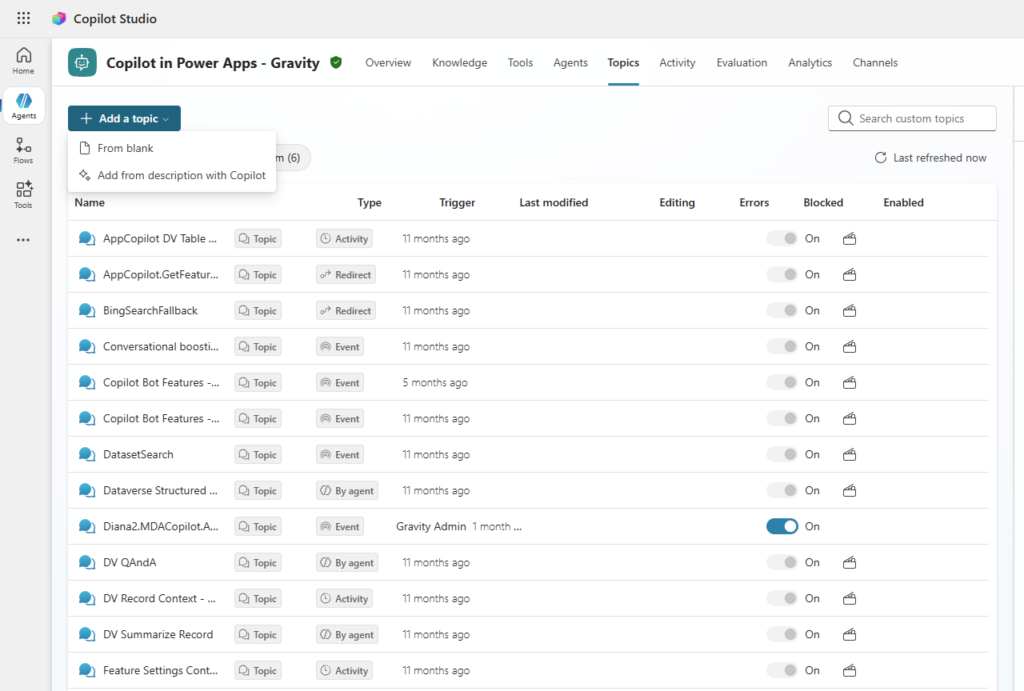
Topics can be triggered by several mechanisms:
Activity — Triggered by user actions, such as opening a chat or sending a specific message
Redirect — Redirected from another topic within the broader conversation flow
Event — Triggered by system or custom events, including lifecycle events like the conversation start
By agent — Automatically invoked by the AI based on conversational context
You can create new topics in two ways:
From blank — Start with an empty canvas and build your conversation flow manually, node by node
Add from description with Copilot — Describe what you want in plain English and let Copilot generate the topic structure for you
Each topic can be individually enabled or disabled and blocked or unblocked, giving you complete governance over what your agent can and cannot do. This is particularly important for compliance-sensitive scenarios — for example, ensuring a finance agent cannot discuss topics outside its authorised scope.
MTC Tip: Use Topics to handle high-stakes flows (account creation, data submission, escalation to a human agent) where you need guaranteed, auditable behaviour — rather than relying on the AI to improvise.
Summary
Feature
Purpose
Instructions
Define agent behaviour, tone, and guardrails
Knowledge
Connect to data sources for grounded, accurate answers
Tools
Give the agent the ability to take real-world actions
Agents
Extend with child or connected agents for complex use cases
Topics
Control specific conversation flows with deterministic logic
How MTC Can Help You Build with Copilot Studio
Microsoft Copilot Studio brings all five of these capabilities together in a single, low-code interface — making it practical to build production-ready AI agents tailored to your business in days, not months.
MTC’s certified Power Platform team has deployed Copilot Studio agents for clients across Dynamics 365 Business Central, Finance & Operations, and Customer Service. We handle everything from initial architecture and knowledge source configuration through to testing, publishing, and governance — so your team gets a reliable, compliant agent without the trial-and-error.
Whether you are building your first agent or scaling to a multi-agent architecture, MTC can accelerate your delivery and reduce deployment risk.
Frequently Asked Questions
What is Microsoft Copilot Studio used for?
Microsoft Copilot Studio is a low-code platform for building AI-powered agents (formerly chatbots) that can answer questions, take actions in business systems, and automate workflows. It is commonly used for customer support automation, internal help desks, Dynamics 365 process assistants, and HR self-service.
Does Copilot Studio require coding skills?
No. Copilot Studio is designed as a low-code tool accessible to business makers. Most configuration — including Instructions, Knowledge, and Topics — requires no code. Pro-developers can extend agents further using custom connectors, REST APIs, and Power Automate flows.
How does Copilot Studio connect to Dynamics 365?
Through the Knowledge tab, you can connect a Copilot Studio agent directly to Dataverse and Dynamics 365 as knowledge sources. Through the Tools tab, you can link Power Automate flows or use the Dynamics 365 connector to trigger actions — creating records, retrieving data, or updating fields in real time.
What is the difference between Topics and generative AI answers in Copilot Studio?
Generative AI answers are produced dynamically by the underlying language model, grounded in your connected knowledge sources. Topics are structured, pre-built dialogue flows that give you deterministic, code-like control over specific conversation paths. The two modes complement each other — use generative answers for open-ended questions and Topics for compliance-critical flows.
Can Copilot Studio agents be published to Microsoft Teams?
Yes. Copilot Studio agents can be published to Microsoft Teams, a custom website (via the web chat channel), Dynamics 365 Customer Service, or any channel that supports the Bot Framework. Publishing to Teams is particularly straightforward for internal-facing agents.