
CRM Picture PRO is a Dynamics 365 add-on that brings bulk image upload, annotation, and SharePoint synchronization directly into a CRM record — without overloading Dataverse storage. For teams that rely on pictures as part of a business record, the standard image handling experience can feel limiting: one file at a time, no preview, no annotation, and every upload adding weight to CRM database storage.
This post walks through CRM Picture PRO configured on the Contact table in Dynamics 365 Sales Hub, though the same control applies to any standard or custom Dataverse table. Key takeaway: the core value isn’t just multi-image upload — it’s that images move to SharePoint automatically, keeping CRM storage lean while retaining full record context.
Why Image Management Matters in Dynamics 365
Field service teams need proof-of-site images. Sales teams maintain contact and account photos. Manufacturing teams capture packaging or product-condition evidence. Customer service teams attach pictures to case documentation. In every one of these scenarios, time spent managing images is time not spent on the actual work.
CRM Picture PRO addresses this by bringing bulk upload, drag-and-drop, preview, annotation, and SharePoint sync into the record form itself — no separate document repository, no one-file-at-a-time uploads.
At-a-Glance Capabilities
- Bulk image upload — select and upload multiple pictures in one action
- Drag-and-drop or browse — flexible file selection
- Preview before upload — review and correct selections before committing
- Rename before or after upload — keep file names business-friendly, including annotated copies
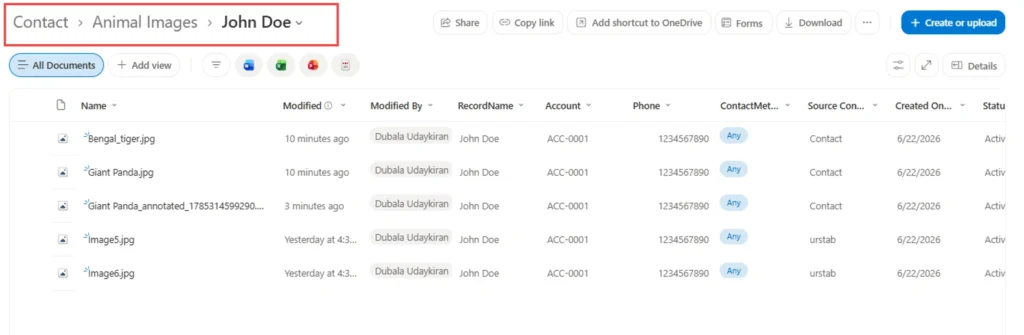
- SharePoint synchronization — reduces reliance on CRM database storage
- Metadata mapping — CRM field values map to SharePoint columns automatically
- Multiple tab support — separate image sets by tab, filtered by source control
Where Teams Use It
Inspections and audits, customer service case documentation, sales and account management, shipping and inventory stage tracking, and manufacturing quality processes all benefit from record-level image handling without turning CRM into a document repository.
The Upload and Annotation Experience
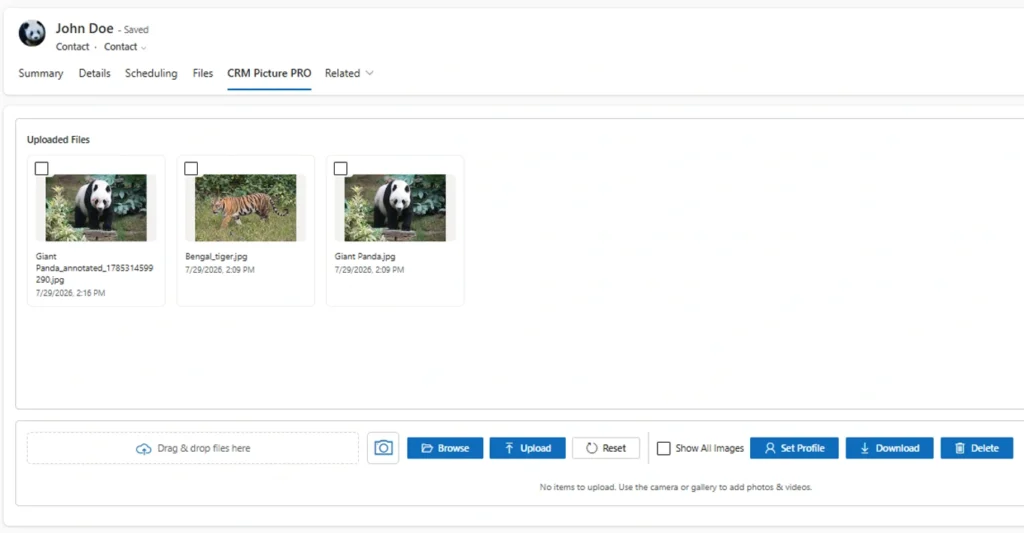
CRM Picture PRO is configured under a dedicated tab on the record form. Users browse or drag-and-drop files into the upload area, preview them before committing, and rename files for clarity — including annotated copies — before clicking Upload.

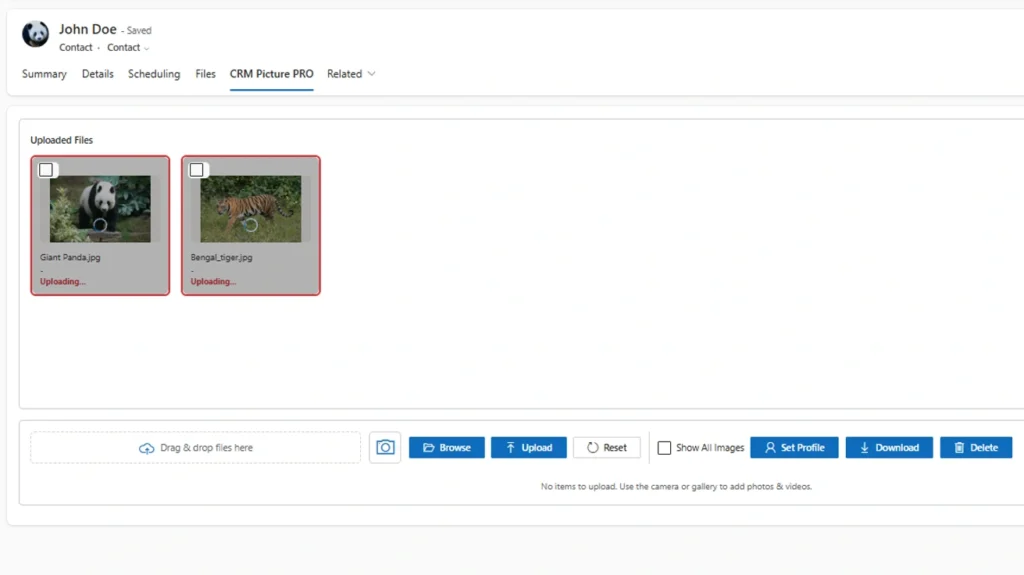
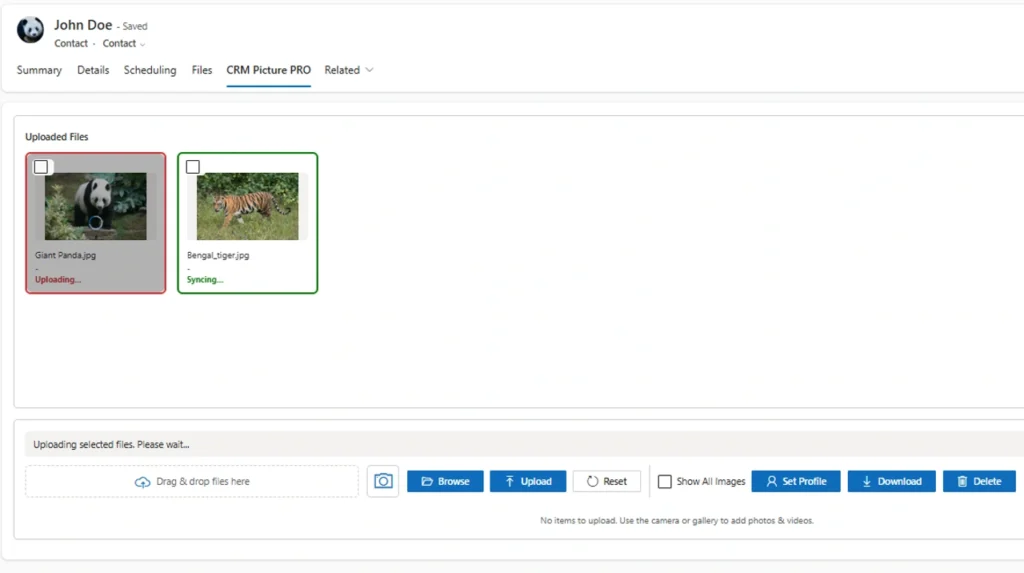
During upload and sync, image tiles show live status via a colored border: red while upload and sync are in progress, green while syncing to SharePoint, and no border once complete. This visual feedback means users never have to guess whether a file made it to SharePoint.
Annotation Without Leaving the Record
Users can open an image, mark it up with highlights, arrows, ellipses, rectangles, or text, and save the annotated version as a new copy — automatically suffixed “annotated” and renameable. This is built for scenarios like flagging a damaged area, an inspection finding, or a product issue, without needing a separate image-editing tool.


Direct SharePoint Access
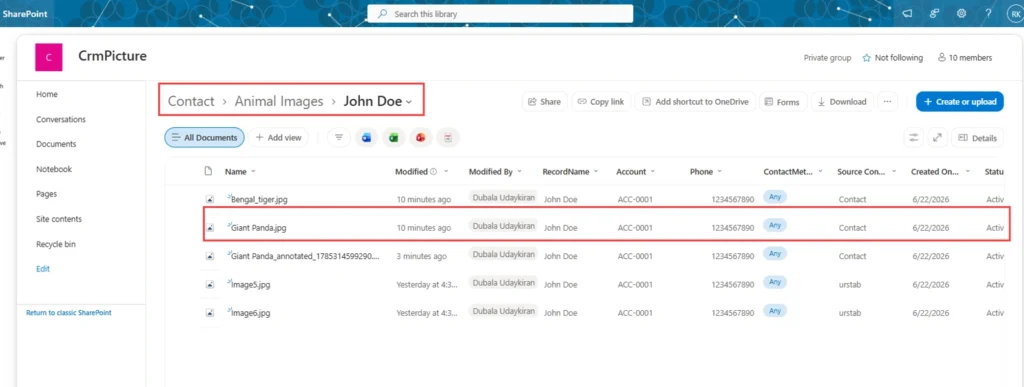
Once synced, users can click any image and select Open in SharePoint to jump straight to the stored file and folder path — confirming the record-level experience in Dynamics 365 stays connected to SharePoint-based storage.

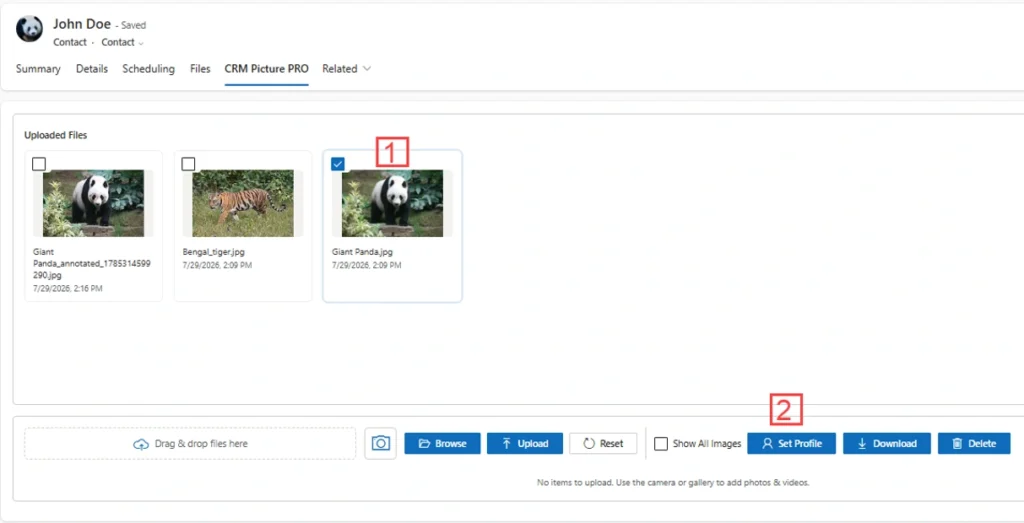
Set Profile, Download, and Delete Images
For records such as contacts that support an image field, users can select a picture and use Set Profile to update the contact’s profile image directly. The control also supports common file actions — downloading and deleting selected images — without leaving the record. These options make the image gallery feel like a natural part of the record experience rather than a separate document repository bolted on the side.
Support for Multiple Tabs and Image Context
CRM Picture PRO can be configured under multiple tabs on the same record form — for example, one tab for shipping-related pictures and another for inventory-related pictures. This lets teams collect different categories of images at different stages of a business process, without them getting mixed together.
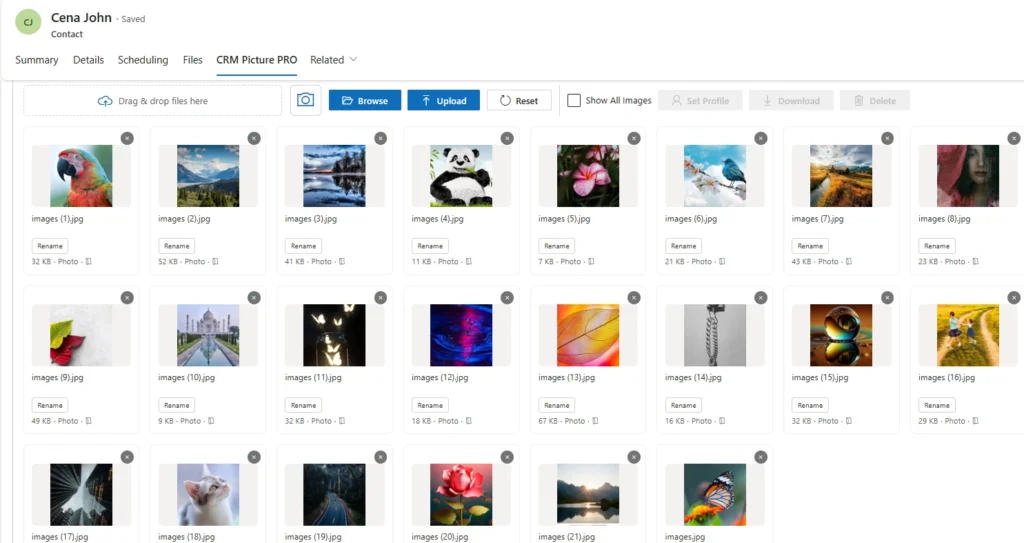
Show All Images and Source Control
The Show All Images option lets users view images from other CRM Picture PRO controls on the same record. When unchecked, the control shows only the images uploaded through that specific tab. The Source Control field indicates which tab or control was used to upload each picture, preserving context even when viewing a consolidated gallery.
Problems This Solves
Problem: Uploading images one at a time slows down record documentation. How CRM Picture PRO solves it: Bulk upload and drag-and-drop let users add multiple images in a single interaction, with preview before commit.
Problem: CRM database storage balloons as image attachments pile up. How CRM Picture PRO solves it: Images sync to SharePoint automatically, and a scheduled flow cleans up the background note records so CRM storage stays focused on business data.
Problem: Reviewers need to flag specific issues on an image but lack a built-in way to mark it up. How CRM Picture PRO solves it: Native annotation tools (highlight, arrow, shape, text) let users mark up and save a copy without leaving the record or opening a separate app.
Problem: Different image categories (e.g. shipping vs. inventory) get mixed together on one record. How CRM Picture PRO solves it: Multiple tab support lets teams separate image sets by stage or category, with Source Control tracking which tab each image came from.
Problem: SharePoint metadata falls out of sync with CRM data over time. How CRM Picture PRO solves it: Metadata mapping keeps CRM field values and SharePoint columns in sync — editing a mapped value in either place updates the other.
Configuration Overview
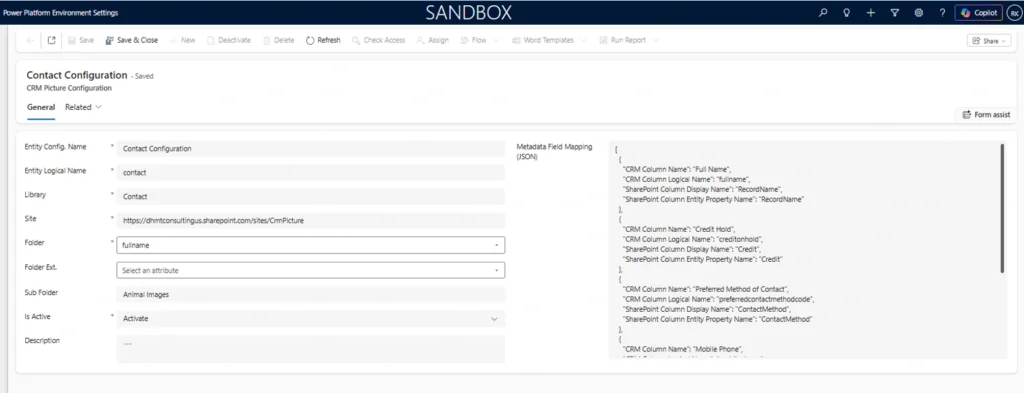
CRM Picture PRO is set up per table through a CRM Picture Configuration record, where an admin defines the entity logical name, SharePoint document library and site, folder and subfolder structure, active/inactive status, and JSON-based metadata field mapping. If a different SharePoint site path is specified, the solution creates the required site and folder structure automatically — no manual setup in SharePoint first.

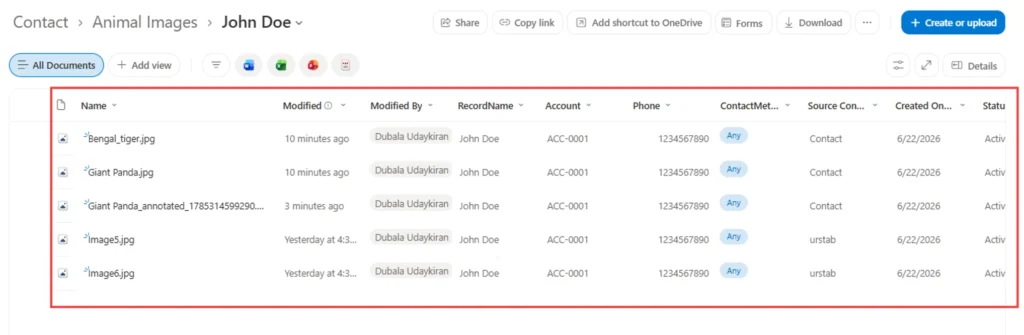
Behind the scenes, uploaded images are temporarily attached to timeline note records, which a scheduled flow periodically clears out — keeping the storage-optimization promise intact without any manual cleanup.
Frequently Asked Questions
Does CRM Picture PRO work on custom Dataverse tables, or only standard ones like Contact?
CRM Picture PRO works on both standard and custom Dataverse tables. The configuration record just needs the entity’s logical name — the same bulk upload, annotation, and SharePoint sync behavior applies regardless of table type.
Conclusion
CRM Picture PRO solves a narrow but common problem: managing multiple images against Dynamics 365 records without turning CRM into the primary image repository. Multi-image upload, preview, annotation, status feedback, and SharePoint sync cover the end-user side; table-specific configuration, custom folder paths, and metadata mapping cover the admin side.
Talk to MTC’s Power Platform team about adding CRM Picture PRO to your Dynamics 365 environment.