
Security is one of the most critical aspects of any Power Pages implementation — and one of the most misunderstood. A common assumption is that standard Dataverse security roles automatically secure portal data. They do not. Power Pages uses its own security model, distinct from Dataverse security roles, built on two components: Web Roles and Table Permissions. Understanding how these two work together is essential for building secure customer portals, partner portals, employee portals, and any external-facing site on the Microsoft platform.
What you’ll learn:
- How the Power Pages security model differs from Dataverse security
- The authorisation flow when a user accesses a portal
- Web Roles — default and custom, with a practical example
- Table Permissions — privileges, access types, and how they work
- Three scenarios showing how Web Roles and Table Permissions combine
- Common security mistakes to avoid
- What analysts predict for portal security in the AI-agent era
Power Pages Security Architecture
Before configuring security, understand the flow. When a user accesses a Power Pages site:
- The user signs in to the portal
- A Contact record represents the user in Dataverse
- One or more Web Roles are assigned to the Contact
- Table Permissions are linked to Web Roles
- Access to Dataverse records is granted based on the assigned permissions
The security chain looks like this:
Contact / User → Web Role → Table Permission → Dataverse Table Access
Without proper Table Permissions, Power Pages blocks access to Dataverse data by default — the correct behaviour, but often surprises teams when a portal appears “empty” during first testing.
This post covers authorisation — who can do what once signed in. The authentication piece (Azure AD, LinkedIn, and other identity providers) is covered in a separate follow-up post.
What Are Web Roles?
A Web Role is a collection of permissions assigned to portal users. Think of Web Roles as the bridge between portal users and the data they are allowed to access.
Common Web Role examples:
- Customer
- Partner
- Vendor
- Employee
- Manager
- Administrator
A single user can have multiple Web Roles, and permissions from all assigned roles are combined.
Default Web Roles
Power Pages provides two built-in roles you cannot delete.
1. Anonymous Users — applies to visitors who have not signed in. Suitable for public FAQ pages, public contact forms, and marketing content. Anonymous users should have minimal permissions.
2. Authenticated Users — applies automatically to any user who has signed in successfully. Used for customer dashboards, order history, and profile pages. Microsoft recommends layering custom Web Roles on top of Authenticated Users rather than relying on the default role for all access.
Creating a Custom Web Role — Customer Portal User example
Step 1 — Open the Portal Management App from Power Pages.
Step 2 — Navigate to Security → Web Roles.
Step 3 — Select New.
Step 4 — Provide the following:
- Name: Customer Portal User
- Website: Select your website
- Description: Customer users can manage their own requests
- Authenticated Users Role: Yes
Step 5 — Save the record.
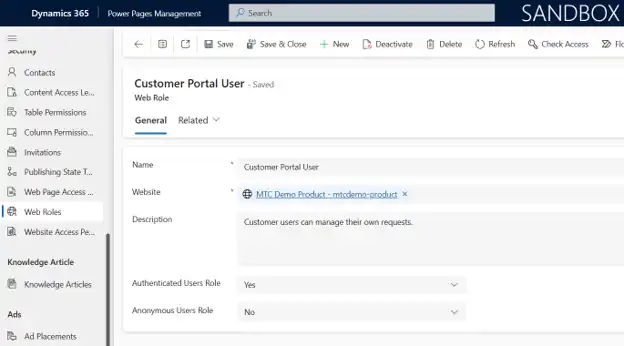
The Web Role is now available for assignment to contacts.
Assigning Users to a Web Role
Once the role exists, assign users to it:
- In the Portal Management app, select Security → Contacts
- Select a contact
- Open the Portal Contact (Enhanced Form)
- In the General tab, scroll to the Web Roles section and select Add Existing Web Role
- Select Customer Portal User
- Add, then Save
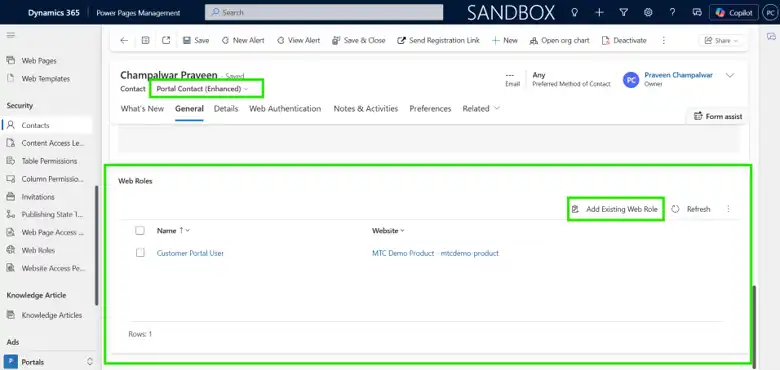
After assignment, the portal user inherits all permissions linked to the role.
Table Permissions
In Power Pages, access to Dataverse data is controlled through Table Permissions. Whether users interact with data through lists, forms, Liquid templates, the Web API, or custom components, Table Permissions determine which records they can access and what actions they can perform. Table Permissions are linked to Web Roles, enabling secure, role-based access.
Available Privileges
| Privilege | Purpose |
|---|---|
| Read | View records |
| Create | Create records |
| Write | Update records |
| Delete | Delete records |
| Append | Associate records |
| Append To | Allow records to be associated |
These map to Dataverse privileges but are evaluated through Power Pages’ own security layer.
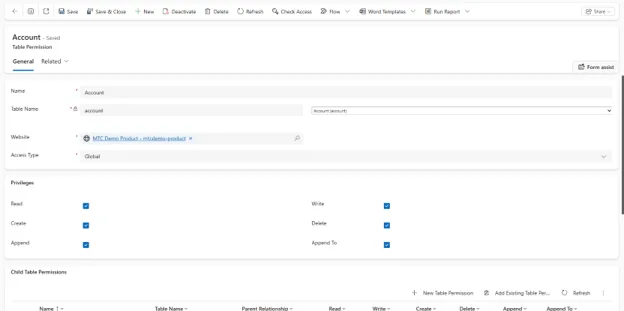
Creating a Table Permission
Navigate to Security → Table Permissions → New, then link the permission to one or more Web Roles.
Table Permission Access Types
Access Type is one of the most important concepts in Power Pages security — get it wrong and you either lock users out of everything or expose data across tenants.
1. Global — users can access all records in the table. Example: every customer sees all support tickets. Not recommended unless the data is genuinely public. Broad Global access is the most common security audit failure.
2. Contact — users access records linked directly to their own Contact record through a defined relationship. Example: on the Account table using the Primary Contact relationship (account_primary_contact), the portal user sees only the Account where they are configured as Primary Contact.
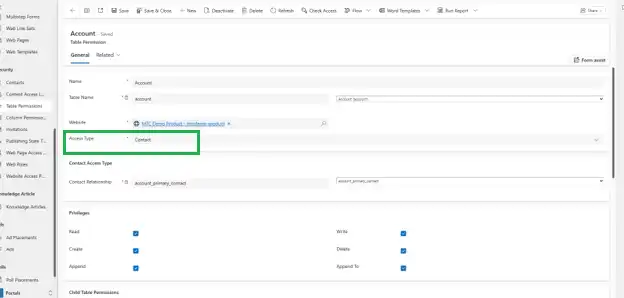
3. Account — the logged-in user’s Contact → the Account they belong to → related records. Example: a portal user’s Contact is linked to an Account. Using the Parent Access Type on Cases, the portal shows only the Case records related to that Account.
4. Self — users can access only their own Contact record. Example: a “My Profile” page where a user can view and edit their own details but not other Contacts.
5. Parent — access is inherited through related tables. Example: Account → Child Accounts → Cases. Power Pages checks whether the user has access to the parent record first, then grants access to child records automatically.
Web Roles + Table Permissions — Worked Scenarios
Web Roles and Table Permissions only work together. A user must be assigned a Web Role, and that Web Role must be associated with a Table Permission for anything to happen.
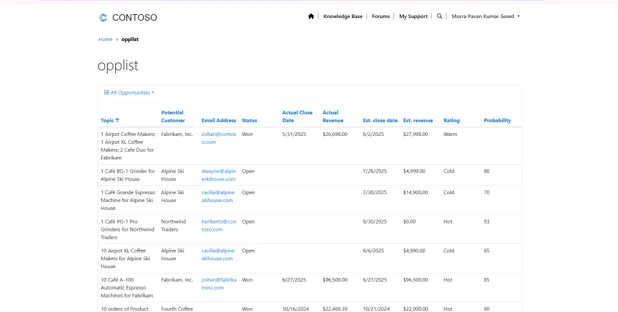
Scenario 1 — Read enabled
Objective: Allow portal users to view opportunity records.
Configuration:
- Web Role: Customer Portal User
- Table:
opportunity - Privilege: Read
Result: After signing in, users can view the list of opportunities but cannot create, edit, or delete them.
Scenario 2 — Read disabled
Objective: Prevent portal users from viewing contact records.
Configuration:
- Web Role: Customer Portal User
- Table:
contact - Privilege: Read disabled
Result: Users cannot view any Contact records. The portal displays no records or an access denied message.
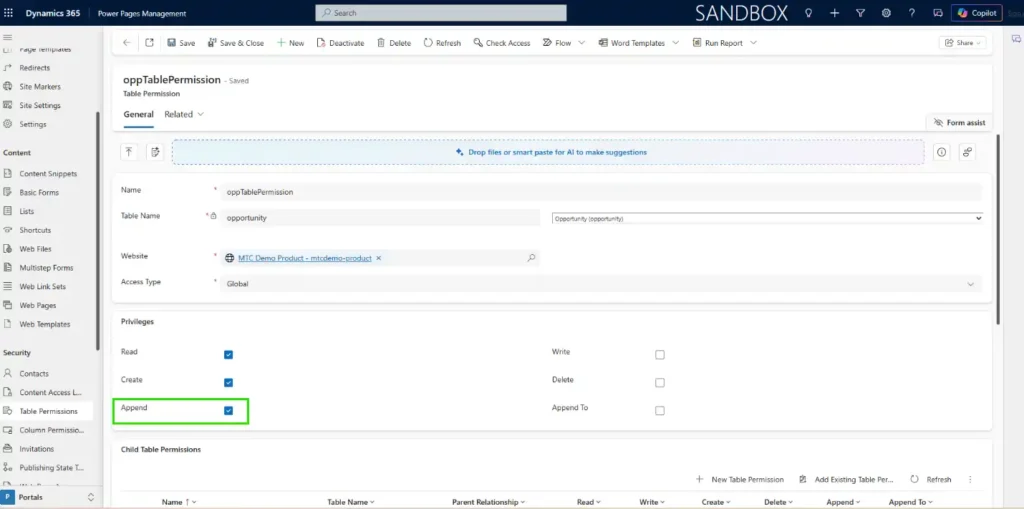
Scenario 3 — Append privilege
Objective: Allow portal users to associate an existing Opportunity with another record (for example, an Account).
Configuration:
- Web Role: Customer Portal User
- Table: Opportunity
- Privilege: Append
Result: The user can associate an existing Opportunity with another record. Without Append, the association cannot be created even if the user has access to both records.
Common Security Mistakes
- Using Global access type when Contact or Account would work. The most common audit failure.
- Forgetting to link a Web Role to the Table Permission. The permission exists but has no effect.
- Not publishing the Table Permission after creation.
- Relying entirely on the default Authenticated Users role without layering custom roles for finer control.
- Testing as a system administrator instead of as a low-privilege portal user — masks security gaps.
- Leaving the Local Authentication (ASP.NET Identity) option on in production. Microsoft recommends migrating to Azure AD B2C or Microsoft Entra External ID for production portals.
Frequently Asked Questions
How does Power Pages security differ from Dataverse security?
Dataverse security roles apply to internal Microsoft Entra users working in model-driven apps. Power Pages security applies to external portal users represented by Contact records. The two models are separate. A Dataverse security role gives no access to portal data, and a Power Pages Web Role gives no access to model-driven apps. They coexist but do not overlap.
What do analysts predict for portal security in the AI-agent era?
The direction from Gartner is clear: portal security models are increasingly the boundary AI agents inherit. In August 2025, Gartner forecast that 40% of enterprise applications will integrate task-specific AI agents by the end of 2026, up from less than 5% in 2025. For Power Pages, that matters because Microsoft’s MCP Server for Power Pages explicitly respects the web roles, table permissions, and authentication boundaries you configure — AI agents connecting through it inherit the same permission model. The authorisation work in this post is exactly the boundary agents will operate within.
Should I use Global access type?
Rarely. Global access exposes every record in the table to every user with the linked Web Role. Use it only when the data is genuinely public (a service catalogue, public knowledge articles). For customer-scoped data, Contact or Account are almost always safer choices.
Conclusion
Power Pages security rests on two pillars: Web Roles to define who portal users are, and Table Permissions to define what they can do with data. Getting the model right the first time avoids the two most common failure modes — over-exposed data through Global access, and empty portals through missing permissions.
Building a secure Power Pages portal? MTC delivers Power Pages implementations, security reviews, and portal customisations for Microsoft partners and end users alike. Explore our Power Pages services or email salesteam@mtccrm.com.