Model Context Protocol (MCP) is quickly becoming the standard way to plug external tools and data sources into Microsoft Copilot Studio agents. But most teams hit the same wall the first time they try it: the managed solution imports fine, the agent shows up, and then the connection fails with an AADSTS50011 redirect URI error that has nothing obviously to do with the tool itself.
This guide walks through connecting a custom MCP tool to a Copilot Studio agent end to end — importing the solution in Power Apps, wiring up the MCP connection, and fixing the redirect URI mismatch when it shows up. It’s written from real implementation work, not the product docs, so the steps match what you’ll actually see on screen.
What is Model Context Protocol? MCP is an open standard that lets AI agents call external tools and read external data through a single, consistent connection — instead of a custom integration for every tool an agent needs. In Copilot Studio, an MCP tool shows up under an agent’s Tools tab once it’s connected, the same way a Power Automate flow or connector would.
Importing and Connecting an MCP Tool in Copilot Studio
The setup happens in two places: Power Apps, where the solution is imported, and Copilot Studio, where the tool is wired into the agent.
Import the managed solution
Open Power Apps and select the target environment. From the Solutions area, choose Import solution, then browse to the managed solution ZIP file for the MCP tool. Confirm the file is the managed package (not unmanaged) before continuing.
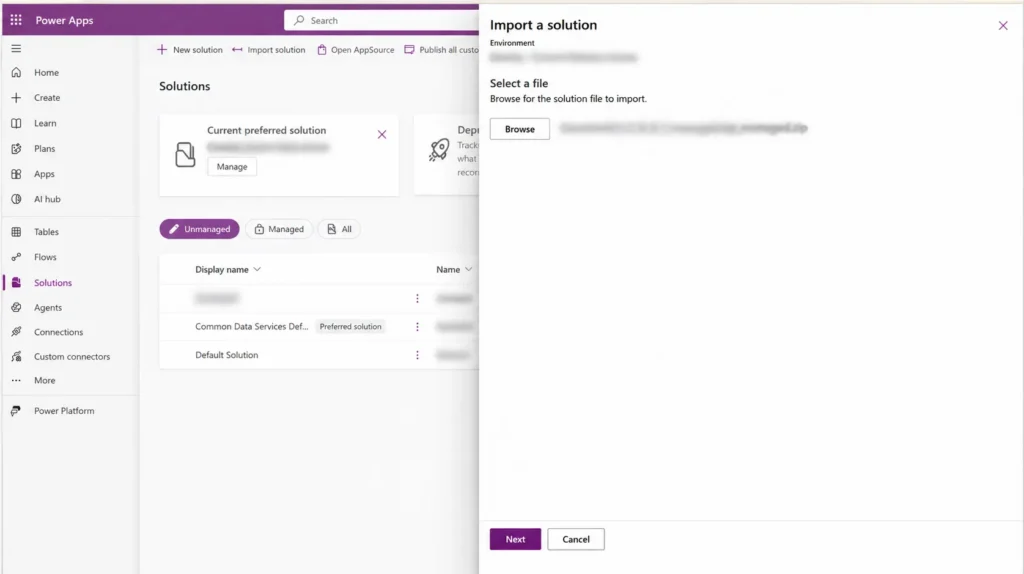
Review the import details — solution name, type, publisher, and version — against what you’re expecting to install. Leave Enable Plugin steps and flows included in the solution selected, then continue.
The import wizard will list any environment variables the solution needs — commonly a client ID and client secret for the MCP connection. Verify the values are present; don’t edit, regenerate, or reformat them unless you have a specific reason to. Confirm the import and wait for the success notification before moving on.
Connect the tool inside the agent
Open the imported solution, select Agents, and open the agent that was installed. This opens the agent’s configuration in Copilot Studio.
In the agent, go to the Tools tab and confirm the MCP tool is listed under Model Context Protocol. Select it to open its connection details.
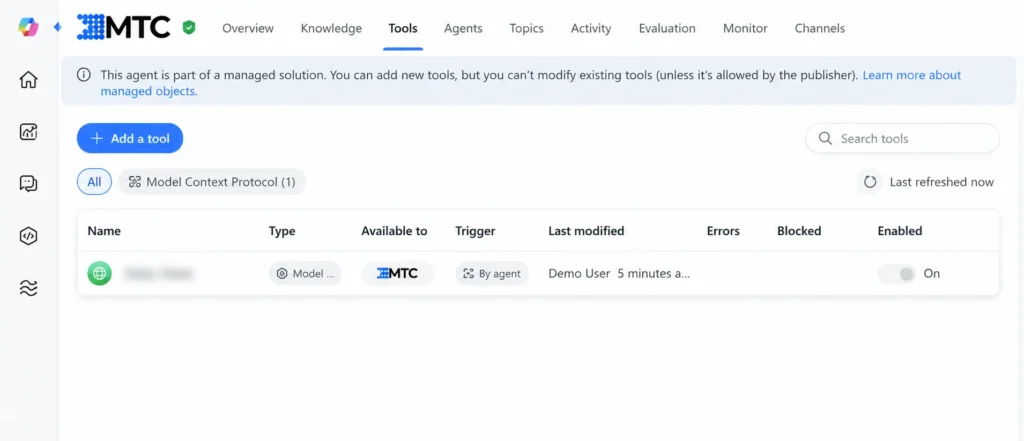
If the Connection field shows “Not connected,” open the connection menu and choose Create new connection. Keep the display name appropriate for the environment and click Create — this opens a sign-in flow in a new browser window.
Fixing the AADSTS50011 Redirect URI Error
The AADSTS50011 error means the redirect URI the app sent during sign-in isn’t registered in the app’s Azure AD app registration — the fix is to copy that exact URI from the error message and add it to the app registration’s Authentication settings, then retry the connection.This is the single most common blocker when connecting a new MCP tool, and it’s not a sign anything is broken — new connections generate a redirect URI that simply hasn’t been registered yet.
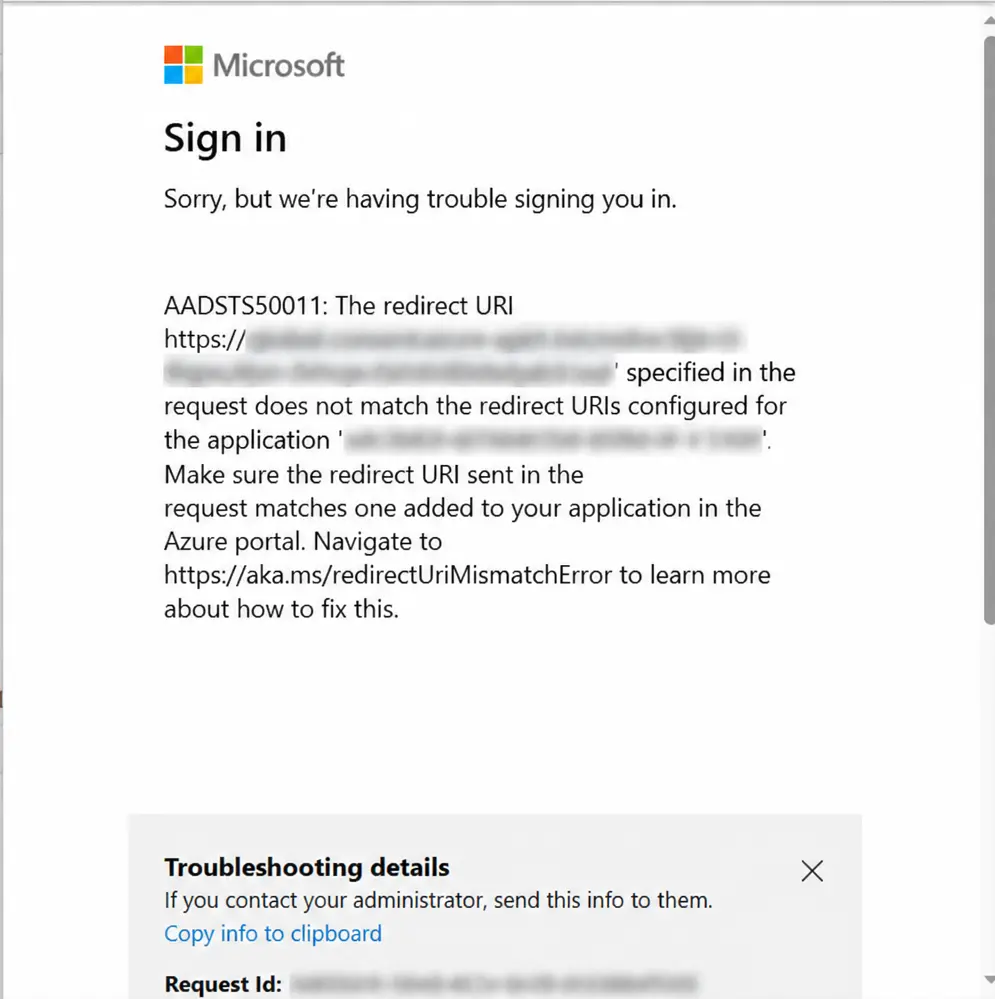
When sign-in fails this way, don’t touch the client ID or client secret — they’re not the problem. Instead:
- In the error message, locate and copy the full redirect URI exactly as shown. Don’t copy any credential values alongside it.
- Open the Azure portal and go to the app registration tied to the MCP tool. Under Manage, select Authentication.
- Click Add Redirect URI, choose the Web platform, and paste the copied URI in. Check it carefully for exact spelling and path — a single trailing slash mismatch will reproduce the same error.
- Click Configure to save it.
- Return to the Copilot Studio connection dialog. If the earlier sign-in attempt is still open, cancel it — the connection menu will likely show a warning or connection error at this point, which is expected, since that attempt started before the redirect URI existed.
- Open the connection menu again and click Reconnect. If that doesn’t complete cleanly, use Create new connection instead and sign in again.
- Confirm the connection shows a green/connected status with no warning before moving on.
Problems This Solves
Problem: An MCP tool imports successfully but the agent can’t use it because the connection never completes. How this solves it: The AADSTS50011 error is almost always the actual blocker, not a deeper configuration issue — fixing the redirect URI resolves it in one pass.
Problem: Teams assume a failed sign-in means the client ID or secret is wrong and start regenerating credentials. How this solves it: Redirect URI mismatches are unrelated to credential validity — regenerating secrets at this stage usually creates a second problem on top of the first.
Problem: The agent is connected but doesn’t show up anywhere users can reach it. How this solves it: Publishing the agent and enabling it under the Microsoft 365 and Teams channel is a separate step from the MCP connection — both need to be done before an agent is usable.
Problem: No clear way to verify the setup actually worked before handing it to end users. How this solves it: A short completion checklist (solution imported, tool listed, connection green, agent published, channel enabled) catches gaps before users find them.
Frequently Asked Questions
Why does connecting a custom MCP tool matter for a Copilot Studio agent?
Gartner’s research on MCP describes it as an open standard that lets AI agents access external data and tools without a custom integration for each one — which is exactly what an MCP connection inside Copilot Studio is doing. For a Microsoft partner building agents for clients, that means less one-off integration work per tool and a more maintainable agent over time.
What should a team know before rolling out a Copilot Studio agent beyond a pilot?
Gartner analyst Kyle Davis’s research on building AI assistants in Copilot Studio emphasizes learning the platform’s emerging patterns and best practices before scaling an agent past a single use case. In practice, that means validating the MCP connection, channel setup, and publishing steps in a test environment first, rather than discovering a redirect URI issue in front of end users.
Conclusion
Most of the friction in connecting an MCP tool to Copilot Studio isn’t the MCP protocol itself — it’s the Azure AD handshake underneath it. Once you know the AADSTS50011 error is a redirect URI registration gap and not a credentials problem, the fix takes a few minutes instead of a support ticket.
Talk to MTC’s Power Platform and AI Foundry team if you’re connecting MCP tools into a client’s Copilot Studio environment and want a second set of eyes on the setup.