
Introduction
For Microsoft partners delivering Dynamics 365 customisations, plug-ins are where the real business logic lives. They’re also where projects get hard: tracing failures in the sandbox, passing data cleanly between steps, capturing the right record state, and triggering server-side logic from the client. Get these patterns right and your delivery is faster and far more reliable.
This Dynamics 365 plug-in development guide pulls together four techniques every CRM developer on a partner team should have in their toolkit: enabling and reading the plug-in trace log, using shared variables to pass data between plug-ins, working with pre-images and post-images, and executing a plugin from JavaScript via a custom action. Each comes with the real business scenario behind it.
What this guide covers:
- Enabling and using the Plug-in Trace Log for debugging
- Isolation (sandbox) mode and what it restricts
- Shared variables — passing data between pre and post events
- Pre-images and post-images — capturing record state
- Executing a plugin from JavaScript using a custom action
Debugging with the Plug-in Trace Log
To trace a plug-in, Dynamics 365 provides the Plug-in Trace Log, which stores trace log information from your plug-in execution — invaluable when something fails inside the sandbox where you can’t attach a debugger easily.
Enabling the Plug-in Trace Log
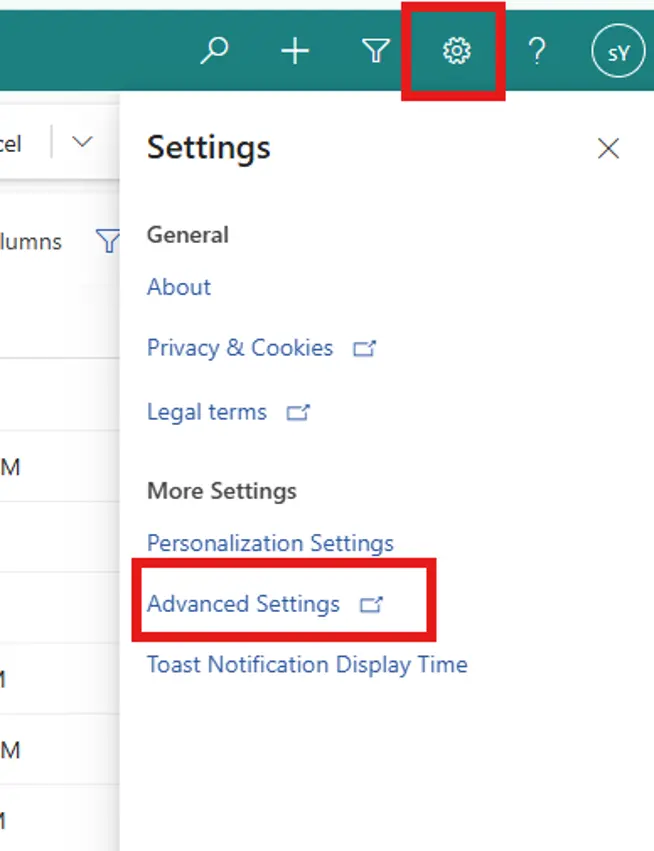
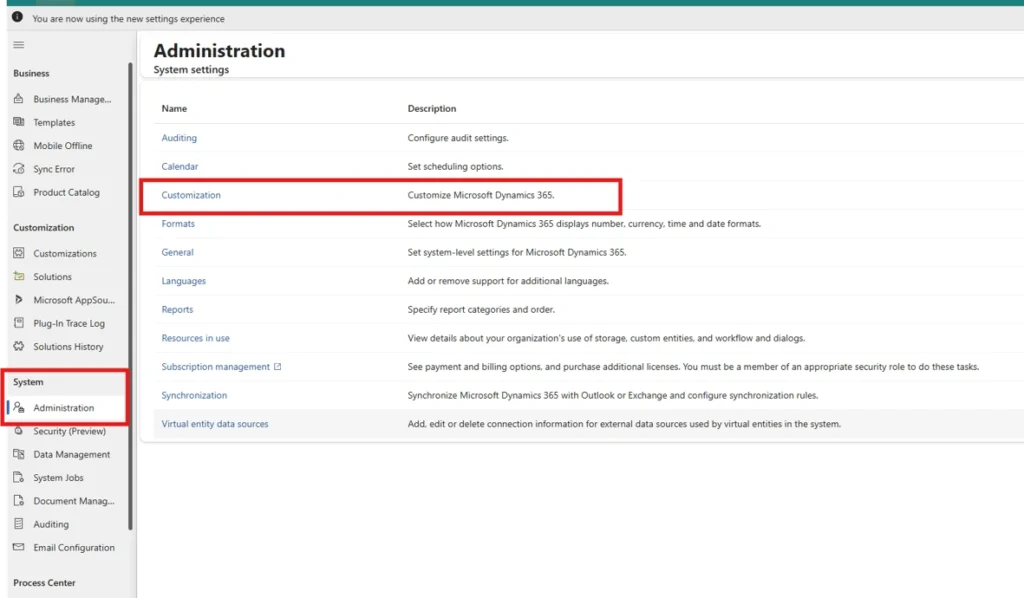
Navigate to Settings > Advanced Settings to open the Administration window. Open System Settings (System → Administration), then on the Customization tab set Enable logging to Plug-in Trace Log to All, and click Save.
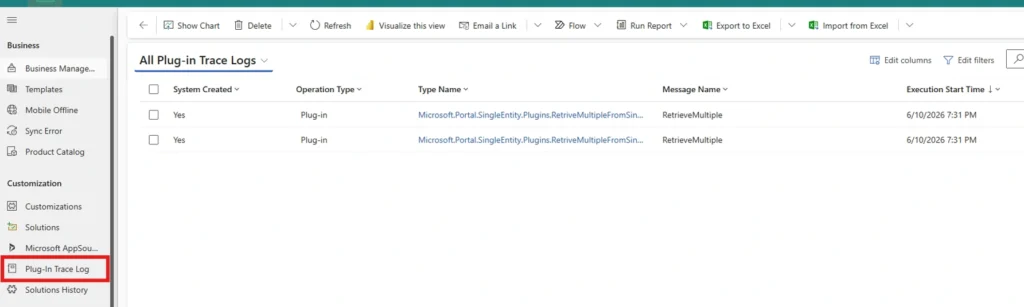
To review the entries, go to Settings > Advanced Settings > Customization > Plug-in Trace Log.
Understanding Isolation (Sandbox) Mode
Isolation mode describes the level of security restrictions imposed on the plug-in execution pipeline. A few essentials partners should keep front of mind:
- Isolation mode is set at the assembly level, not on individual plug-in steps.
- A plug-in in isolation mode is either sandbox or none.
- Dynamics 365 (CRM online) plug-ins can only run with isolation mode = sandbox.
- A plug-in with isolation mode = none is a “normal” plug-in (on-premises scenarios).
- Sandbox mode is more secure but restricts access to the file system, system event log, certain network protocols, the registry, and some database/file-directory functionality — though the plug-in can still access the Dynamics 365 organization service.
This is exactly why robust trace logging matters: in the sandbox, the trace log is often your clearest window into what the plug-in is doing.
Passing Data with Shared Variables
A plug-in is custom business logic that executes when a particular event occurs — it acts as an event handler in Dynamics 365, triggered on create, update, delete, and so on (for example, sending an email when an event takes place).
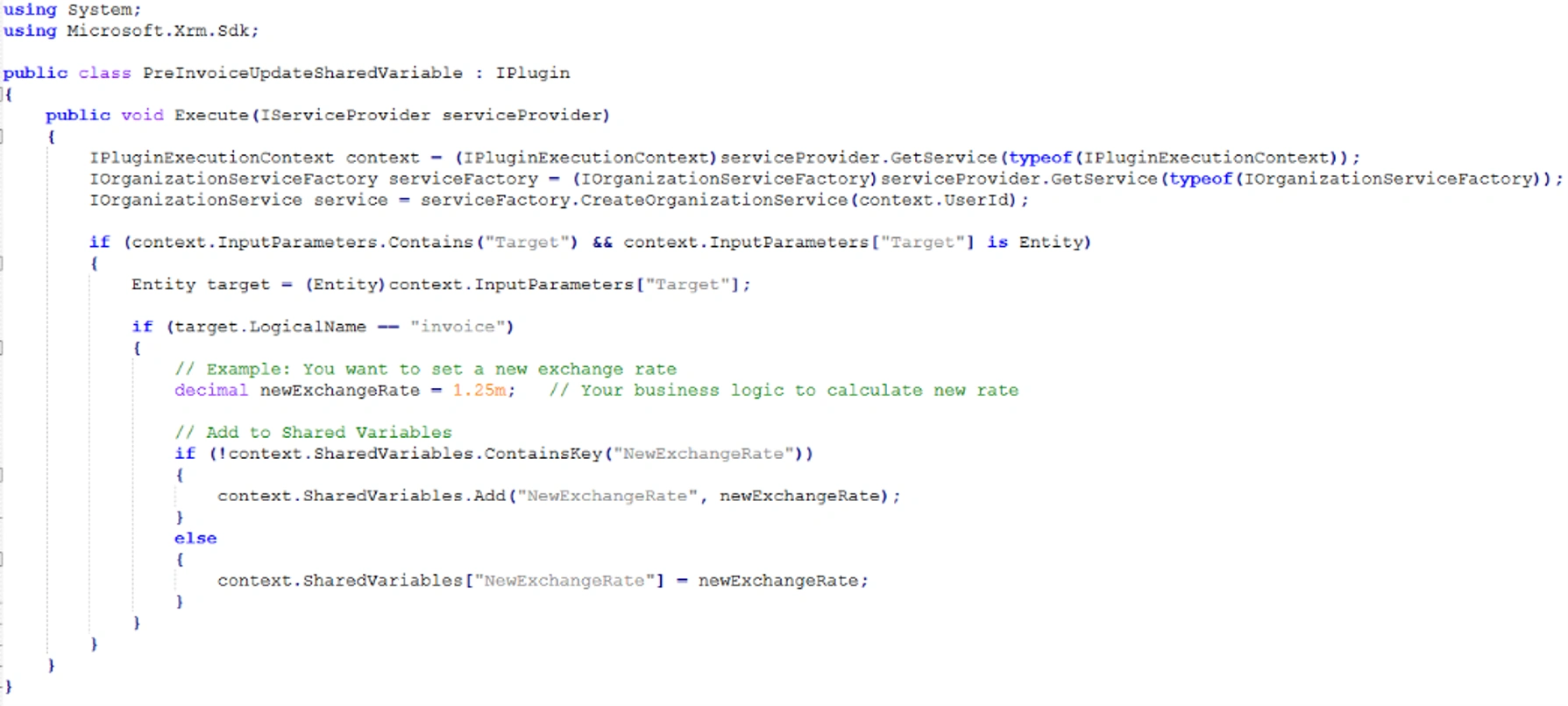
Shared variables let you pass data between plug-ins registered on pre and post events. Rather than parking values in custom attributes, you store them in the context’s shared variables and read or write them across the pipeline.
Real Business Scenario — Invoice Exchange Rate
On the invoice entity, we needed to change the exchange rate field but couldn’t directly, because the base currency value couldn’t be changed. The clean solution was shared variables — using them to carry the value needed to update the exchange rate field on the invoice.
How it’s wired up:
- Add data into the shared variable context in the first plug-in.

- Read that shared variable data in the second plug-in.

- Register a step on the first plug-in: Update message, primary entity Invoice, stage Pre-operation.
- Register a step on the second plug-in: Retrieve Exchange Rate message, primary entity Transaction Currency, stage Post-operation.
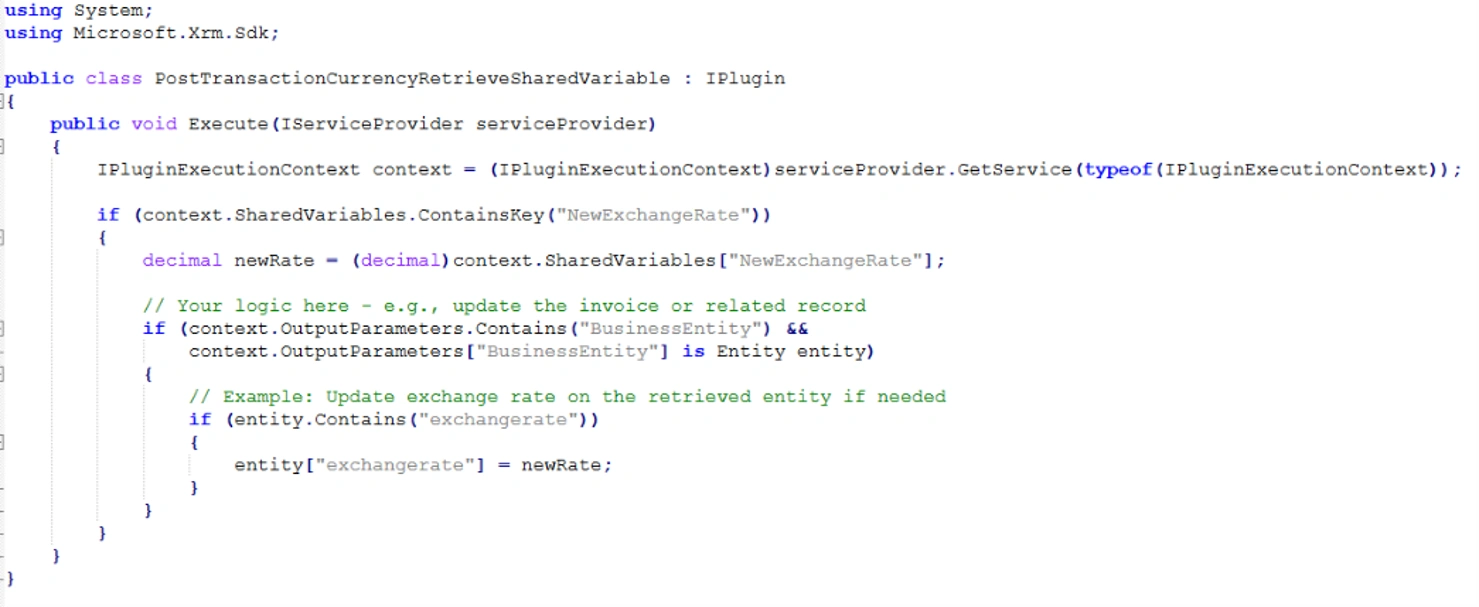
Plug-in patterns like this are where partner delivery quietly succeeds or stalls. If your team needs depth here, MTC delivers Dynamics 365 plug-in development white-label behind Microsoft partners — see how we work at the end.
Event Pipeline, Pre-Images & Post-Images
The Event Pipeline
The event pipeline controls when in the operation your plug-in code executes. There are three stages:
- Pre-Validation — security checks run to verify the calling/logged-on user has valid permissions for the intended operation.
- Pre-Operation — runs after validation, before values are saved to the database.
- Post-Operation — runs after values have been inserted or changed in the database.
Pre-Images and Post-Images
Entity images are snapshots of records stored either before or after the database operation completes:
- Pre-Image — a snapshot of the entity’s attribute data before saving to the database.
- Post-Image — a snapshot of the entity’s attribute data after saving to the database.
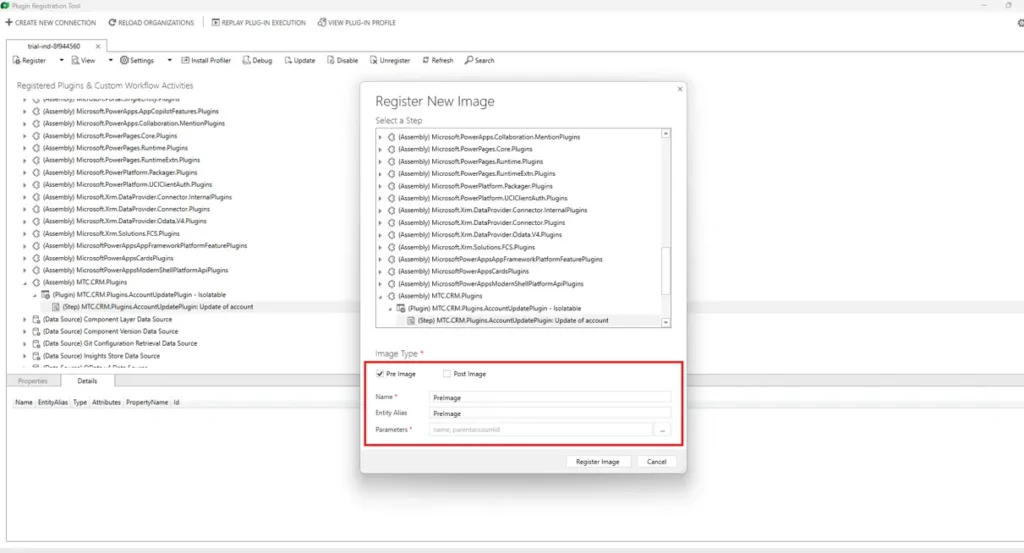
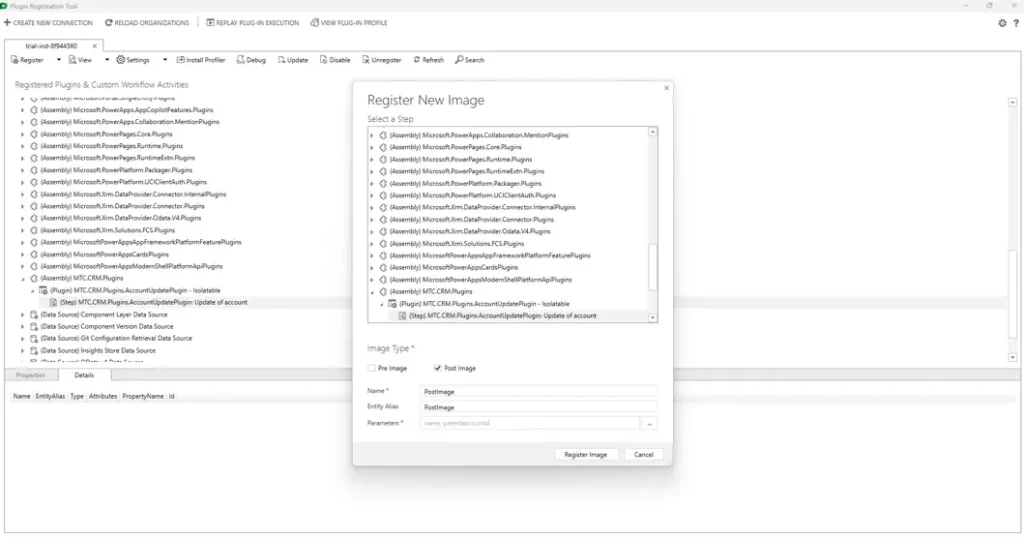
Real Business Scenario — Capturing the Old Parent Account
Whenever the parent account field is updated on the account entity, we want to retrieve the old value and store it in a “pre-value” field.
How it’s wired up:
- Register a plug-in on the account entity, with a step on Update of the account name field, stage Post-operation.
- Register an image step on the update step; name the pre-image and post-image, and select the attributes to capture for each.
- In code, read the pre-image to get the prior parent account value, and use the post-image for the new value.
- In code, read the pre-image to get the prior parent account value, and use the post-image for the new value.
using System;
using Microsoft.Xrm.Sdk;

namespace MTC.CRM.Plugins
{
    public class AccountUpdatePlugin : IPlugin
    {
        public void Execute(IServiceProvider serviceProvider)
        {
            // 1. Tracing Service
            ITracingService tracingService =
                (ITracingService)serviceProvider.GetService(typeof(ITracingService));

            // 2. Execution Context
            IPluginExecutionContext context =
                (IPluginExecutionContext)serviceProvider.GetService(typeof(IPluginExecutionContext));

            // 3. Validate stage and entity
            if (context.MessageName.ToLower() != "update") return;
            if (context.Stage != 40) return;   // Post-Operation only
            if (context.PrimaryEntityName.ToLower() != "account") return;

            try
            {
                // 4. Organization Service
                IOrganizationServiceFactory factory =
                    (IOrganizationServiceFactory)serviceProvider
                        .GetService(typeof(IOrganizationServiceFactory));
                IOrganizationService service =
                    factory.CreateOrganizationService(context.UserId);

                // 5. Retrieve Pre-Image (old values)
                Entity preImage = null;
                if (context.PreEntityImages.Contains("PreImage"))
                    preImage = context.PreEntityImages["PreImage"];

                // 6. Retrieve Post-Image (new values)
                Entity postImage = null;
                if (context.PostEntityImages.Contains("PostImage"))
                    postImage = context.PostEntityImages["PostImage"];

                // 7. Build update record
                Entity accountToUpdate = new Entity("account")
                {
                    Id = context.PrimaryEntityId
                };

                bool hasChanges = false;

                // 8. Write OLD parent account value from Pre-Image
                if (preImage != null && preImage.Contains("parentaccountid"))
                {
                    EntityReference oldRef =
                        preImage.GetAttributeValue<EntityReference>("parentaccountid");
                    accountToUpdate["new_prevalue"] =
                        oldRef != null ? oldRef.Name : string.Empty;
                    hasChanges = true;
                }

                // 9. Write NEW parent account value from Post-Image
                if (postImage != null && postImage.Contains("parentaccountid"))
                {
                    EntityReference newRef =
                        postImage.GetAttributeValue<EntityReference>("parentaccountid");
                    accountToUpdate["new_postvalue"] =
                        newRef != null ? newRef.Name : string.Empty;
                    hasChanges = true;
                }

                // 10. Update the record
                if (hasChanges)
                    service.Update(accountToUpdate);
            }
            catch (Exception ex)
            {
                throw new InvalidPluginExecutionException(
                    "AccountUpdatePlugin failed: " + ex.Message, ex);
            }
        }
    }
}
The result: the pre-value field captures the old parent account, while the post-image reflects the updated value — a clean audit pattern partners reuse constantly.
Executing a Plugin from JavaScript (via a Custom Action)
There are many scenarios where you need to call a plugin from the client — for example, from a field’s on-change event. A very effective approach is to route it through a custom action.
The steps:
- Create an action in Dynamics 365 (a blank action, no arguments or steps), and activate it.
- Register your plugin.
- Register a step on the action message (use the action’s name, e.g.
mtc_sendemail...), primary entity Order, stage Post-operation. - Call the action from JavaScript.

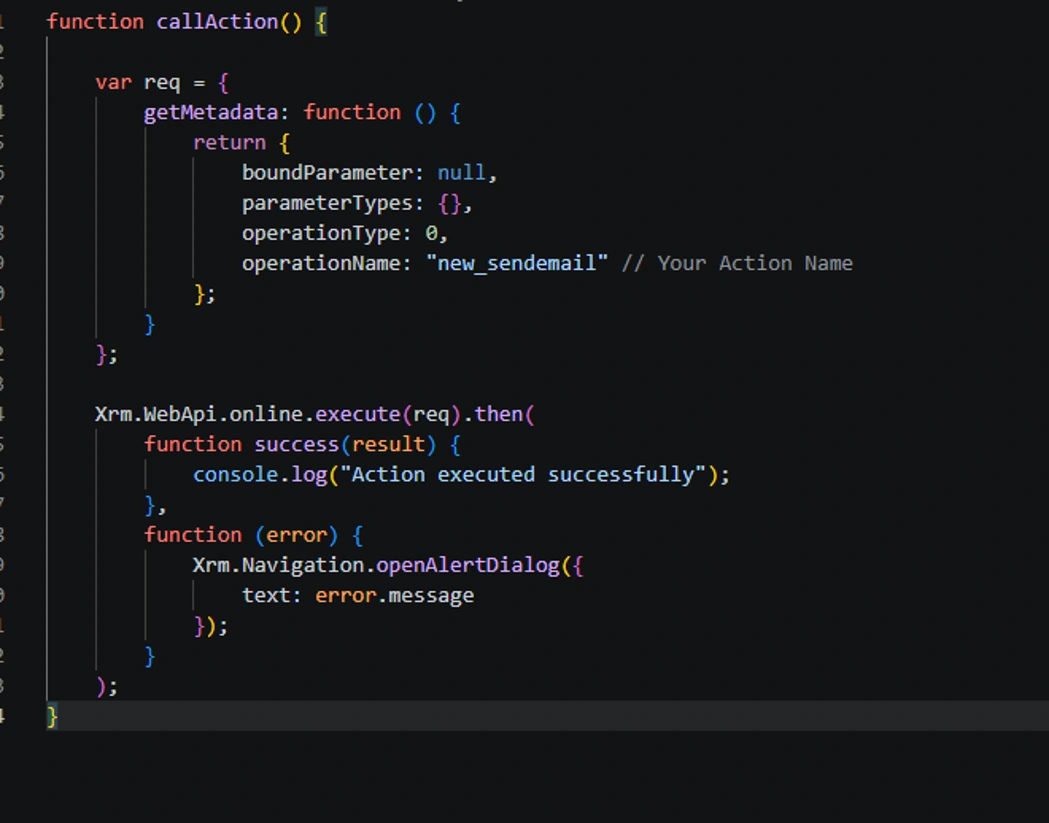
Real Business Scenario — Trigger on Order Field Change
On the order entity, a custom field’s on-change event should trigger a plugin. Create a blank action, activate it, and use its name when registering the plugin step. In this example the plugin code simply throws an exception (to demonstrate the call path); in a real build, this is where your server-side logic runs. The callAction function is then invoked from the on-change event on the order entity.
This action-based pattern is also the foundation for more advanced server-side triggers — including invoking plugin logic through an MCP server, which will be covered in a companion post.
Frequently Asked Questions
How do I debug a Dynamics 365 plug-in running in the sandbox?
Enable the Plug-in Trace Log under System Settings > Customization (set logging to All), write trace messages from your plug-in, and review entries under Settings > Advanced Settings > Customization > Plug-in Trace Log. In sandbox isolation you can’t easily attach a debugger, so trace logging is the primary tool.
What’s the difference between a pre-image and a post-image?
A pre-image captures an entity’s attribute values before the database operation; a post-image captures them after. Pre-images are commonly used to read the old value of a field during an update, while post-images reflect the saved state.
When should I use shared variables in a plug-in?
Use shared variables to pass data between plug-ins registered on pre and post events in the same pipeline, instead of persisting values in custom attributes. It keeps the data in context and avoids unnecessary schema changes.
Why call a plugin from JavaScript instead of triggering it directly?
Routing through a custom action lets client-side events (like a field on-change) invoke controlled server-side logic on demand, rather than relying only on standard create/update/delete triggers. It gives you a clean, explicit entry point.
Conclusion
Trace logs, shared variables, pre/post-images, and action-triggered plugins are core to reliable Dynamics 365 plug-in development. Used well, they make partner delivery faster, easier to debug, and far more maintainable — the difference between a customisation that holds up in production and one that generates support tickets.
MTC is a development-first Microsoft partner. We deliver Dynamics 365 / Power Platform plug-in development white-label behind Microsoft partners who need deep CRM engineering without expanding their own team — the partner keeps the client relationship, we handle the build.
CTA: Need Dynamics 365 plug-in development depth on a project? Talk to MTC about white-label delivery for Microsoft partners.