If your team already uses cloud flows in Power Automate, you may not need to rebuild everything from scratch to use Microsoft Copilot Studio. In many scenarios, you can convert an existing automation into an agent flow and manage it from a single AI-first experience.
This guide explains when to convert, what to check before you start, and the exact steps to move from a Power Automate flow plan to a Copilot Studio plan.
Why Convert a Cloud Flow to an Agent Flow?
Converting a cloud flow to an agent flow helps centralize automation and conversational AI in one platform. For organizations scaling Copilot experiences, this can simplify governance and align usage with Copilot Studio capacity.
Key benefits include:
- Centralized management of conversational agents and related automations.
- Better alignment between agent orchestration and backend workflow execution.
- Capacity consumption through Copilot Studio instead of Power Automate owner plan billing for that flow.
- Cleaner architecture for teams building end-to-end experiences with Microsoft Power Platform.
At MTC, we often recommend this approach when clients are expanding from traditional workflow automation into agent-led business processes across Dynamics 365 and Power Platform.
Important Prerequisites Before You Convert
Before you switch plans, verify these conditions first:
- The flow is already inside a solution.
- The flow sits in the correct Power Platform environment where Copilot Studio capacity is available.
- You have permissions to edit the flow details.
- Your Power Platform admin has assigned or confirmed capacity for Copilot Studio usage.
One critical note: this conversion is one-way. After switching to the Copilot Studio plan, you cannot reverse it back through a simple toggle.
Step-by-Step: Convert Power Automate Flow to Agent Flow
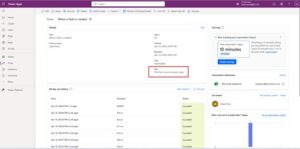
Step 1: Open the Flow Details Page
Go to the Power Automate portal and open the details page for the cloud flow you want to convert.
Step 2: Confirm the Flow Is in a Solution
Check whether the flow is solution-aware. If it is not inside a solution yet, add it to a solution first and then continue.
Why this matters:
- Solution-aware flows are easier to govern, deploy, and manage across environments.
- Copilot Studio scenarios typically rely on solution-driven lifecycle practices.
Step 3: Validate Environment and Capacity
Make sure the flow is in the exact environment where you want Copilot Studio capacity to be consumed.
If capacity is not allocated yet, coordinate with your Power Platform administrator before proceeding.
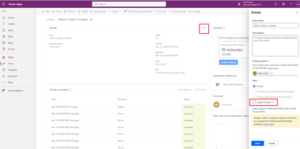
Step 4: Select Edit on the Flow Details
On the flow details page, select
Edit to open plan configuration options.
Step 5: Change Plan from Owner to Copilot Studio
Update the flow plan setting and select
Copilot Studio.
This is the key conversion action that moves the flow into an agent-flow aligned consumption model.
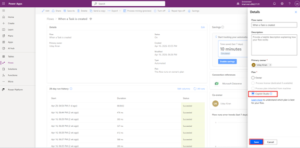
Step 6: Save the Changes
Select
Save to apply the plan change.
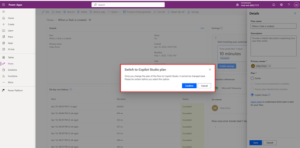
Step 7: Confirm the Conversion Prompt
When prompted, confirm the conversion. This confirmation indicates that the switch is permanent for this flow path.
Step 8: Verify Successful Update
After saving, confirm that the flow details page now shows the Copilot Studio plan.
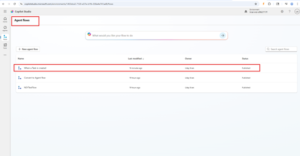
Then validate the converted flow under
Agent Flows in your Copilot Studio context.

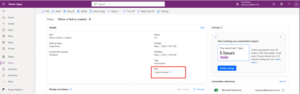
- Figure 1: The initial Flow Details page showing the current Owner’s plan.

- Figure 2: Editing the flow details to change the Plan from Owner to Copilot Studio plan.

- Figure 3: Editing the flow details to select the Copilot Studio plan.
- Figure 4: Confirming the permanent switch to the Copilot Studio plan.

- Figure 5: The Flow Details page successfully updated to the Copilot Studio plan.

- Figure 6: Verifying your converted flow under Agent Flows.
What Changes After Conversion?
Once converted, expect these operational changes:
- Plan and capacity attribution shift to Copilot Studio.
- The flow becomes part of your broader agent-first automation strategy.
- Governance conversations move closer to AI orchestration and environment-level management.
What does not automatically change:
- Your business logic still needs testing.
- Trigger behavior and dependencies must be revalidated in real usage.
- Security, connection references, and solution dependencies still require standard ALM checks.
Common Mistakes to Avoid
Teams often run into avoidable issues during conversion. Watch for these:
- Converting without confirming solution placement.
- Moving in the wrong environment, then discovering capacity mismatch.
- Skipping post-conversion testing of trigger and action reliability.
- Forgetting the one-way nature of the conversion.
A short pre-conversion checklist and a controlled validation cycle can prevent most of these problems.
Best Practices for Enterprise Teams
For mid-market and enterprise deployments, use these practices:
- Use solution-based ALM across development, test, and production environments.
- Document which flows are converted and why.
- Pair conversion with monitoring and alerting for critical business processes.
- Validate permissions and service accounts before and after conversion.
- Maintain rollback strategy at the process level (not plan toggle level), such as backup flow patterns.
If you run Dynamics 365 workloads, align converted agent flows with your CRM/ERP process governance to avoid fragmented ownership across teams.
MTC Recommendation
Treat flow conversion as part of a broader Copilot Studio adoption roadmap, not as a one-off technical action. The highest value comes when converted flows are connected to clearly designed agent experiences, robust knowledge sources, and well-defined escalation paths.
MTC helps organizations design this end-to-end model across Microsoft Copilot Studio, Power Platform, and Dynamics 365 so teams can move faster without compromising control.
Schedule a Consultation
Related Services
Microsoft Reference:
https://learn.microsoft.com/microsoft-copilot-studio/
Conclusion
Converting a Power Automate cloud flow to an agent flow is a practical step for organizations standardizing on Microsoft Copilot Studio. The process is straightforward, but it requires the right preparation: solution readiness, environment validation, and capacity alignment.
When done correctly, conversion helps you unify automation and AI orchestration in one operational model, making it easier to scale intelligent business workflows across your organization.
FAQs
Is converting a Power Automate flow to an agent flow reversible?
No. The conversion from the flow owner plan to Copilot Studio is a one-way action.
Do I need to move my flow into a solution before conversion?
Yes. If the flow is not solution-aware, add it to a solution first.
Will my flow logic automatically optimize after conversion?
No. Conversion changes plan and capacity alignment, but you still need to test and optimize business logic.
Who should validate capacity before conversion?
Your Power Platform administrator should confirm Copilot Studio capacity in the target environment.
Can this help with governance?
Yes. It supports centralized agent and automation governance when paired with solution-based ALM and environment controls.