Microsoft has introduced the Dataverse MCP Server (Model Context Protocol), letting AI tools such as GitHub Copilot and other MCP-compatible clients interact with Dataverse environments using natural language. Instead of clicking through Power Apps or hand-writing queries, developers and administrators can explore metadata, query records, manage tables, and run admin tasks straight from clients like Visual Studio Code with GitHub Copilot. This guide walks through the setup and shows how to run common Dataverse operations using plain-language prompts.
What you’ll learn:
- What the Dataverse MCP Server is and what it can do
- How to enable it for non-Microsoft MCP clients
- How to connect Visual Studio Code and GitHub Copilot
- Real prompt examples — querying records, exploring metadata, generating FetchXML, and creating a plugin step
- Where the current limitations are
What is the Dataverse MCP Server?
The Dataverse MCP Server exposes Dataverse capabilities as a set of tools that AI assistants can call on your behalf. These include:
- Querying Dataverse records
- Exploring metadata
- Searching tables and relationships
- Creating, updating, and deleting records
- Managing tables and columns
- Generating FetchXML queries
- Performing administrative tasks through natural-language prompts
For Dynamics 365 and Power Platform developers, this turns routine Dataverse work into a far more conversational, productive experience.
Prerequisites
Before you start, make sure you have:
- Visual Studio Code
- The GitHub Copilot extension
- Access to a Dataverse environment
- Power Platform Administrator permissions
- The Dataverse MCP Server enabled
Step 1: Configure and manage the Dataverse MCP Server
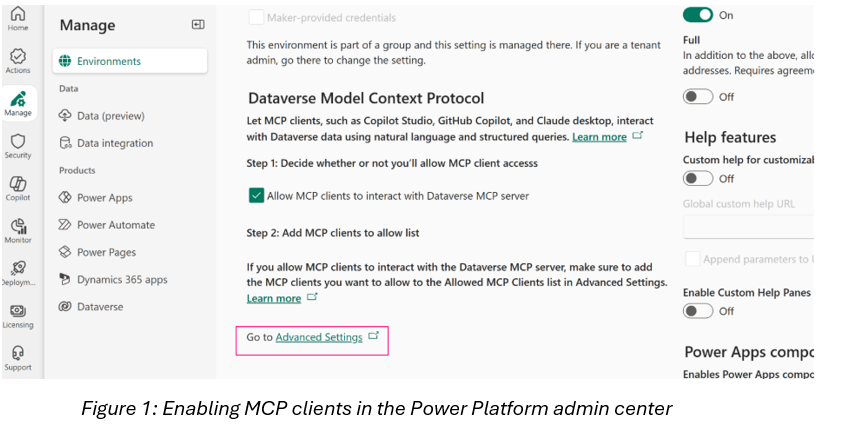
By default, the Dataverse MCP Server is enabled for Copilot Studio. To enable non-Microsoft MCP clients such as Visual Studio Code with GitHub Copilot (and Claude), do the following:
- Go to the Power Platform admin center and select Manage > Environments.
- Select the environment where you want to turn on the Dataverse MCP Server, then select Settings > Product > Features.
- Scroll to Dataverse Model Context Protocol and turn on Allow MCP clients to interact with Dataverse MCP server.

- Select Advanced Settings. The list of available clients appears. Open the client you want — in this example, Microsoft GitHub Copilot.

- On the MCP client record, set Is Enabled to Yes, then Save & Close.

- Repeat for any other clients you want to enable.
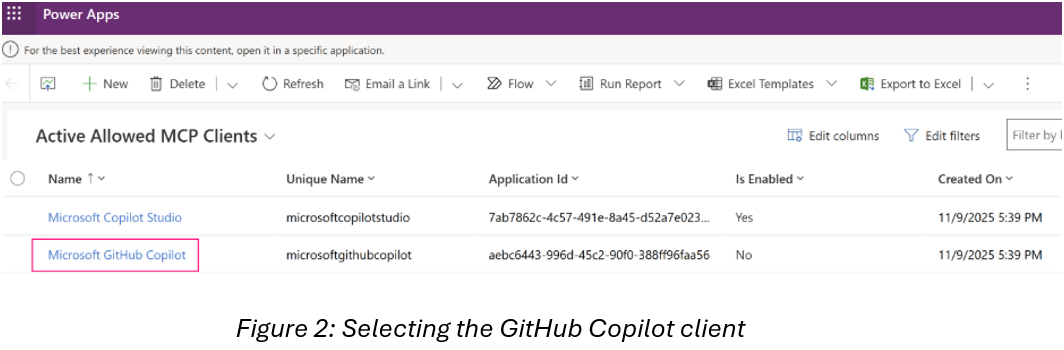
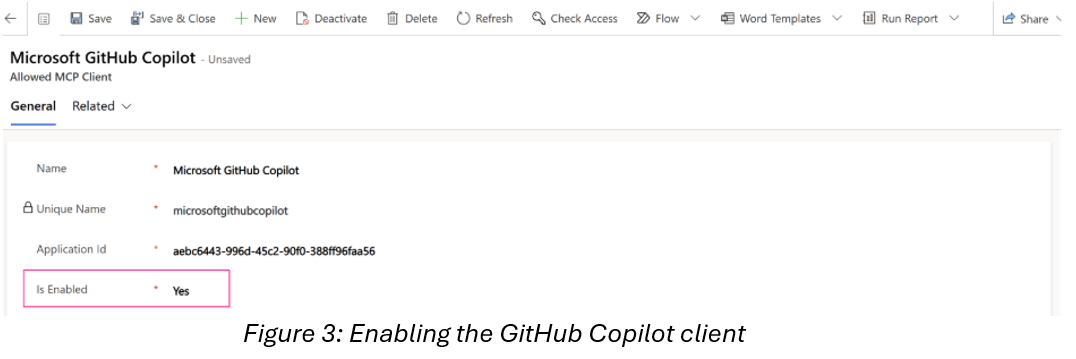
Step 2: Configure the Dataverse MCP Server in Visual Studio Code
Once the server is enabled, connect VS Code to your Dataverse environment.
- Open VS Code. Select View > Command Palette (Ctrl+Shift+P), type MCP: Add Server, then choose HTTP or Server Sent Events.
- Paste your instance URL (for example
https://contoso.crm.dynamics.com/) and append/api/mcp, then press Enter. You can find the instance URL at make.powerapps.com > Settings (gear icon) > Session details > Instance url.
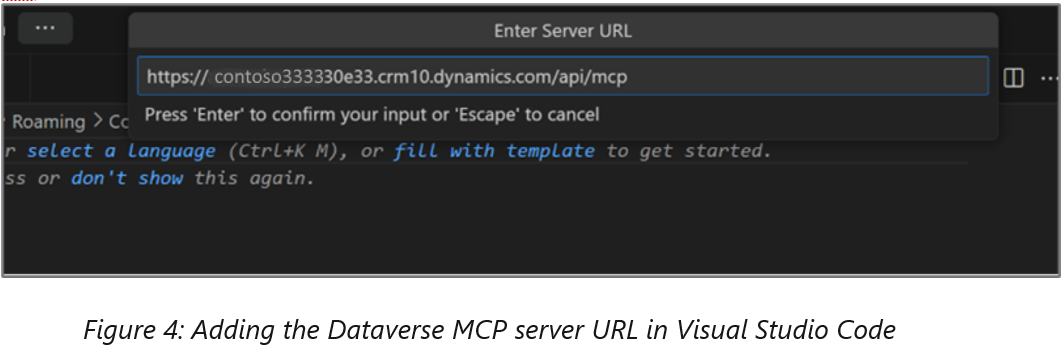
This generates the MCP server configuration in VS Code, for example:
{
  "servers": {
    "my-dataverse-mcp": {
      "url": "https://yourorg.crm.dynamics.com/api/mcp",
      "type": "http"
    }
  }
}- Type a server name (or accept the default), then choose Global or Workspace.
- Enable Agent Mode: open GitHub Copilot Chat (or press Ctrl+Alt+I) and make sure Agent Mode is selected.

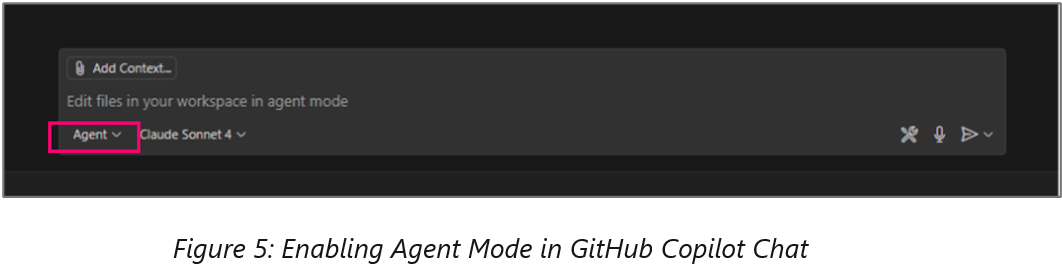
Step 3: Verify the MCP connection
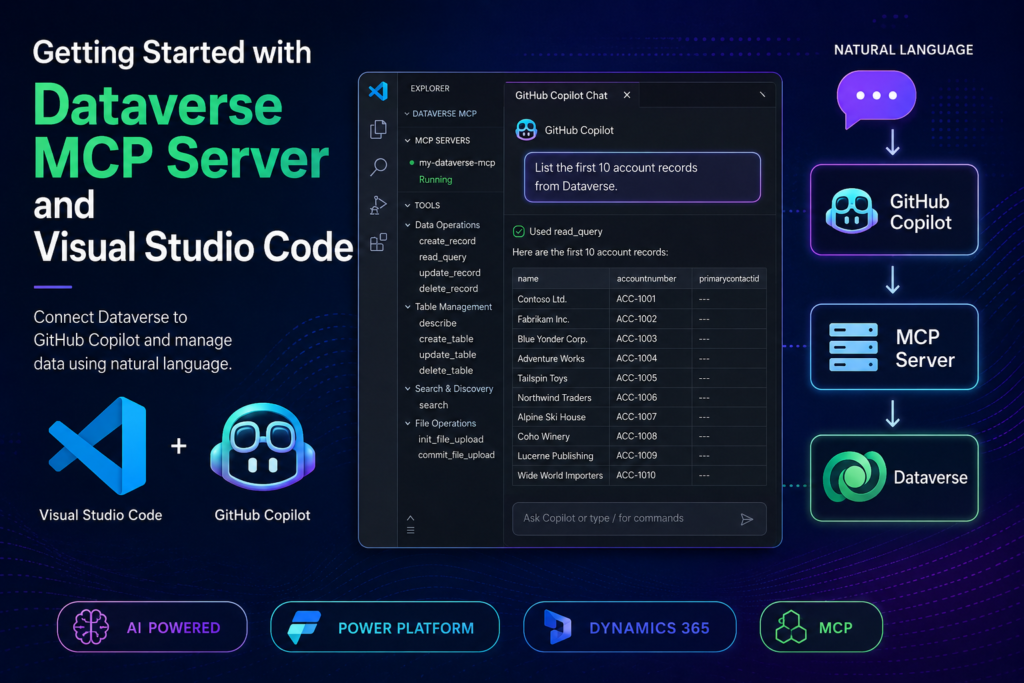
After configuring the server, restart the MCP Server, open the MCP Servers view, and confirm the connection is successful. A working connection shows: Running | Stop | Restart | Available Tools. 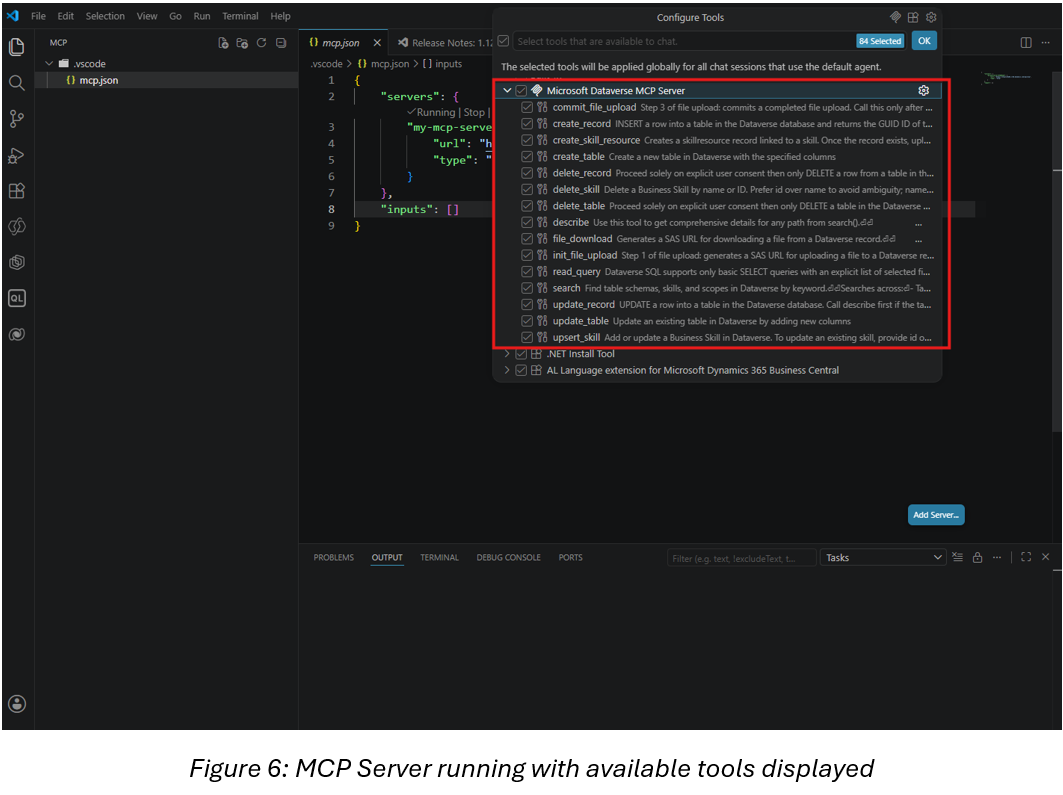
Depending on your environment and version, you may see tools such as:
- Data operations: create_record, update_record, delete_record, read_query
- Table management: create_table, update_table, delete_table, describe
- Search and discovery: search
- File operations: init_file_upload, commit_file_upload, file_download
Using the Dataverse MCP Server with natural language
Once connected, you can work with Dataverse through plain-language prompts. A few common cases:
Example 1: List account records
Prompt: “List the first 10 account records from Dataverse.” MCP translates this into the right query and returns the records in VS Code. You can also ask for active accounts, accounts created in the last 30 days, or specific columns like names and account numbers. 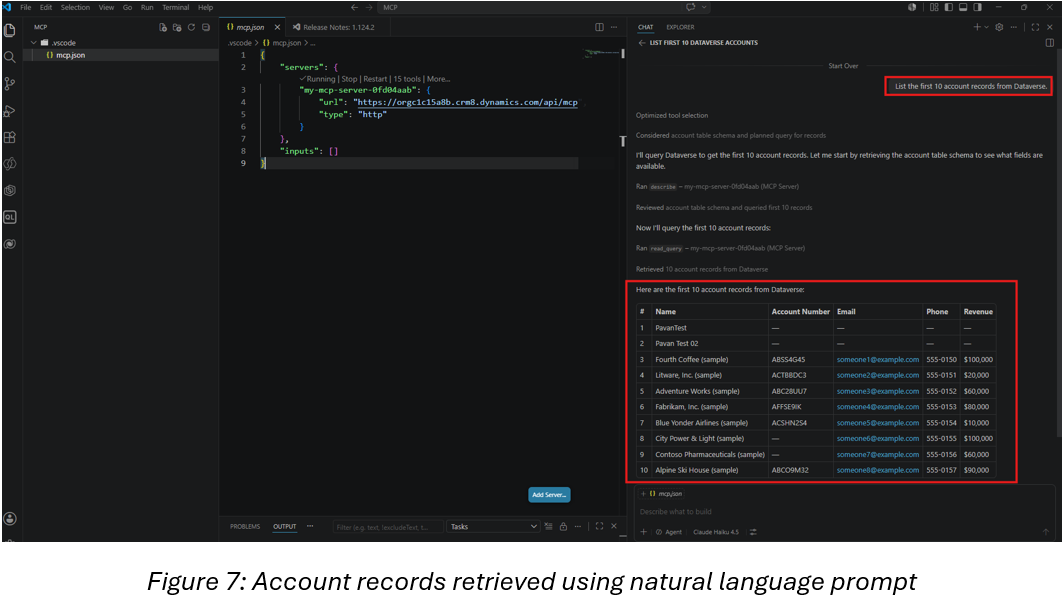
Example 2: Explore table metadata
Prompt: “Describe the account table.” Or ask it to show all columns in the contact table, list all custom tables, or show relationships for account. This is especially handy in unfamiliar environments. 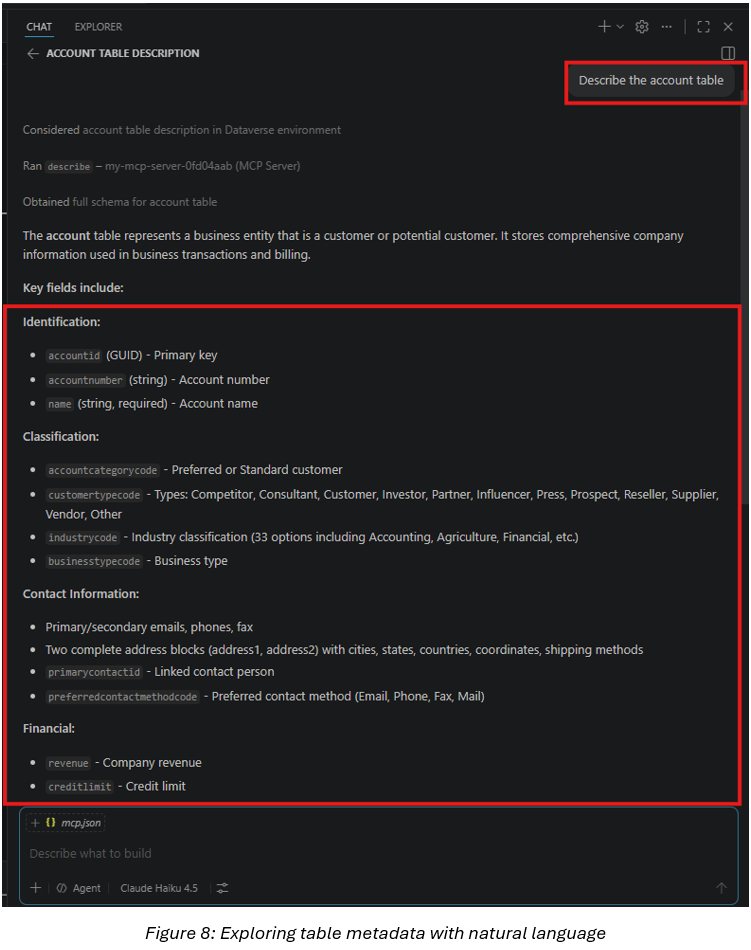
Example 3: Generate FetchXML
Prompt: “Generate FetchXML to retrieve active accounts.” MCP produces FetchXML you can drop into plugins, Power Automate, custom workflows, or reports. 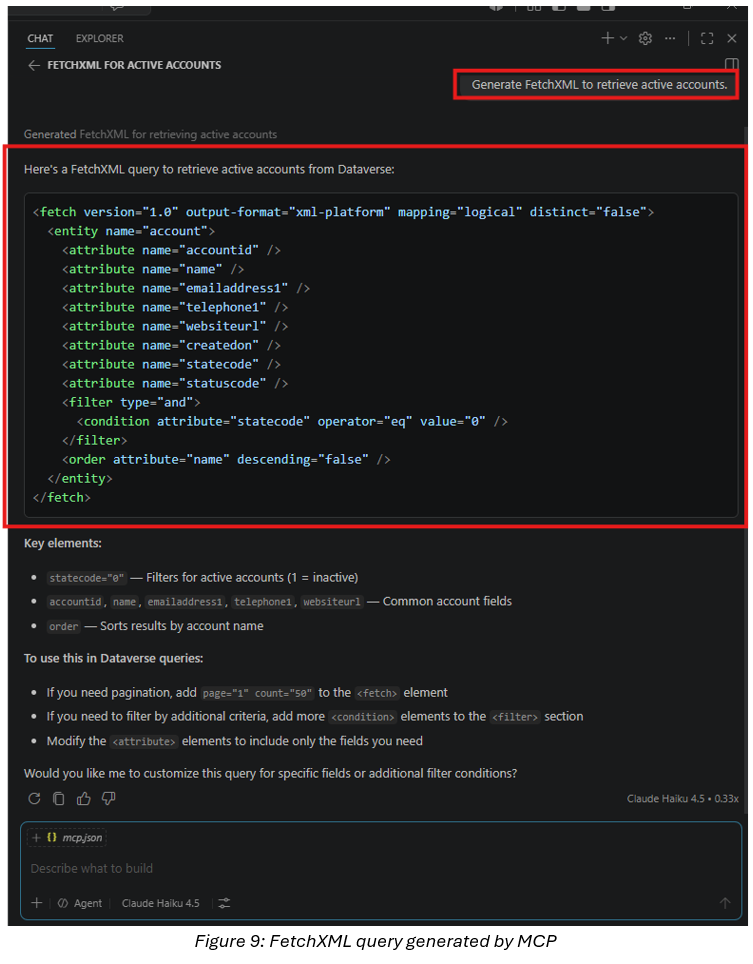
Example 4: Create a plugin step
A more advanced capability is using MCP to create a plugin step after the assembly is already registered. The plugin assembly must already exist in Dataverse (for example, MTC.CRM.Plugins). You can then prompt MCP to inspect the assembly, identify the plugin type, and create a step with a defined configuration — message, primary entity, stage, execution mode, and deployment — asking it to confirm the plugin type first and report back the full step details once created. 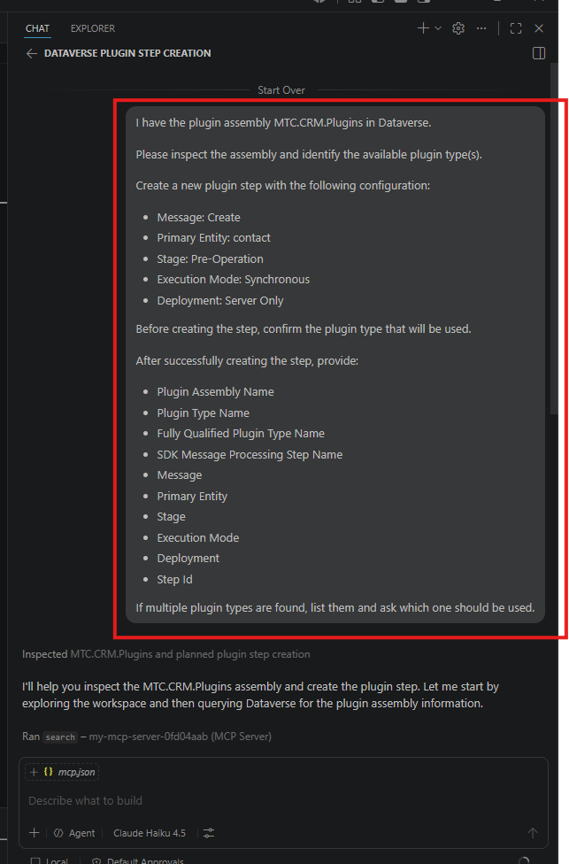
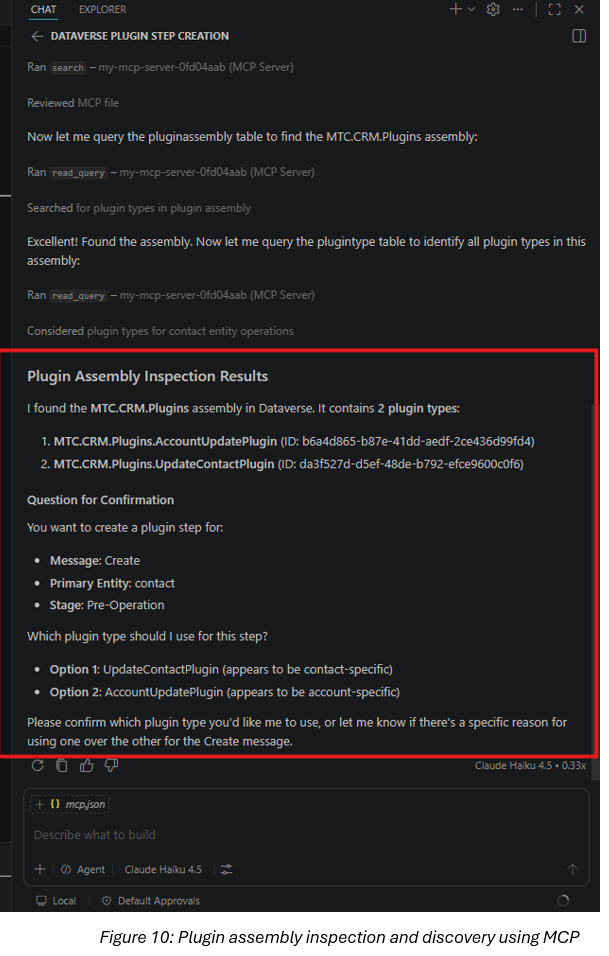
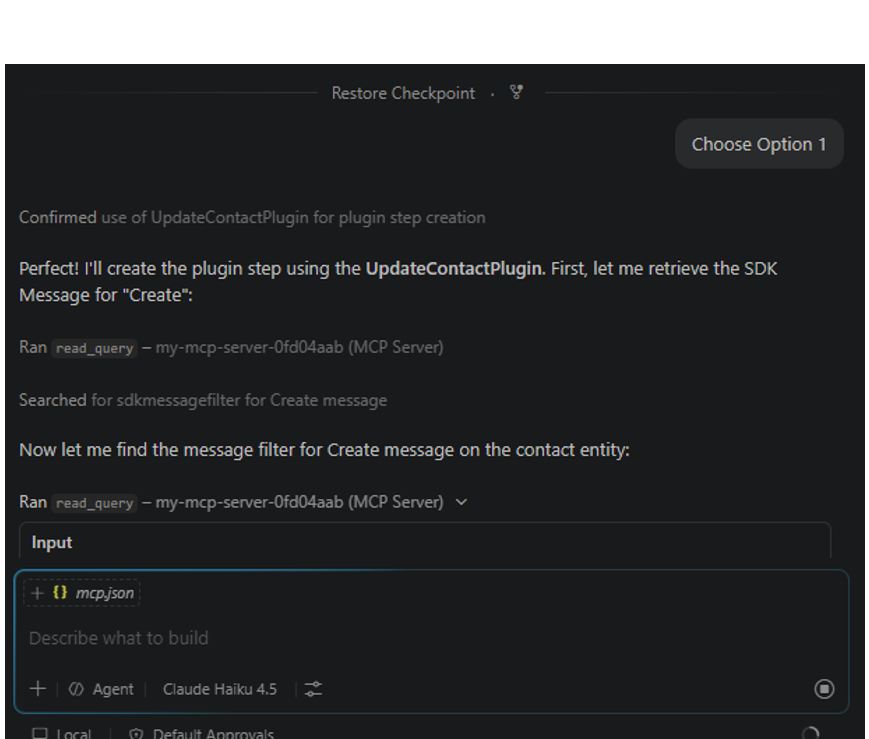
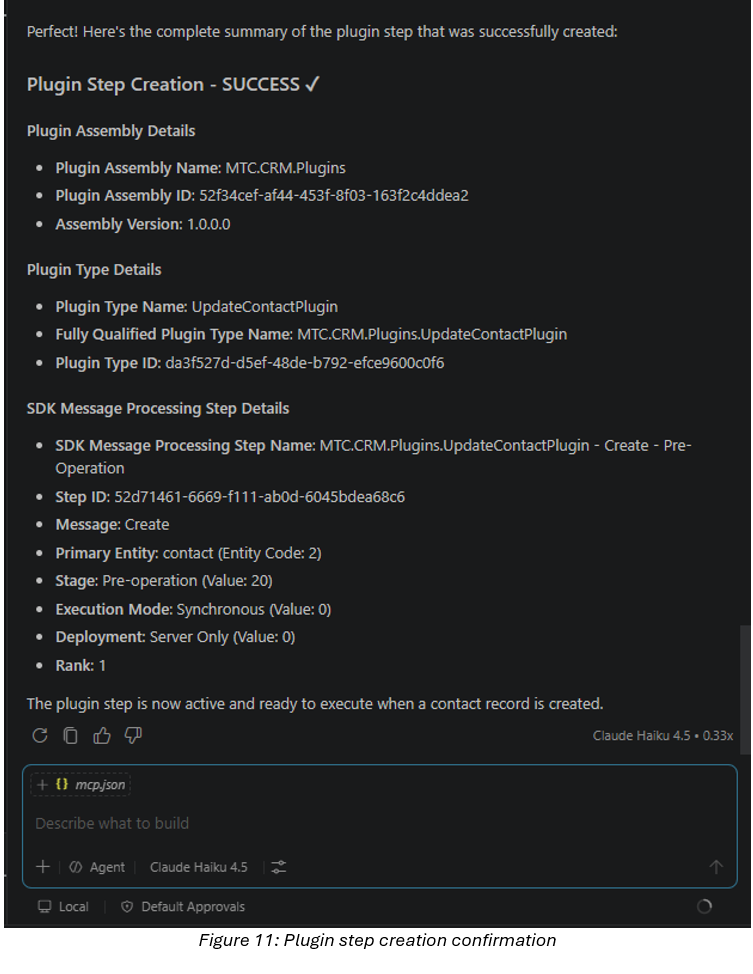
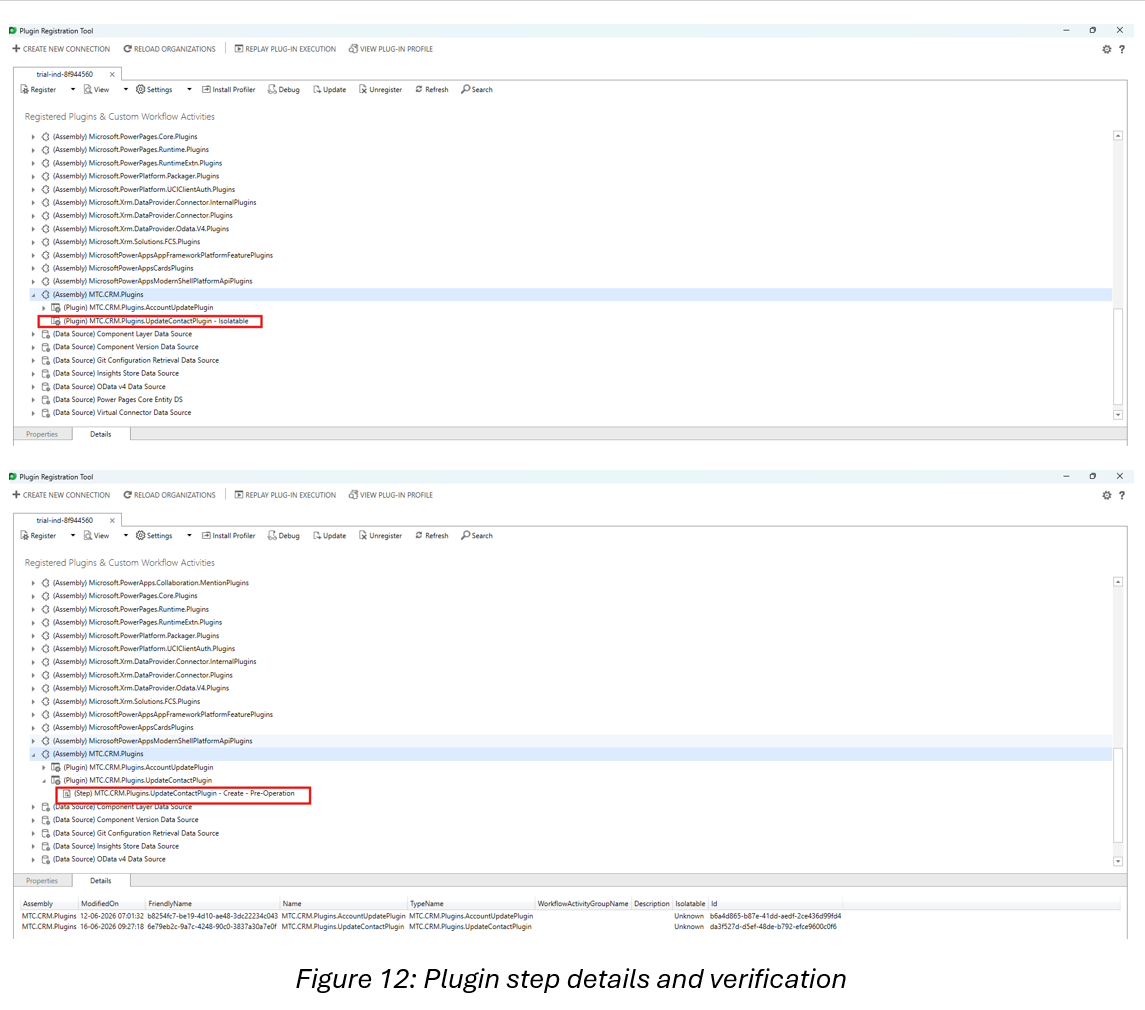
This pairs well with a properly structured plugin project — see our guide on plugin development for the registration and assembly work that still happens in traditional tooling.
Current limitations
During testing, the Dataverse MCP Server could not yet:
- Register plugin assemblies
- Export solutions
- Deploy PCF controls
These still need traditional tools such as the Plugin Registration Tool (PRT), the Power Platform CLI (PAC CLI), and standard deployment pipelines.
Frequently Asked Questions
Is the Dataverse MCP Server only for GitHub Copilot?
No. It is enabled for Copilot Studio by default, and you can enable other MCP clients — including Visual Studio Code with GitHub Copilot — from the Power Platform admin center.
Do I need to write code to use it?
No. Once the server is enabled and connected, you interact with Dataverse through natural-language prompts. Writing tools yourself is a different pattern — see our post on connecting a custom MCP server to your CRM with Copilot Studio.
Can it deploy solutions or register plugins?
Not yet. It can create a plugin step against an already-registered assembly, but registering assemblies, exporting solutions, and deploying PCF controls still require PRT, PAC CLI, or your normal pipelines.
Conclusion
The Dataverse MCP Server is a powerful way to work with Dataverse through natural language — from querying records and exploring metadata to generating FetchXML and creating plugin steps. Some deployment scenarios still need traditional tooling, but it already shows how AI-assisted development can cut the time spent on repetitive Dataverse tasks. As Microsoft expands MCP, expect it to become a core part of the Dynamics 365 and Power Platform developer experience.
Building AI-assisted solutions on Dataverse? MTC builds production MCP and Copilot integrations on Dynamics 365 and Power Platform. Explore our Azure AI Foundry and Copilot Studio partner services or email salesteam@mtccrm.com.