Storing files in Dynamics 365 is easy — until the storage bill arrives. Every image and document saved as a Note (annotation) lives inside Dataverse, and Dataverse storage is some of the most expensive in the Microsoft cloud. Moving those Dynamics 365 attachments to SharePoint is the standard fix, but doing it by hand for every record and every entity does not scale. This post explains how a configuration-driven Power Automate flow can move attachments to SharePoint automatically, organize them into clean folders, and keep working across any entity without hardcoding.
Why store Dynamics 365 attachments in SharePoint?
Microsoft’s own guidance is to use server-based SharePoint integration for document management, and the reasons are practical. SharePoint offers far more storage at a lower cost than Dataverse, so offloading files keeps your D365 storage consumption — and your bill — under control. It also gives users a proper document experience: versioning, co-authoring, sharing, and search, all in the context of the related CRM record. You can read Microsoft’s overview on its SharePoint document management page.
The native integration is a great foundation. What it does not do on its own is automatically catch a file the moment it is attached as a Note, route it to the right SharePoint location, and build a tidy folder and metadata structure for you. That is the gap this flow fills.
What the automated flow does
The solution is a Power Automate flow that watches for new Notes in Dynamics 365 and takes over from there. At a high level it:
- Detects a newly created Note and the record it belongs to
- Works out which entity that record is — account, contact, case, opportunity, or anything else — without any hardcoding
- Finds or creates the right SharePoint site and document location
- Builds a clean, validated folder structure for the record
- Applies your own rules for site, library, folders, and metadata
- Creates the SharePoint folder and moves the file into it
Because it is driven by configuration rather than fixed code, the same flow handles new entities as your CRM grows. You change a configuration record, not the flow.
How it works, step by step
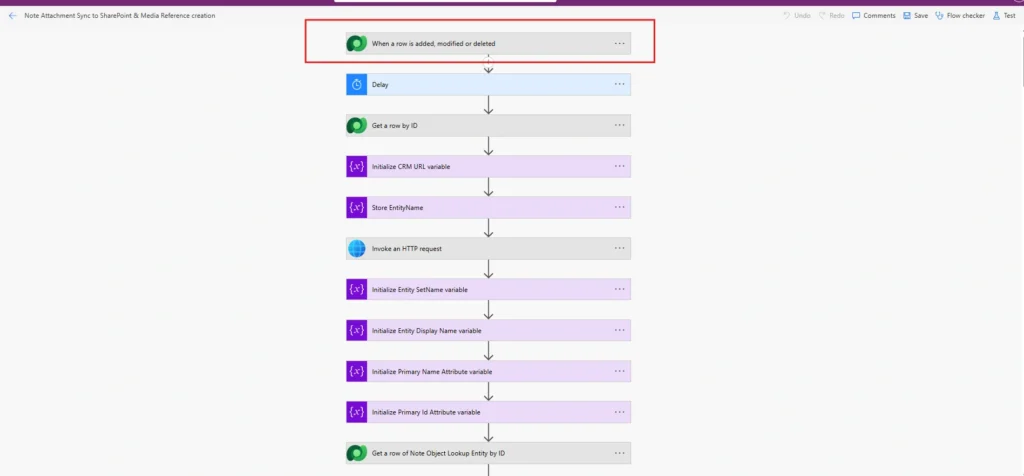
The full build runs to over fifty actions. Grouped into phases, here is what actually happens.
1. Catch the new attachment
The flow triggers when a Note row is created in Dataverse, with a short delay so the file is fully committed before processing starts. This avoids the intermittent “file not found” errors that catch out naïve attachment automations.
2. Identify the record dynamically
This is the clever part. Instead of being wired to a single entity, the flow calls the Dataverse metadata API to discover what kind of record the Note is attached to — its display name, entity set name, primary name, and primary ID field. That means one flow works for accounts, contacts, cases, and any custom table you add later. No per-entity rebuild.
3. Find or create the SharePoint location
The flow checks whether a SharePoint document location already exists for the record. If it does, it reuses it. If not, it locates (or creates) the SharePoint site and the document location records that link Dynamics 365 to SharePoint. This keeps the CRM-to-SharePoint relationship intact and avoids duplicate structures.
4. Build a clean folder structure
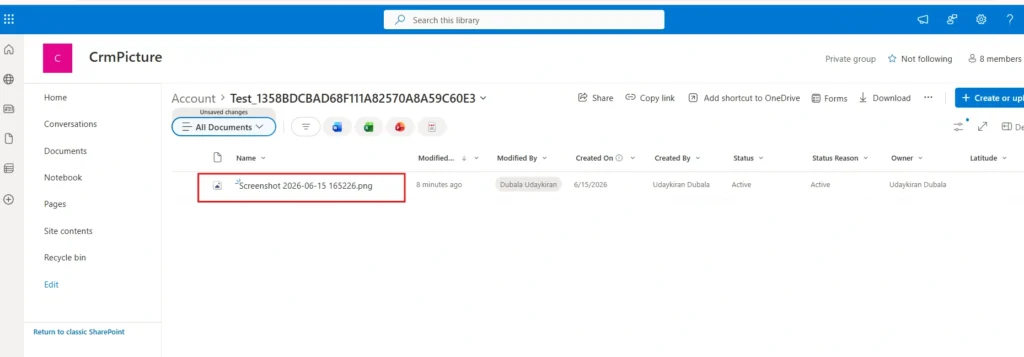
Folder names are generated from the record — for example Accounts / Contoso Ltd. The flow validates the record name first, strips characters SharePoint will not accept, and standardises the format, so folder creation never fails on an awkward customer name.
5. Apply configuration-driven rules
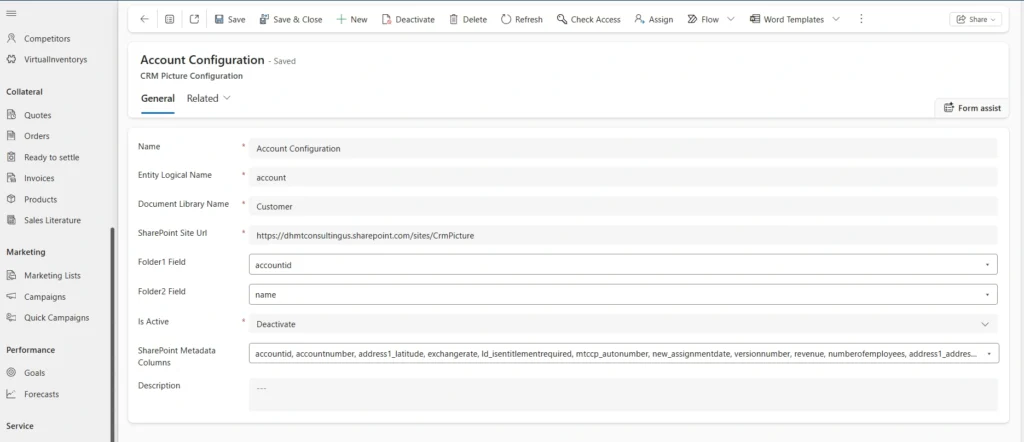
A dedicated configuration table (the CRM Picture Configuration) tells the flow which SharePoint site and library to use, how to structure folders, and which metadata to apply. This is what makes the solution reusable: behavior is controlled by data you can edit, not by code you have to redeploy.
6. Create the folder and sync metadata
Finally, the flow calls the SharePoint REST API to create the physical folder, checks which metadata columns already exist, provisions any missing default columns automatically, and lands the file in the right place with the right metadata attached.
Who benefits from this
This pattern is a strong fit for any Dynamics 365 environment that handles a lot of files: field service operations capturing site photos, customer service teams attaching case evidence, sales teams storing proposals, or any industry where documents pile up against records. It is especially valuable for Microsoft partners who want to offer clients a reliable, low-maintenance document management layer rather than a brittle one-off automation.
Frequently Asked Questions
Does this replace the native SharePoint integration?
No — it builds on it. You still enable server-based SharePoint integration in the Power Platform admin centre. The flow automates the parts the native feature leaves manual: triggering on new attachments, routing to the right location, and creating folders and metadata to a defined standard.
Will it work for custom entities?
Yes. Because the flow reads entity metadata dynamically and is driven by a configuration table, it handles standard and custom tables without code changes. You add a configuration record, not a new flow.
Does moving files to SharePoint reduce Dataverse storage cost?
Yes. Files stored as Notes consume Dataverse capacity, which is expensive. Moving them to SharePoint shifts them to cheaper, higher-capacity storage while keeping them accessible in the context of the CRM record.
Conclusion
Native SharePoint integration solves where your Dynamics 365 documents live. A configuration-driven Power Automate flow solves how they get there — automatically, consistently, and across every entity, with clean folders and metadata and no per-entity rebuilds. The result is lower Dataverse storage costs and a document experience your users will actually trust.
Want this built for your environment? MTC builds Dynamics 365 and Power Platform automations like this, and ships them as maintainable solutions rather than one-off flows. Explore our Dynamics 365 services or email salesteam@mtccrm.com.