
Most Power Automate flows fail silently.
Wrong input data, API timeouts, permission errors after token refresh, Dataverse record creation failures — and no one knows until business data is wrong, a customer complains, or finance closes the month with a number that doesn’t reconcile.
The fix is well-known but inconsistently applied: a Try-Catch pattern using Scope actions and Configure Run After. This guide walks through how MTC ships production-grade Power Automate error handling — what it is, why it matters, the exact 5-step configuration, and where enterprise builds go beyond the basics.
The Problem — Silent Failures
A Power Automate flow without error handling has a single failure mode: it stops, marks itself as “Failed” in the run history, and waits for someone to notice. In practice, no one is watching the run history.
The most common production failures we see:
- Invalid input data from upstream systems (a null value where the flow expected text)
- External API timeouts — third-party CRMs, payment gateways, address lookups
- Permission errors after token refresh or service principal expiry
- Dataverse record creation failures from unique constraint violations
- Excel or SharePoint connector throttling under load
Each of these silently fails the flow. The data sync that should have happened didn’t. The case that should have been created wasn’t. Days later, when the discrepancy is noticed, someone manually walks through dozens of failed runs to identify what went wrong.
A Try-Catch pattern fixes this by catching every failure type in one place, capturing the error details, and notifying the right people automatically.
Real-World Use Cases
This pattern applies anywhere flow failure has business consequences:
- Customer-facing flows — Power Pages form submissions, customer onboarding, Power Pages portal flows. Silent failure means a bad customer experience.
- Financial flows — invoice processing, expense reimbursement, payment reconciliation. Data integrity matters.
- Dynamics 365 integration flows — case creation, opportunity sync, contact deduplication. Silent failure means CRM data drift.
- Scheduled flows — overnight batch jobs, monthly reports, weekly data syncs. Running outside business hours means no one is watching.
- API integration flows — connecting Power Automate to third-party services. Third-party reliability is unpredictable; flows must compensate.
If the flow failing has business consequences, error handling is required — not optional.
How It Works — The Try-Catch Pattern
Power Automate’s Scope action groups multiple actions and treats them as a single unit. Combined with Configure Run After, this gives the equivalent of a try-catch block in code — with one significant advantage: error handling is configured once, at the scope level, not per individual action.
The pattern uses two scopes:
- Try Scope — contains all the flow’s business logic. If any action inside fails, the entire scope is marked as failed.
- Catch Scope — configured to run only when the Try Scope has failed or timed out. Captures the error, notifies the right people, and terminates the flow cleanly.
Result: instead of monitoring every action individually, the flow monitors the Try Scope as a whole and handles all failures in one place.
5-Step Setup Walkthrough
For partners and Power Automate makers building this in production. Each step references inline screenshots.
Step 1 — Initialise Variables Outside the Try Scope
Power Automate does not allow variable initialisation inside a Scope action. Every variable the flow needs must be declared at the top of the flow, before the Try Scope begins.
For error handling specifically, initialise an array variable to hold error details:
- Name:
varErrors - Type: Array
- Value:
[]
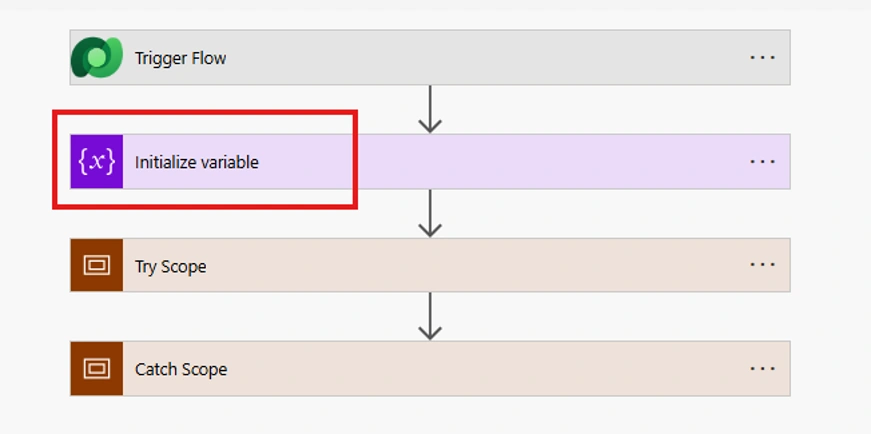
This array will hold the error messages captured by the Catch Scope and can be used across multiple downstream actions without re-extracting them from the failed action output.
Step 2 — Build the Try Scope
Add a Scope action and rename it Try Scope. Place all business logic inside it:
- Apply to Each loops
- API calls (HTTP, custom connectors, third-party services)
- Create or Update record actions (Dataverse, SharePoint, Excel)
- Email send actions
- Variable updates
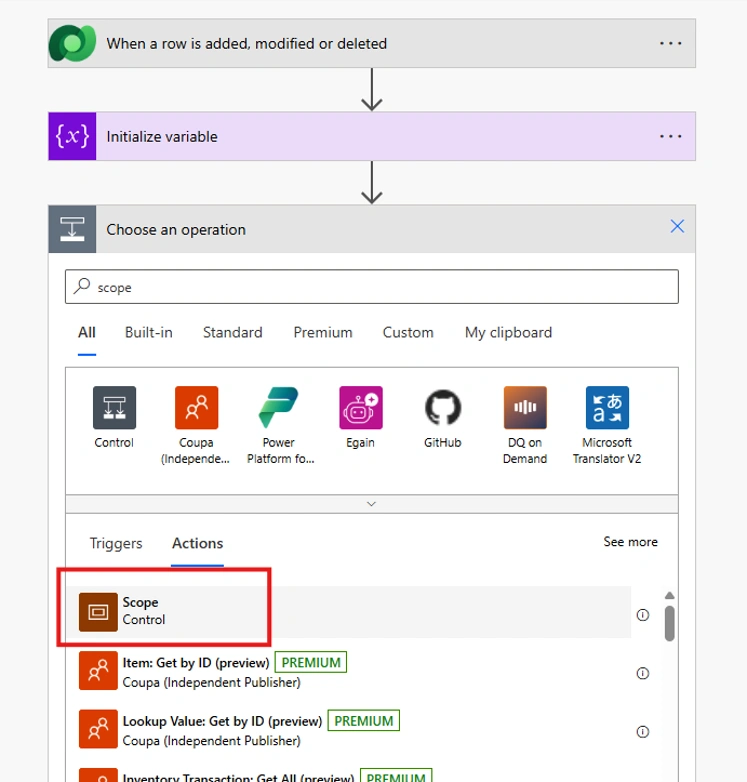
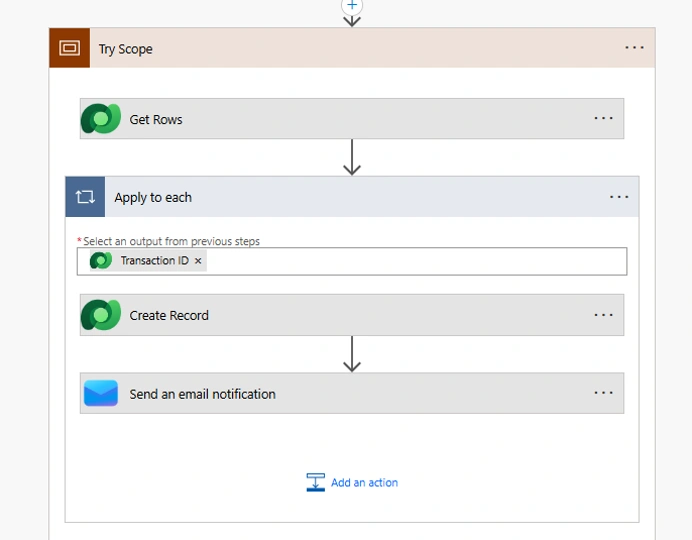
If any action inside the Try Scope fails, the scope itself is marked as failed — which is exactly what we want. No need to configure error handling on each individual action.
Step 3 — Add the Catch Scope and Configure Run After
After the Try Scope, add another Scope action and rename it Catch Scope. Then configure when it runs:
- Click the three dots on the Catch Scope
- Select Configure Run After
- Check these conditions on the Try Scope:
- Has Failed
- Has Timed Out
- Is Skipped (optional, for completeness)
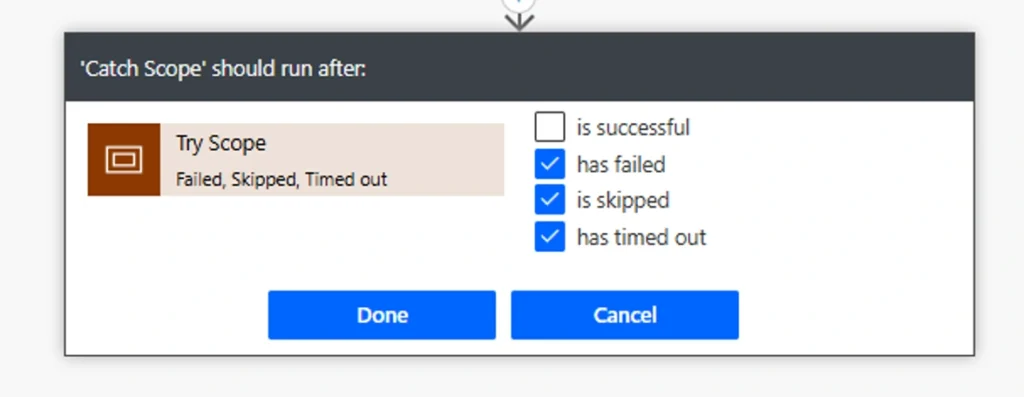
The Catch Scope will now only run when something inside the Try Scope went wrong. On a successful flow, the Catch Scope is skipped entirely.
Step 4 — Filter the Failed Actions
Inside the Catch Scope, the first action is a Filter Array that identifies exactly which actions in the Try Scope failed.
Configure the Filter Array:
- From:
result('Try_Scope') - Condition:
@or(equals(item()?['Status'],'Failed'), equals(item()?['Status'],'TimedOut'))
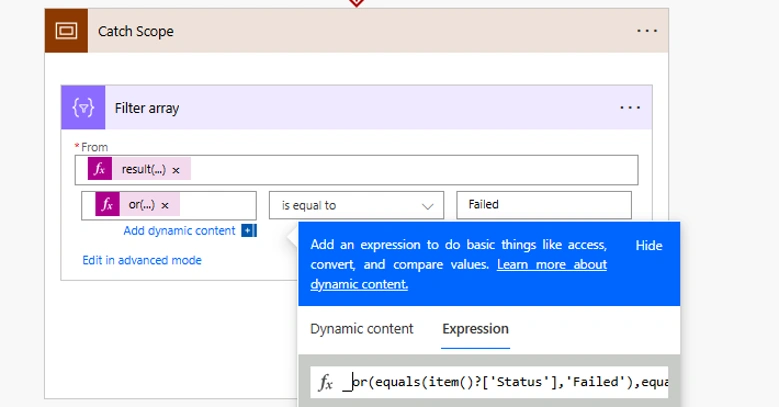
This dynamically picks out only the failed actions, regardless of which action in the Try Scope caused the failure. No more guessing during troubleshooting.
Step 5 — Capture the Error Message
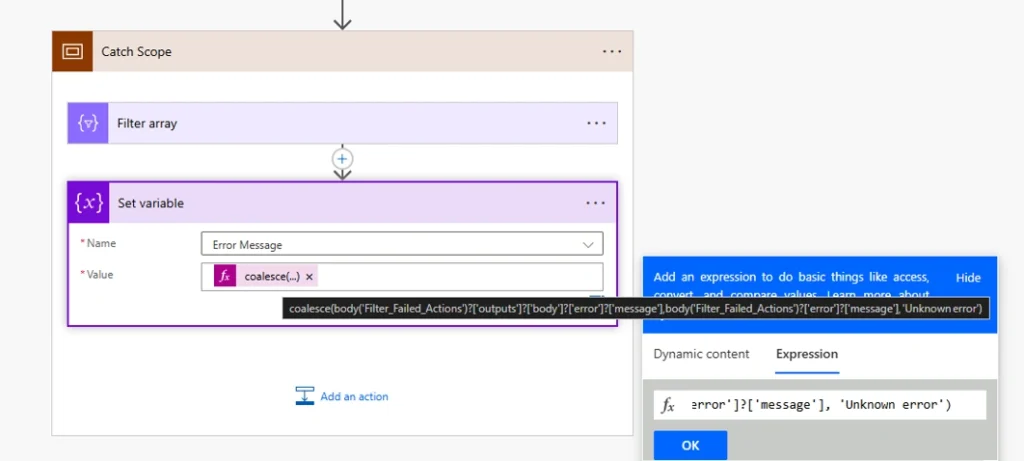
After the Filter Array, store the error message in a variable. Use a Set Variable or Append to Array Variable action with this expression:
coalesce(
  body('Filter_Failed_Actions')?['outputs']?['body']?['error']?['message'],
  body('Filter_Failed_Actions')?['error']?['message'],
  'Unknown error'
)
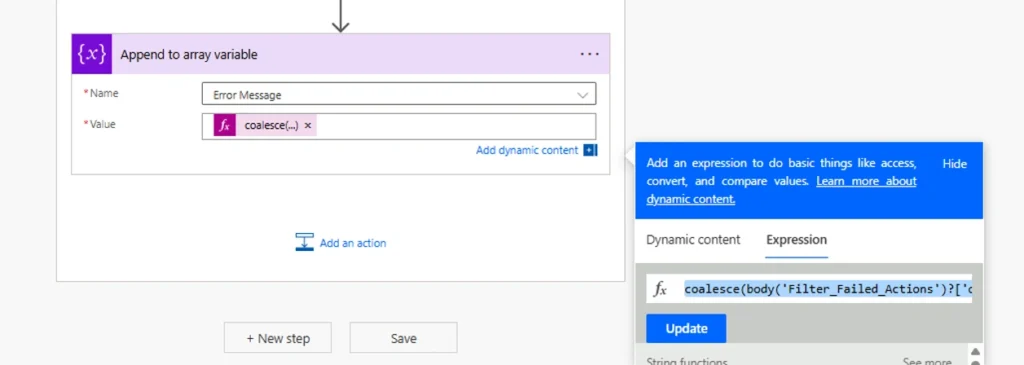
The coalesce() function returns the first non-null value. If the error message exists in the standard location, it uses that. If it’s nested differently (some connectors structure errors differently), it falls back. If nothing is found, it returns “Unknown error” rather than letting the Catch Scope itself fail.
Step 6 — Notify and Terminate
Once the error message is captured, the Catch Scope can do whatever fits the use case:
- Send an email notification to the support team with full error context
- Log the error to SharePoint, Dataverse, or Excel for audit
- Create a support ticket automatically via the ServiceNow or Dynamics 365 connector
- Post a notification to a Microsoft Teams channel
- Write to Application Insights for centralised flow monitoring
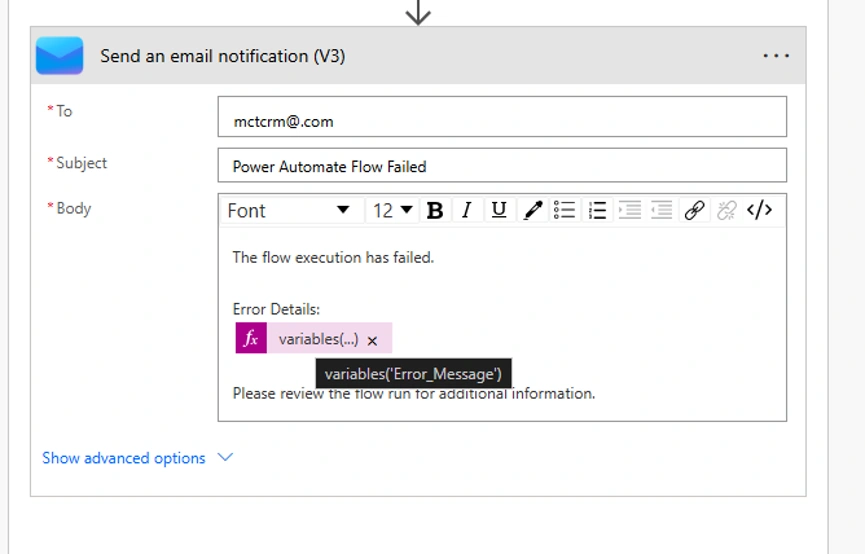
In production partner engagements, MTC typically logs to Dataverse for permanent audit, sends a Teams notification for fast response, and creates a follow-up task in Dynamics 365 if the failure is business-critical.
Finally, end the Catch Scope with a Terminate action set to Failed.
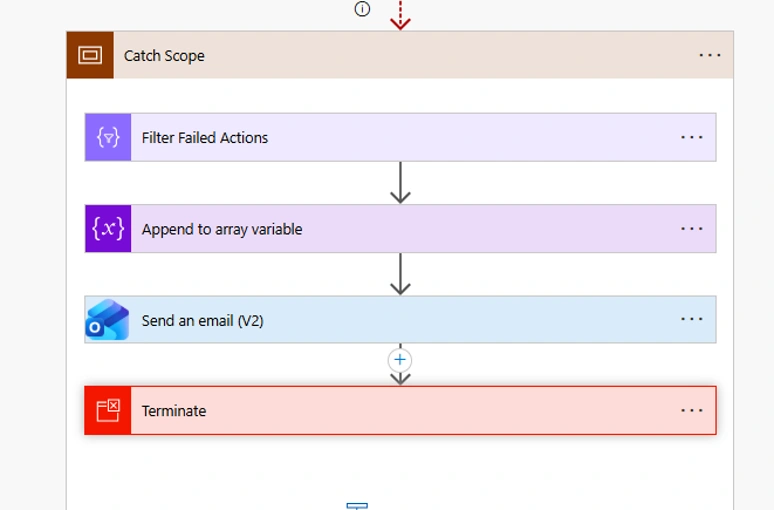
This is essential. Without it, the flow can appear “Succeeded” in run history even though something inside failed. Setting Terminate to Failed:
- Marks the flow as failed in run history (the support team can filter for failed runs)
- Sends the correct status back to any parent flow that triggered this one
- Makes audit and reporting accurate
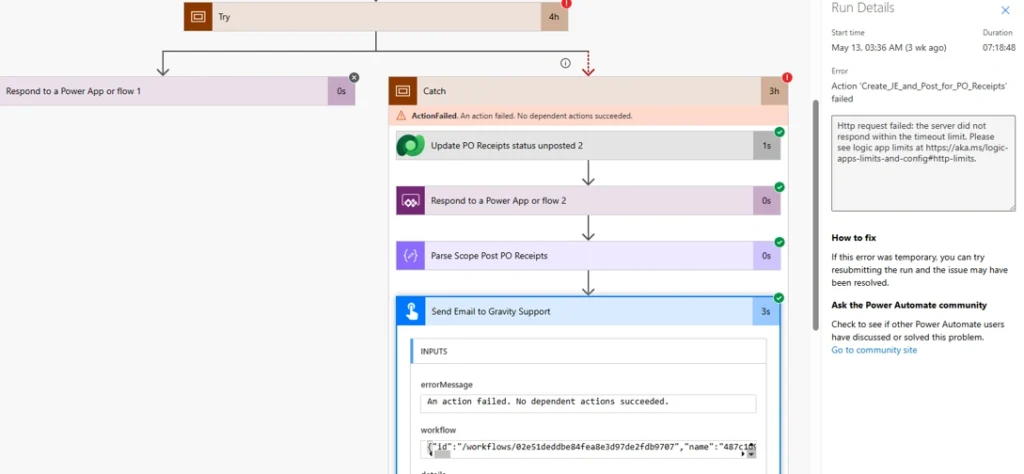
Where MTC Goes Beyond the Basic Pattern
The Try-Catch pattern above is the baseline. In enterprise partner engagements, MTC’s Power Platform delivery team extends it in five important ways.
1. Structured Error Payload, Not a Single String
Instead of capturing a single error message, MTC captures a structured payload:
- Flow name
- Run ID
- Failing action name
- Retry count
- Timestamp
- Trigger context (who or what triggered the flow)
- Affected records (which Dataverse rows or SharePoint items were being processed)
Root cause analysis on production failures is much faster with structured data than with a single error string.
2. Tiered Notification
Not every error deserves a Teams alert at 2 AM:
- Critical errors (financial data, customer-facing failures) — immediate Teams alert + on-call notification
- Warnings (transient retries succeeded, partial data sync) — logged to Dataverse for end-of-day review
- Transient errors (one-time API timeouts) — retried automatically before any alerting
Tiered notification means support teams trust the alerts they do get.
3. Correlation IDs Across the Stack
Every flow run gets a correlation ID passed through to downstream APIs (Azure Functions, Logic Apps, external systems). End-to-end tracing across Power Automate, Logic Apps, and external services becomes possible — instead of debugging each tier in isolation.
4. Centralised Error Logging
A single Dataverse table for all flow errors across the tenant, with a Power BI dashboard on top. One place to see flow health across the entire Power Automate footprint. Service desks can spot patterns (“the SharePoint sync flow has failed 12 times this week”) that would be invisible if errors were scattered across email inboxes.
5. Reusable Error-Handling Subflow
The biggest productivity win. Instead of building error handling into every new flow, MTC publishes a “child flow” that handles all error capture, logging, and notification logic. Every parent flow calls it. Once adopted, every new Power Automate build is faster and more consistent — a maker just calls the subflow at the start of their Catch Scope and is done.
For more advanced AI-assisted error analysis, the same subflow can route critical errors to a Copilot Studio agent that classifies, summarises, and suggests resolution steps before a human ever sees the alert.
When to Use This Pattern (and When Not To)
Use Try-Catch error handling when
- The flow is customer-facing
- Financial or business data is being created, updated, or moved
- API integration is involved (especially third-party APIs)
- The flow runs on a schedule, outside business hours
- The flow is triggered by a portal or Dynamics 365 — silent failure damages partner credibility
- The flow orchestrates a multi-step business process where partial completion creates inconsistent data
Don’t bother for
- Simple internal notification flows (“email me when a file is added to SharePoint”)
- One-off flows used by a single person
- Prototype flows that won’t see production
- Flows where failure has no business consequence
The 80/20 rule applies. Build the reusable error-handling subflow once and apply it to every flow that matters; skip it on the trivial stuff.
Best Practices Summary
- Centralise error handling — use Try and Catch scopes, not action-level error handling
- Configure Run After correctly — Catch Scope runs only when Try Scope has failed or timed out
- Initialise variables outside the Try Scope — Power Automate doesn’t allow variable declaration inside scopes
- Use Filter Array — dynamically identifies which action failed, not just that the scope failed
- Capture error context, not just the message — flow name, run ID, action name, timestamp
- Notify the right people the right way — Teams for immediate, email for record, Dataverse for audit
- Always Terminate as Failed — never leave a flow with hidden failures showing as Succeeded
- Build a reusable error-handling subflow — every flow in the tenant should use the same pattern
Frequently Asked Questions
Why use Try-Catch scopes instead of action-level error handling?
Action-level error handling means configuring Run After on every individual action — dozens in a typical enterprise flow. One missed configuration and silent failures return. Try-Catch handles all failures in one place, consistent every time. On a recent Dataverse + SharePoint + external API flow we ran for a Microsoft partner, switching from action-level to Try-Catch removed 40+ individual Run After configurations and made the flow far easier to maintain.
Does this pattern work for Power Automate Desktop (RPA) flows?
Power Automate Desktop has different error handling primitives — Try/Catch exists as a native action there, while in cloud flows you build it from Scope actions. The cloud-flow pattern in this post applies to standard Power Automate. For Desktop flows, the principles transfer but the implementation uses the native Try block. We deliver both, and the rule of thumb is the same: if business consequences follow a silent failure, error handling is mandatory.
Should every flow have error handling, or just the critical ones?
Pragmatic answer. Customer-facing flows, financial flows, scheduled flows, and API integration flows: always. Simple internal notification flows: not necessary. The cost of building error handling once into a reusable subflow makes “every flow that matters” the realistic default in enterprise partner builds. The 80/20 rule applies — build the reusable subflow once and apply it to every flow that matters, skip it on the trivial stuff.
Conclusion
A Try-Catch error-handling pattern is the baseline for production Power Automate flows. Scopes, Configure Run After, Filter Array, structured error capture, and a clean Terminate make flows reliable, monitorable, and supportable.
For Microsoft partners shipping Power Platform builds, this is the minimum standard. For end users running on Power Automate at scale, it’s the difference between a platform you trust and one you don’t.
Need a development-first Power Platform partner for your next enterprise Power Automate build? Talk to MTC’s Power Platform team — 80+ Microsoft consultants in Hyderabad, 25+ AppSource add-ons live, white-label delivery for Microsoft partners worldwide.