Most enterprise organisations run two separate worlds: employees use Microsoft Teams for everything, and internal support teams (IT helpdesk, HR, finance) try to manage requests through ticket queues, shared inboxes, or whichever case management tool was bought in 2019.
The result is predictable. Employees raise tickets they then forget about. Support teams chase context across Teams chats, emails, and ticketing systems. Service quality drops, response times slip, and nobody can explain why.
Dynamics 365 Contact Center fixes this with a feature most organisations don’t know is there: Microsoft Teams as a native channel. Employees raise issues from inside Teams — where they already are — and the support team works the cases inside Dynamics 365 with full omni-channel routing, skills-based assignment, queue management, surveys, and AI assistance.
This guide covers what it is, how it works, when it’s the right answer, and how MTC delivers it for Microsoft partners and end clients.
What Problem This Solves
Internal employee support is where most enterprise case management tools fail. The pattern is consistent:
- IT, HR, and Finance teams need a proper queue and case management system — and they often have one (ServiceNow, Jira Service Management, Dynamics 365)
- But employees won’t use it. They open Teams instead, message a colleague, or drop a one-liner in a channel
- Tickets get raised on behalf of the employee, hours later, with context already lost
- Reporting is inaccurate, SLAs are missed, and the support team gets blamed for problems that started with the wrong channel
Using Microsoft Teams as a Dynamics 365 Contact Center channel removes that friction:
- Employees stay in Teams — no new app, no new login, no behaviour change
- Support agents work in Dynamics 365 — proper case management, routing, skills, queues, surveys, AI assistance
- The conversation becomes the case record — no copy-paste, no lost context
- All omni-channel reporting applies — first-response time, resolution time, satisfaction scores, agent utilisation
Real-World Use Cases
This pattern fits any internal support function that runs on Teams:
IT Helpdesk
The most common deployment. Employees raise IT issues directly from a Teams app branded by the organisation (“Acme IT Support”). Tickets route to the IT team based on skills (network, hardware, software, Microsoft 365 admin), priority, and current agent load. Resolution happens inside the Teams conversation itself, with the case record updating automatically in Dynamics 365.
Human Resources
Employee policy questions, benefits queries, payroll issues, leave requests. HR teams work in Dynamics 365 with proper case categorisation and reporting; employees never leave Teams.
Finance Helpdesk
Expense queries, invoice approvals, vendor management, internal billing questions. Often the most underserved internal function — a Teams channel into a real case management system transforms response times.
Field Service Technician Support
On-site technicians use Teams to ask back-office engineers for help mid-job. Teams chat threads become case records in Dynamics 365 Field Service, contributing to asset history and knowledge bases.
Partner Operations
Channel partners and resellers raising operational queries — deal registration, order status, configuration help. Teams Federation can extend this externally.
How It Works — The Architecture
The integration relies on three Microsoft components working together:
- Microsoft Teams (with a custom Teams app) — the employee-facing channel
- Dynamics 365 Contact Center (Copilot Service) — the support agent workspace and case management
- Microsoft Entra ID — the identity and security layer that connects both
When an employee starts a conversation in the Teams app, the Teams bot routes the message into the Dynamics 365 Contact Center workstream. The platform applies routing rules — skills, queues, capacity — and assigns the conversation to the right agent. The agent works the case inside the Copilot Service workspace, with the entire Teams conversation visible. Once resolved, the case closes and a survey can fire automatically.
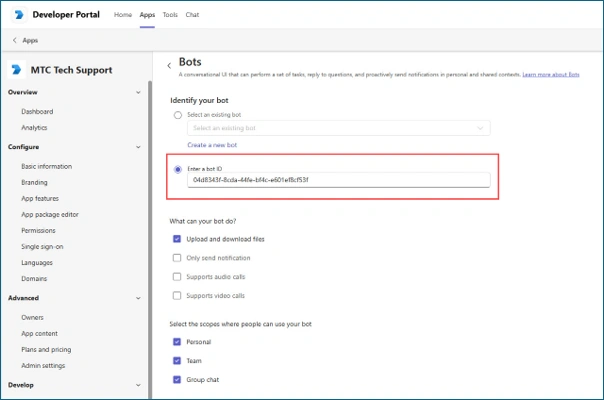
The connection point between Teams and Contact Center is the Bot ID — a single identifier copied from Contact Center into the Teams Developer Portal during app setup. Everything else flows through standard Microsoft channels.
5-Step Setup Walkthrough
For partners and IT teams configuring this in production. Each step references screenshots in the inline images.
Step 1 — Create the Teams Messaging Account in Contact Center
In the Copilot Service Admin Center, navigate to Channels → Messaging Accounts → Manage.
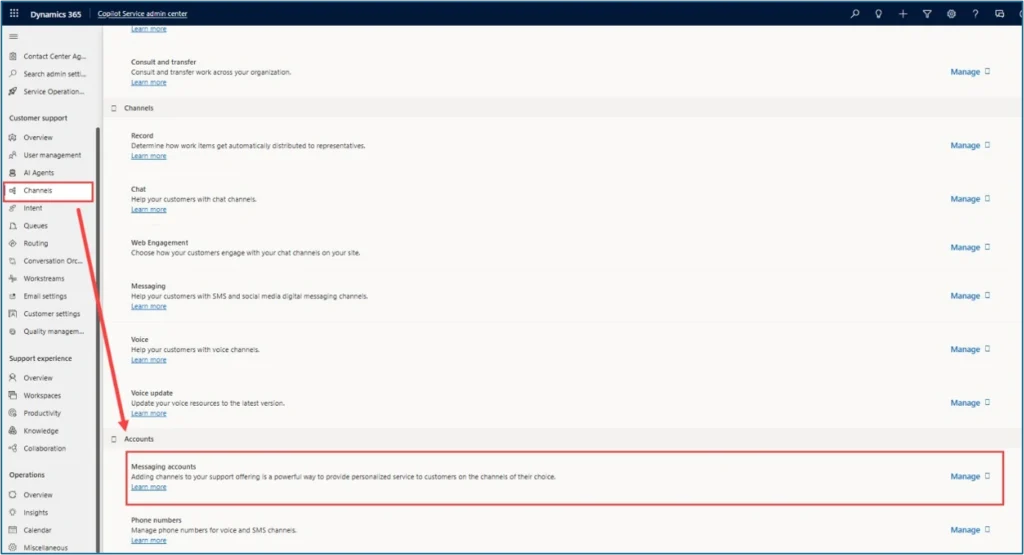
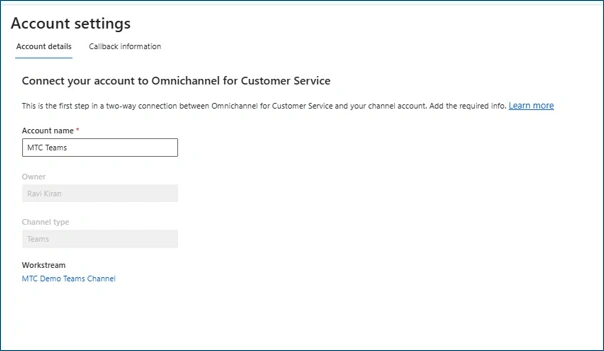
Create a new account, set the channel type to Microsoft Teams, and link the workstream that will route Teams conversations. The system generates a callback URL and a Bot ID — copy the Bot ID; you’ll need it in Step 3.
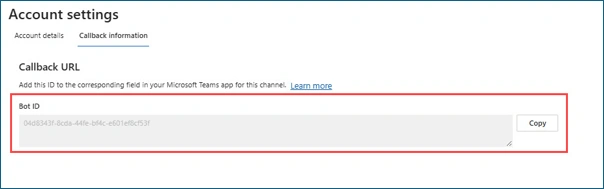
Step 2 — Configure the Workstream
Workstreams define how conversations route to agents. Set up the workstream first (Step 2) or after the account (Step 1) — the team’s preference is workstream first, since accounts link to workstreams.
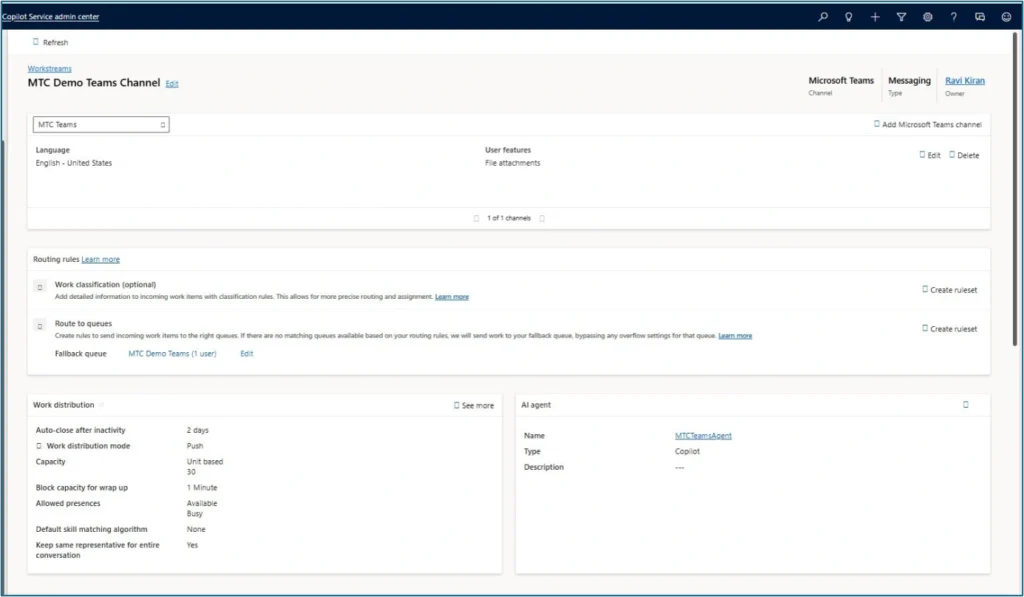
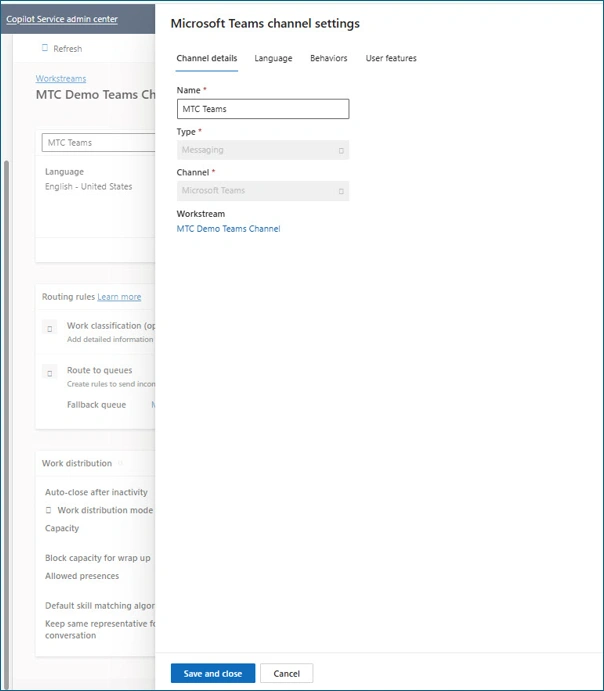
Key configuration choices:
- Language and locale — typically English (United States) for global tenants
- Automated messages — agent-joined notifications, agent-assigned notifications, queue position updates
- File attachments — enable for both customer and agent
- Post-conversation survey — fire automatically when the conversation ends
- Work classification (optional) — skill-based routing if support functions span IT/HR/Finance
- Queue assignment — fallback queue for unrouted conversations
- Assignment method — Highest Capacity, Advanced Round Robin, or Least Active
Step 3 — Build the Teams App in the Developer Portal
Inside Microsoft Teams, search for Developer Portal in Apps and open it.
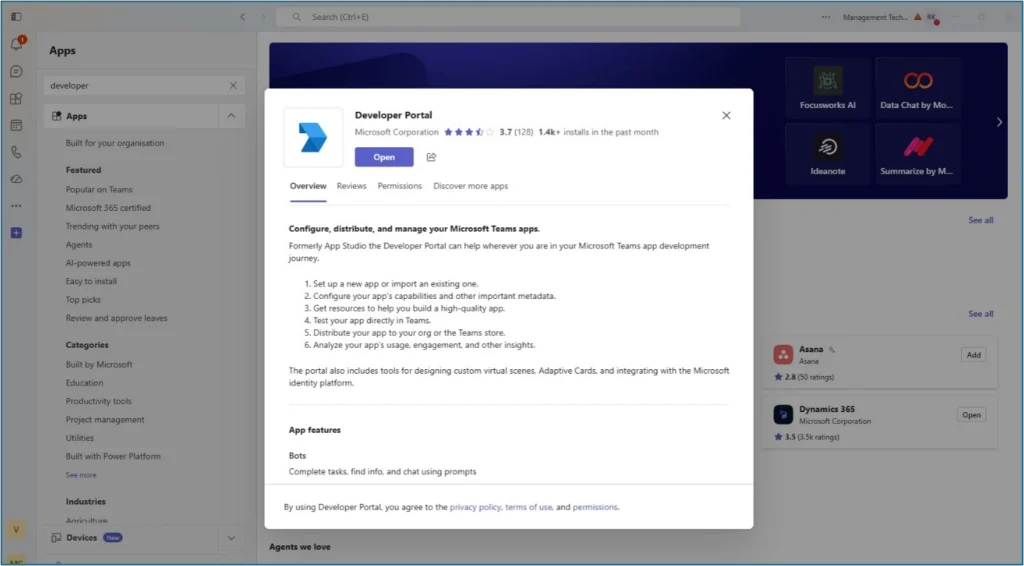
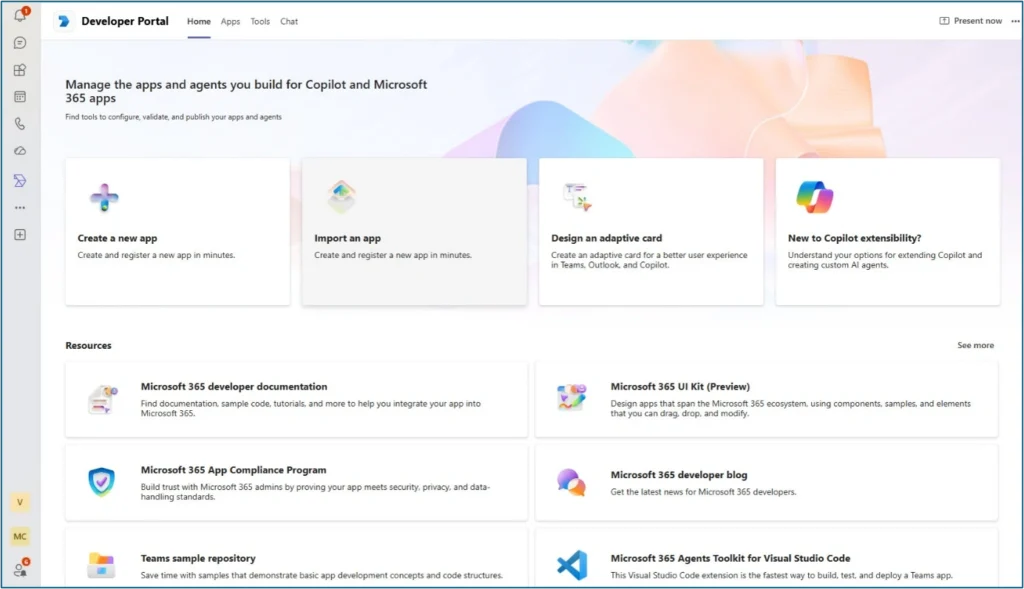
Click Create a new app (or import an existing one). Configure:
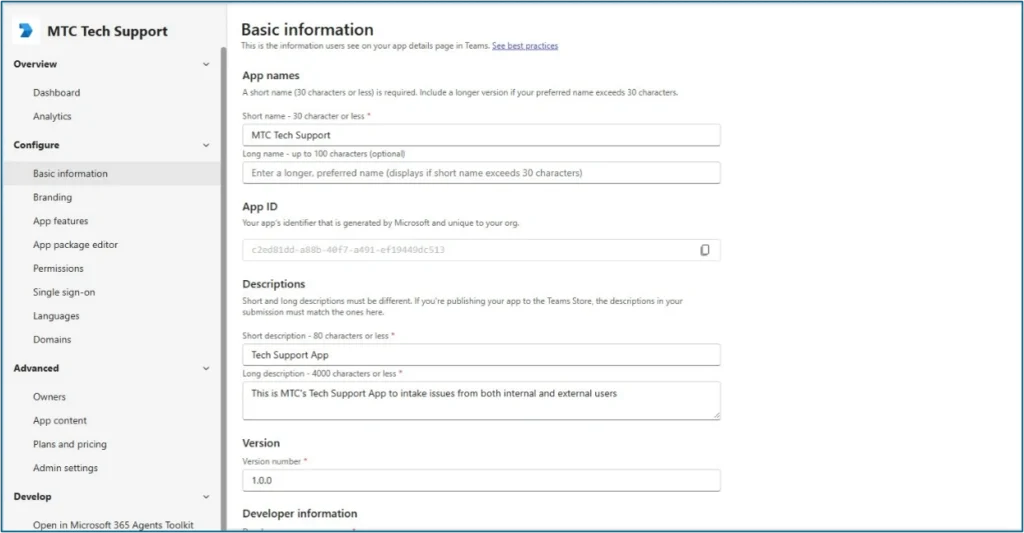
- Basic Information — App name, short and long descriptions, version number
- Developer Information — Company name, website, privacy policy URL, terms of use URL
- Application Client ID — paste the App ID from your Microsoft Entra app registration. (You need to register an app in Microsoft Entra ID first — that’s a separate but quick prerequisite.)
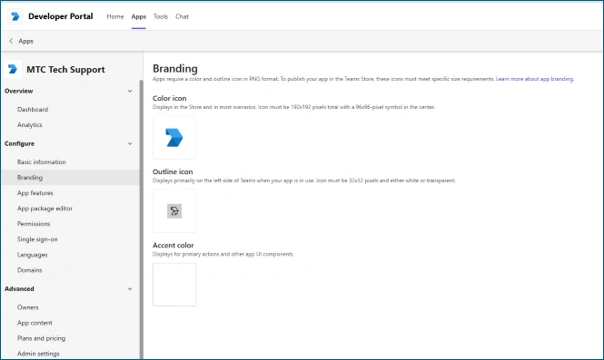
- Branding — icons, colours, accent colour (skip if you don’t need custom branding)
Step 4 — Add the Bot ID to App Features
Inside the Teams app, go to App Features and select Bot.
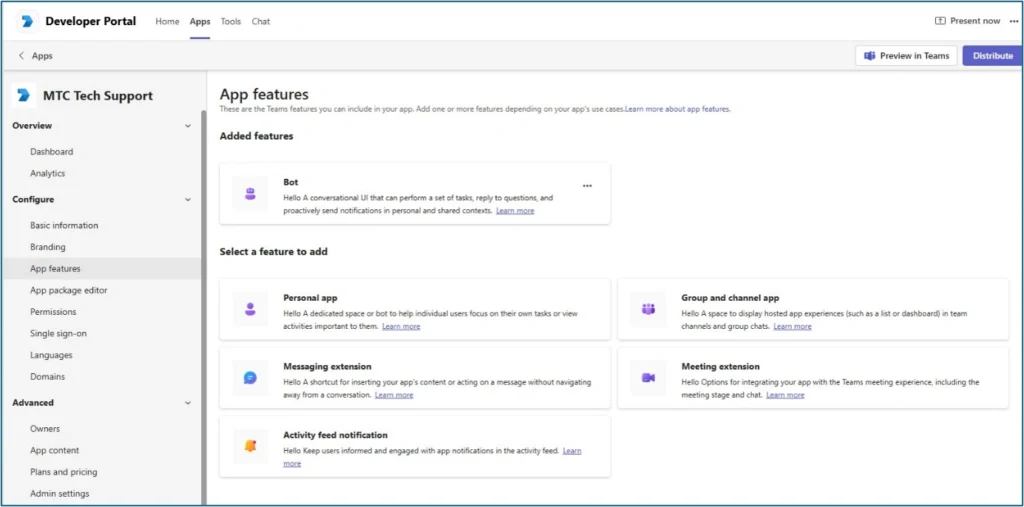
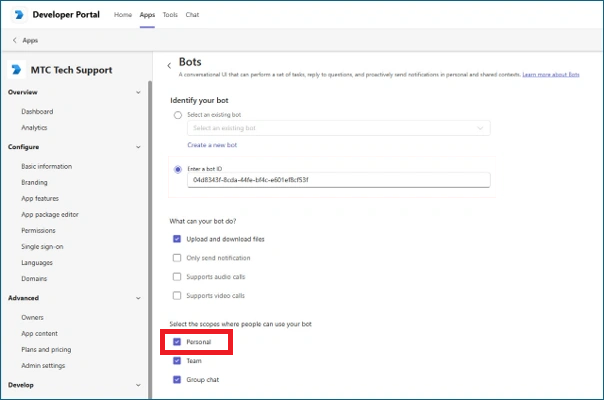
In the Bot configuration, choose Enter a bot ID and paste the Bot ID you copied in Step 1. Configure the scopes — for an internal-only employee support app, Personal scope is usually sufficient.
Configure permissions:
- Device permissions — typically enabled (microphone, geolocation, notifications as needed)
- Team permissions — set based on your scope
- Chat / Meeting permissions — configure to match your use case
Step 5 — Validate and Publish
Use App Validation to confirm the app passes all checks.
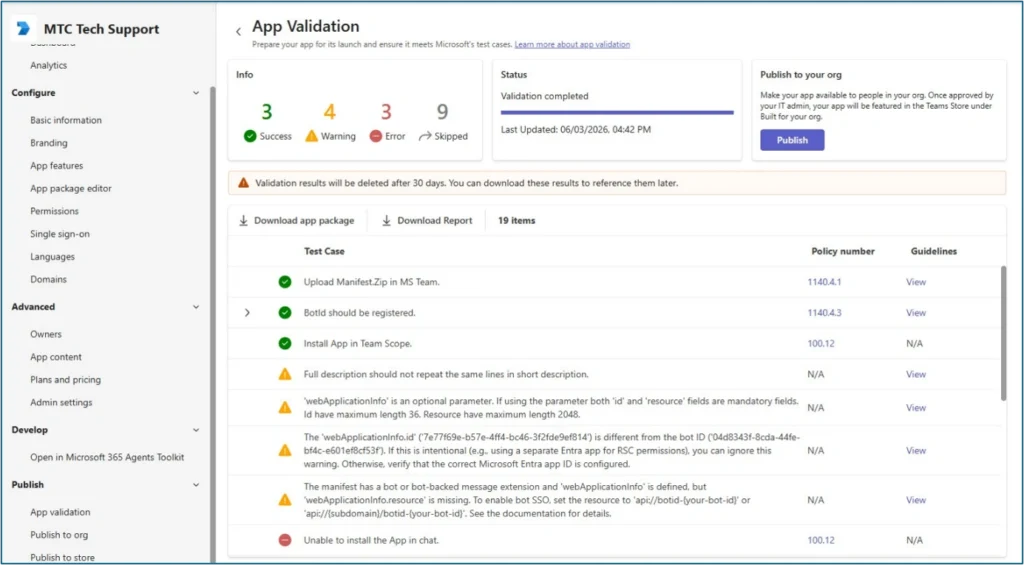
Once validated:
- Add the application for personal use (testing)
- Click Publish to send the app to your IT administrator for approval in the Microsoft Teams Admin Center
- Once approved, the app becomes available across the organisation
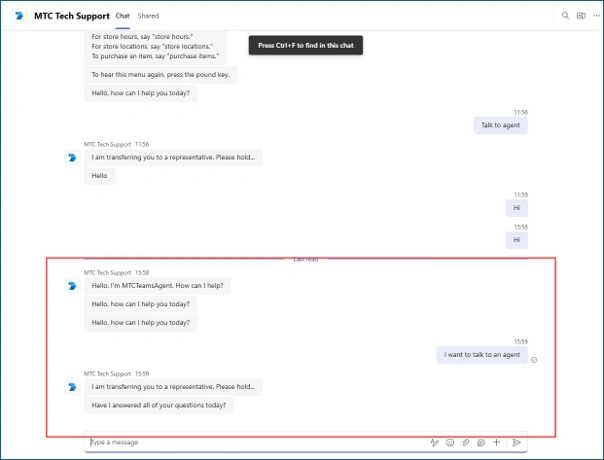
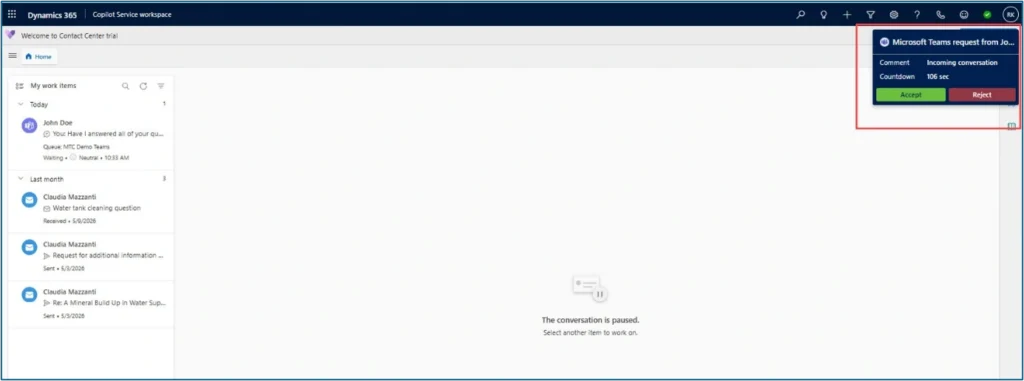
The first conversation initiated from the Teams app will land in Copilot Service Workspace, ready for an agent to accept.
The Agent Experience
Once the conversation routes in, the support agent sees:
- A notification in the Copilot Service Workspace (or Customer Service Workspace, depending on tenant configuration)
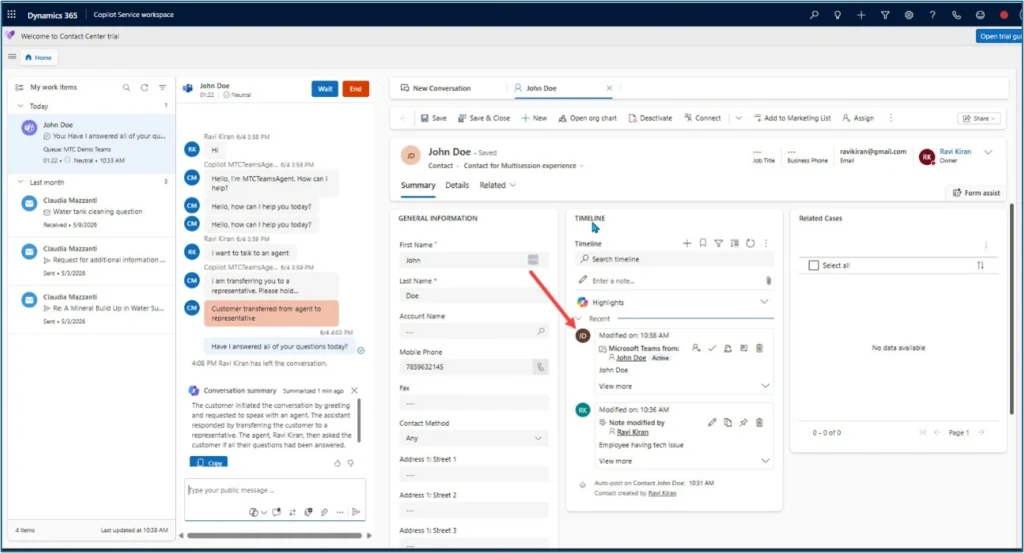
- The full Teams conversation, displayed in the communication panel
- A linked contact form for case classification, priority, and resolution notes
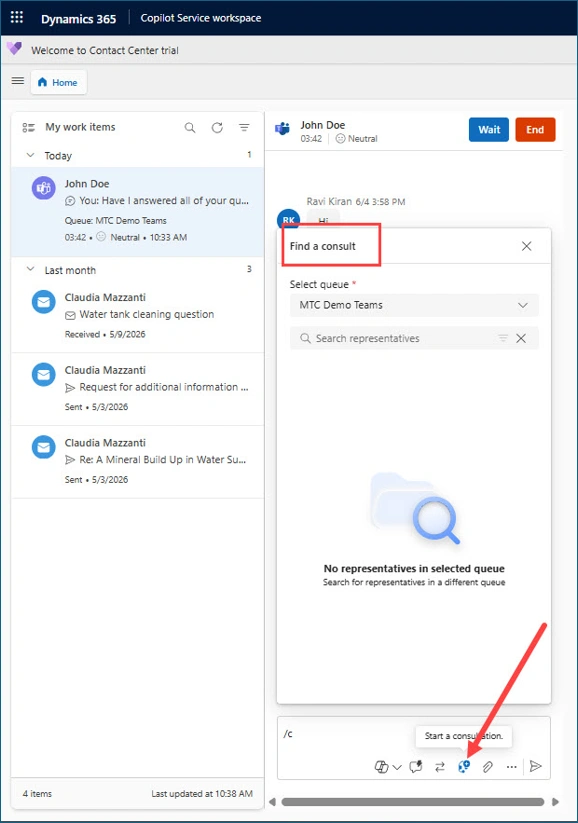
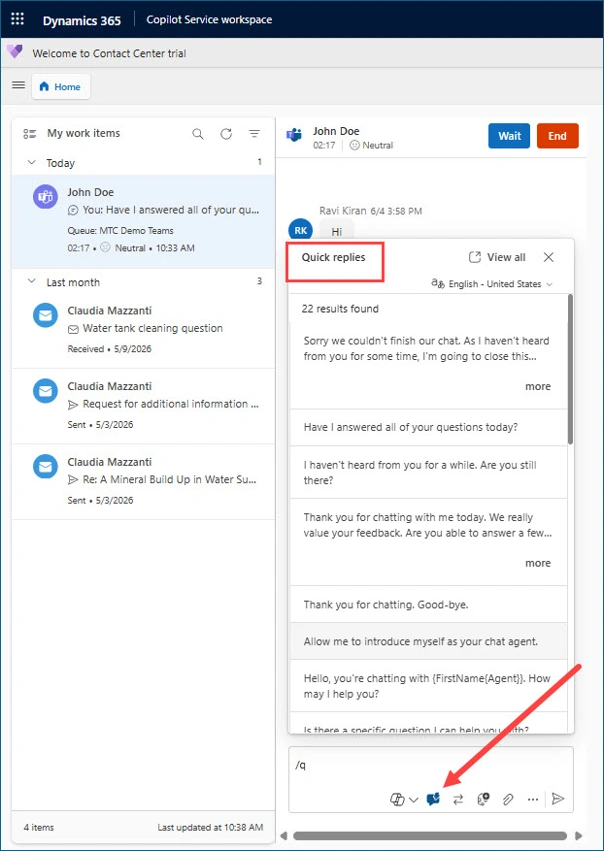
- Standard Copilot Service tools — Consult with another agent, Quick Replies for common responses, Transfer to another queue or agent
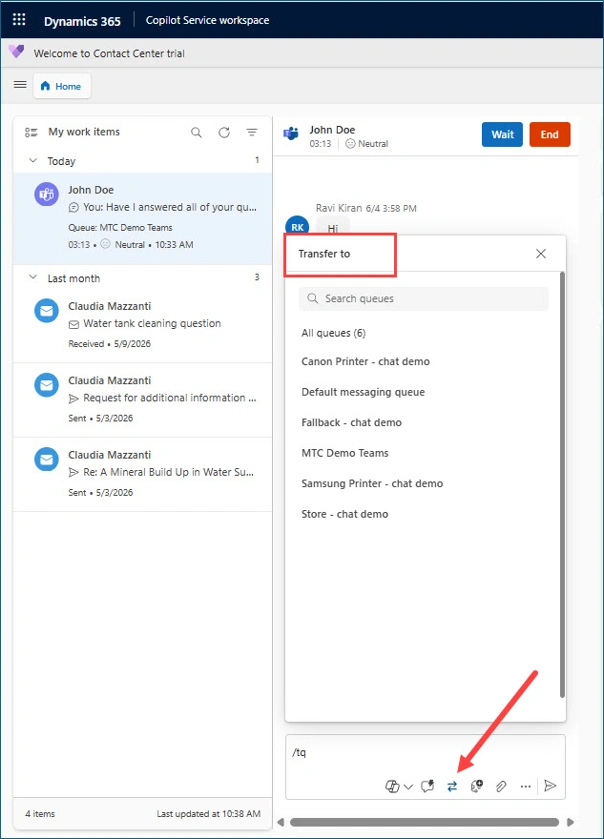
For the employee inside Teams, the experience is identical to any other Teams chat — they’re not aware they’re being routed through Contact Center, which is exactly what you want for adoption.
AI in Contact Center
The 2026 Contact Center release adds full Copilot integration. AI-powered features that work natively with the Teams channel:
- Conversation summary — Copilot summarises the entire chat at handoff or wrap-up
- Suggested replies — Copilot proposes responses based on knowledge base content
- Case classification — Copilot tags conversations with category and priority automatically
- Knowledge search — Copilot retrieves relevant articles from SharePoint or Dataverse knowledge bases
- Copilot Studio agents — embed custom AI agents that resolve tier-1 queries automatically before involving a human
For internal IT and HR support specifically, Copilot Studio agents handle the high volume of repeat questions (“how do I reset my password”, “what’s the leave policy”) with humans stepping in only for complex cases.
How MTC Delivers This for Microsoft Partners
The setup walkthrough above is the happy path. In real-world partner engagements, MTC handles several extensions that go beyond the standard Microsoft documentation.
The full delivery scope on a Contact Center build
- Microsoft Entra app registration with correct API permissions and admin consent
- Workstream design with multi-skill routing across IT, HR, Finance functions
- Custom Teams app branding to match the client’s corporate identity
- Integration with existing Dynamics 365 customisations — custom case categories, SLAs, escalation workflows
- Power Automate workflows triggered by Teams events for case acknowledgement, escalation, and reporting
- Custom dashboards in Copilot Service Workspace for service desk leads
- Knowledge base integration from SharePoint and Dataverse for Copilot retrieval
- Power BI reporting on Teams channel volume, SLA performance, agent utilisation, and customer satisfaction
- Field Service integration where applicable — technician support requests flowing through Teams into the Field Service mobile workflow
Common gotchas the documentation doesn’t tell you
- Tenant-level Teams admin approval is required for app distribution. Plan for IT admin sign-off in the timeline — this can take days or weeks depending on the organisation
- Personal scope is sufficient for most internal apps, but Team and Group Chat scopes need different permissions and federation considerations
- Conversation history retention is governed by both Teams and Dynamics 365 — coordinate retention policies to avoid compliance gaps
- Skill-based routing requires careful agent profile setup in the Bookable Resources entity — get this wrong and conversations land in the wrong queue
- Federation with external partners is possible but adds complexity — consider the threat model before enabling
MTC works as a Dynamics 365 implementation partner behind the scenes for Microsoft CSPs, ISVs, and boutique consultancies on Contact Center deployments — your client never sees us, you keep the relationship.
When to Use This Pattern (and When Not To)
Use the Teams channel when
- The organisation already runs on Microsoft 365
- Internal support functions need proper case management without changing employee behaviour
- Skill-based routing matters (IT vs HR vs Finance)
- Compliance and audit need conversation history captured in the case record
- AI agent assistance is in the roadmap
Don’t use the Teams channel when
- The support function is primarily customer-facing (external customers) — different channels (web chat, voice, social) fit better
- The organisation isn’t on Microsoft 365 (or is heavily Slack-based) — the value collapses
- The internal support volume is too low to justify the setup overhead (a shared mailbox might still be the right answer for very small teams)
- Privacy or anonymity requirements mean conversations shouldn’t be linked to identifiable user accounts
Frequently Asked Questions
Does this work with Dynamics 365 Customer Service or only Contact Center?
Both. Microsoft Teams as a channel is available in Dynamics 365 Customer Service, Customer Service Enterprise, and Dynamics 365 Contact Center. Contact Center is Microsoft’s newer omni-channel platform, and many organizations are adopting it to take advantage of unified routing, advanced automation, and deeper Copilot capabilities. The setup process is largely the same across both products. At MTC, we deliver implementations on both platforms, with the choice typically driven by existing licensing, business requirements, and long-term support goals.
Can the same Teams app handle multiple support functions (IT, HR, Finance)?
Yes. With the right workstream and routing design, a single Teams app can support multiple internal functions. Requests can be routed automatically to IT, HR, Finance, or other teams using skills-based routing, queues, and agent capacity rules. Employees interact with one consistent support experience in Teams, while Dynamics 365 handles the routing behind the scenes. We’ve implemented this approach for organizations that wanted a single internal support channel while maintaining separate specialist teams and service processes.
How long does a Contact Center + Teams integration take to deliver?
The timeline depends on the complexity of the implementation. A basic deployment with a single workstream, queue, and support function can typically be delivered in 4–6 weeks. Mid-sized projects that include multiple support functions, custom branding, and Power Automate workflows often take 8–12 weeks. Enterprise deployments involving multiple regions, languages, Power BI reporting, knowledge base integration, and Copilot-powered experiences can take 16 weeks or more. In our experience, governance and approval processes often have a greater impact on timelines than the technical configuration itself.
Conclusion
Microsoft Teams as a Contact Center channel is one of the most underused features in the Dynamics 365 ecosystem. For any organisation running on Microsoft 365 with internal IT, HR, or finance support functions, it’s the natural answer — employees stay in Teams, support teams get proper case management, and AI starts handling the repetitive load.
For Microsoft partners, this is also a strong commercial story. Most enterprise clients are running on Teams and have Customer Service or Contact Center licences they’re underusing. A Teams channel deployment is a quick-win starting point for a broader Dynamics 365 modernisation conversation.
Need a development-first Microsoft partner for your next Contact Center or Customer Service build? Talk to MTC’s Dynamics 365 team — 80+ Microsoft consultants in Hyderabad, 25+ AppSource add-ons live, white-label delivery for Microsoft partners worldwide.