Customer service teams lose a lot of time to the plumbing of case management — typing what a customer just said into a case form, chasing the same lead three times, drafting follow-up emails that all read the same. The Case Management Agent in Dynamics 365 Customer Service automates that plumbing: it creates and updates cases from live chats and emails, predicts field values, sends follow-up emails on a schedule you define, and (if you choose) closes cases autonomously. This guide walks through what it does, the problems it solves, and exactly how to set it up.
What you’ll learn:
- What the Case Management Agent is and the problems it solves
- The two automation levels — human confirmation vs full automation
- The full setup flow: enabling agents, prerequisites, and the three feature areas
- How automatic case creation, case resolution, and case follow-up behave in practice
- What Gartner and industry analysts predict for AI in customer service
- The configuration choices that matter most
What the Case Management Agent does
The Case Management Agent is a Copilot Studio agent that runs inside Dynamics 365 Customer Service. It can:
- Create cases automatically from live chat conversations, voice calls, emails, and other digital messaging channels
- Predict and populate case fields (title, type, priority, description, origin, subject) from the conversation content
- Update existing cases when new information arrives from any channel
- Assist representatives drafting case resolutions through form-fill assistance
- Send follow-up emails on a configurable cadence when customers go quiet
- Close cases autonomously if a customer doesn’t respond after a set number of follow-ups
You choose how much of this runs without human review. Across each capability you can set the level of automation as either human confirmation (the agent suggests, the representative approves) or full automation (the agent acts on its own). Most teams start with human confirmation, build trust, then move targeted scenarios to full automation.
Problems the Case Management Agent solves
Problem 1: Reps spend the conversation typing instead of listening
When a customer chats in, the representative is splitting attention between solving the problem and filling out the case form. By the time they finish the form, half the conversation context is gone and the customer has waited.
How the agent solves it: the agent reads the conversation as it happens and creates the case automatically once the chat ends — with the title, priority, description, and origin already filled in. The representative spends their attention on the customer, not on data entry.
Problem 2: Follow-ups are inconsistent and easy to forget
Cases stall when a customer doesn’t reply. Reps mean to chase, then they get pulled into the next ticket, and a week later nobody remembers whether a follow-up went out. Customers churn quietly in the gap.
How the agent solves it: you define the follow-up cadence once (for example: wait 5 hours, then 24, then 24, max 3 follow-ups). The agent watches every eligible case, drafts each follow-up email when its turn comes, and either sends it automatically or surfaces it for review — your call.
Problem 3: Closing low-value cases takes more effort than the case is worth
Many cases naturally resolve because the customer never replies. Closing them properly — drafting the right resolution note, sending the closure email, marking the case — takes minutes of work for cases that produced no revenue.
How the agent solves it: when the configured number of follow-ups is exhausted and the customer hasn’t responded, the agent can close the case autonomously with a templated resolution. Reps’ time goes to the cases that are actually progressing.
Two automation levels: human confirmation vs full automation
Every feature area in the agent supports the same choice.
| Mode | What happens | When to use it |
|---|---|---|
| Human confirmation | The agent drafts, suggests, or pre-fills — the representative reviews and clicks. | When you’re rolling out the agent, when your service quality bar is high, or for high-value cases. |
| Full automation | The agent sends emails, updates cases, and closes cases on its own, on behalf of a dedicated application user. | For predictable, lower-stakes scenarios (routine follow-ups, no-reply closures) where you’ve validated the agent’s behaviour. |
Full automation requires a dedicated application user so the agent has its own identity in your environment for sending email and resolving cases. You register an app in Microsoft Entra ID, then create the matching application user in the Power Platform admin center.
Setup walkthrough
Step 1 — Enable AI agents in the environment
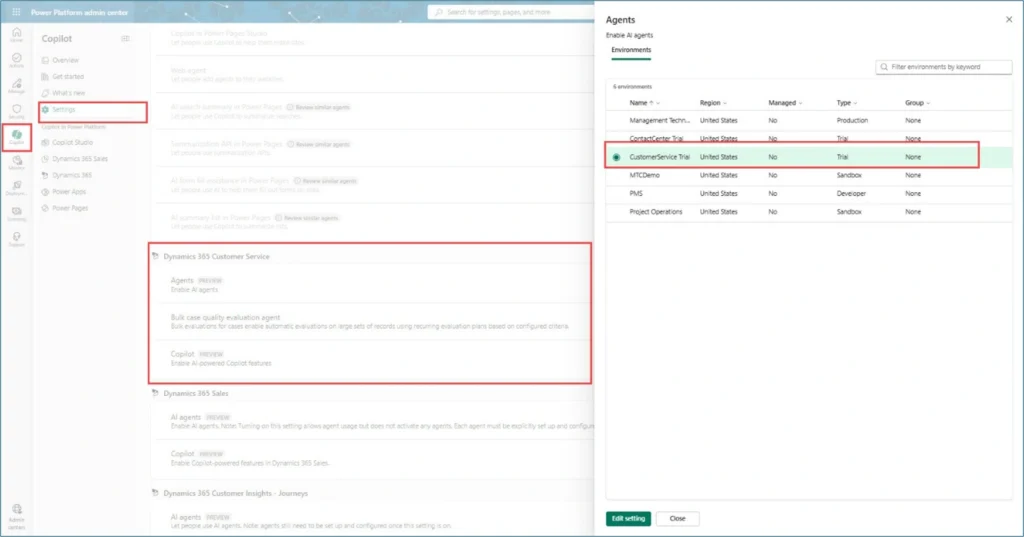
In the Power Platform admin center, select Copilot > Settings. Scroll to Dynamics 365 Customer Service > Agents, pick the target environment, and select Edit setting. Tick Enable AI agents and save.
Step 2 — Turn on AI form-fill assistance
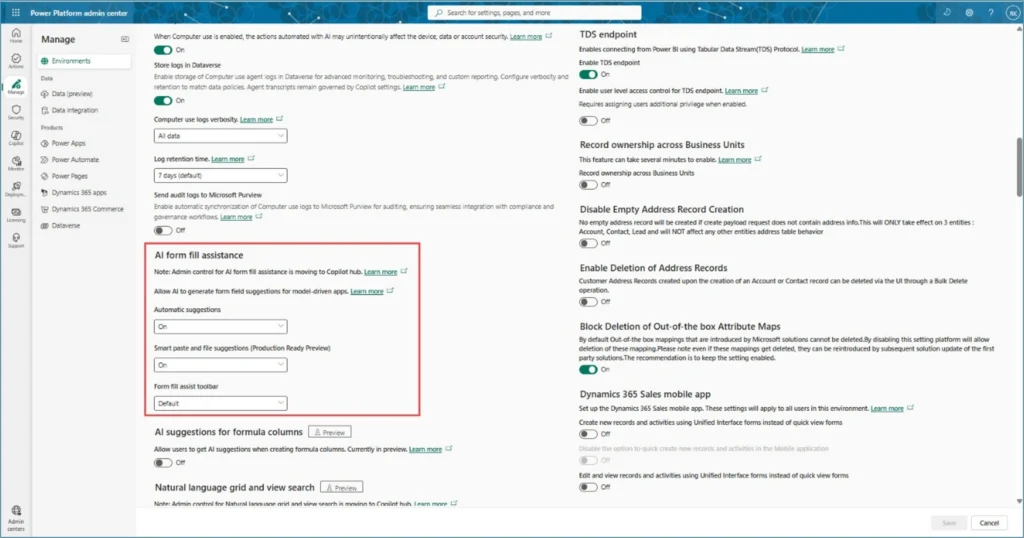
Still in the Power Platform admin center, open the target environment > Settings > Features, and turn on AI form fill assistance. This is what lets Copilot pre-fill case forms during resolution.
Step 3 — Open the Case Management Agent
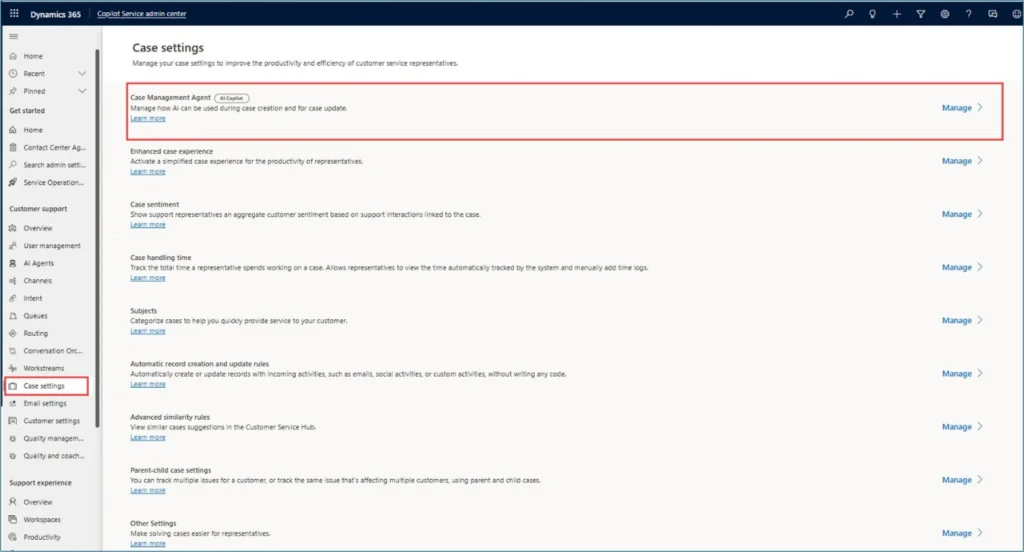
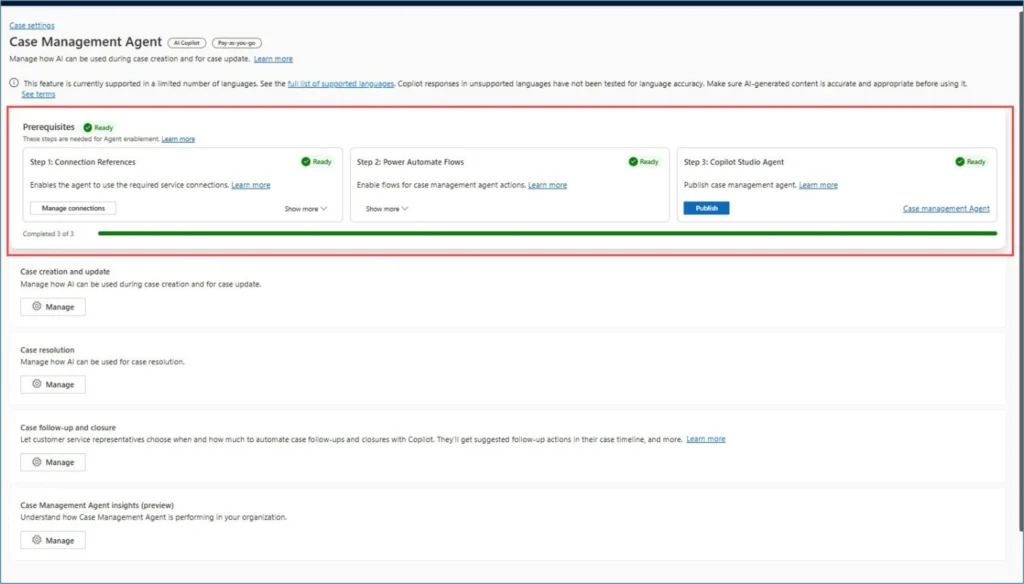
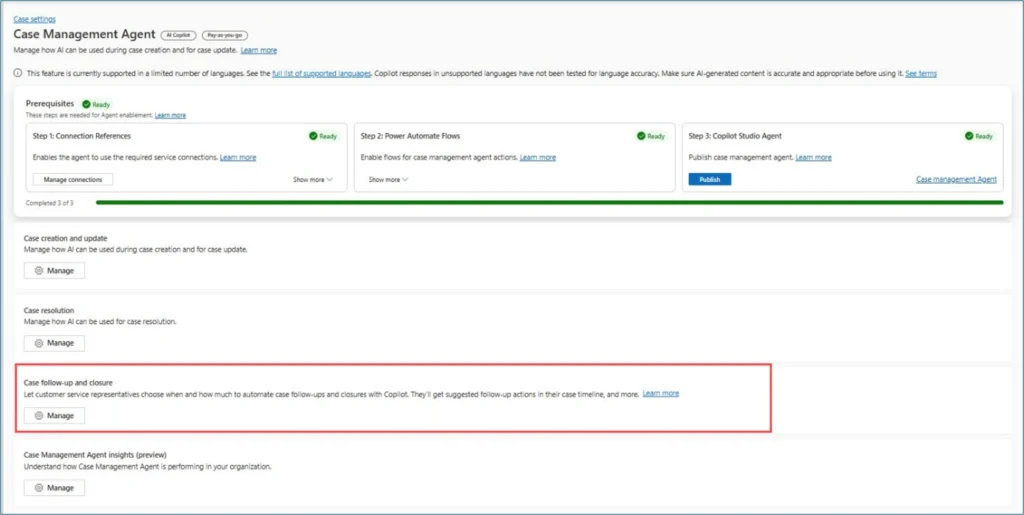
In the Copilot Service admin center, go to Customer Support > Case Settings, then choose Manage under Case Management Agent. The agent page lists every prerequisite and shows their status.
Step 4 — Establish connection references
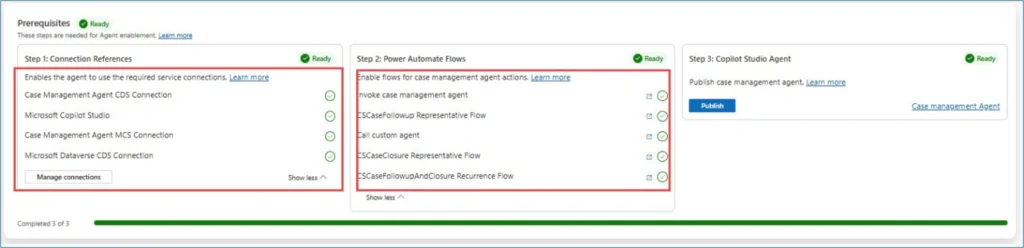
The agent uses several connection references — Microsoft Copilot Studio Case Management Agent (MCS Connection), Microsoft Dataverse (CDS Connection), and others depending on which Dynamics 365 apps are present. Authenticate each one with an admin account until the status reads Ready with a green tick.
Step 5 — Turn on the Power Automate flows
Open Solutions > Default Solution > Objects > Cloud flows and turn on these three:
- CS Case Closure Representative Flow
- CS Case Follow-up Representative Flow
- CS Case Follow-up and Closure Recurrence Flow
The Case Management Agent uses these flows for its background work. Confirm the status reads On for all three before returning to the agent page.
Step 6 — Publish the agent
Back on the Case Management Agent page, publish the underlying Copilot Studio agent. That makes it active in your environment.
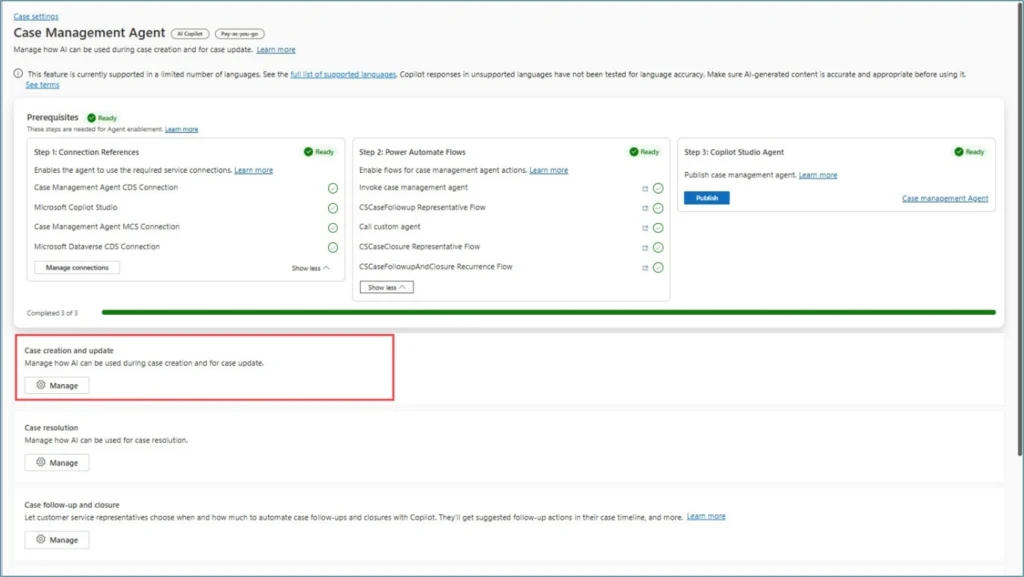
Step 7 — Configure case creation and update
Open Case creation and update > Manage.
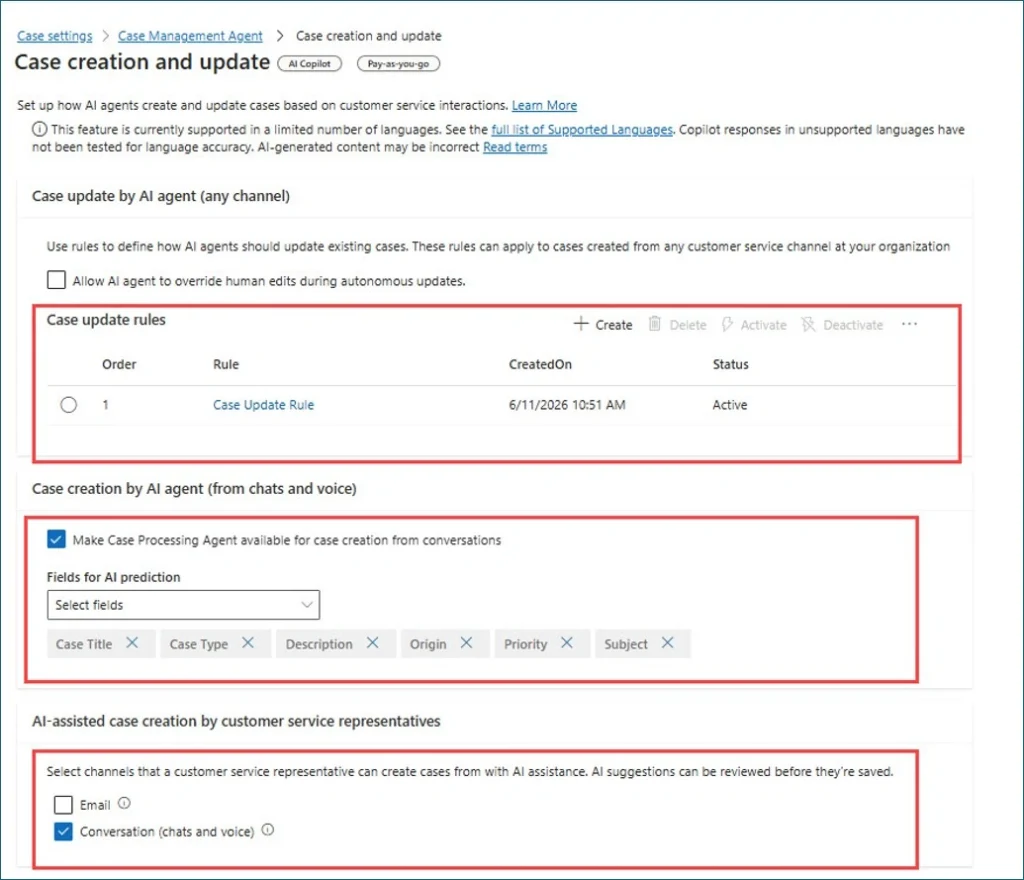
- Fields the agent should populate on creation — typically case title, case type, description, origin, priority, and subject. Pick what your case form needs.
- Case update rule — define which existing cases the agent is allowed to update. A common starting rule is “created on is older than 1 minute AND priority equals High” so the agent only enriches recent, high-priority cases.
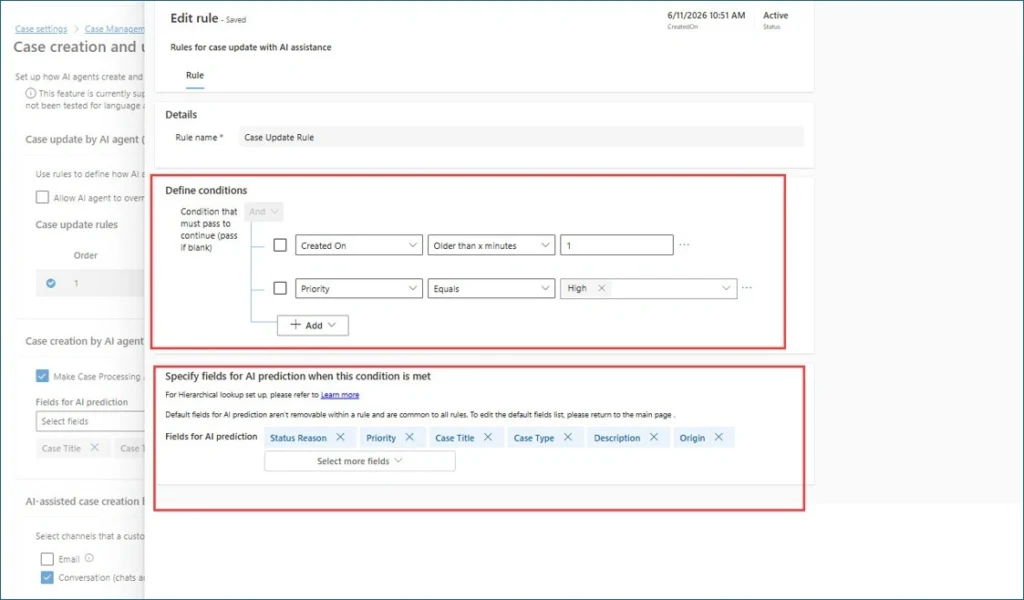
- Allow AI agent to override human edits during autonomous updates — leave this off unless you have a clear reason to overwrite reps’ manual entries.
- AI assisted case creation by representatives — choose which channels reps can use to create cases with AI assistance (email, conversation, or both).
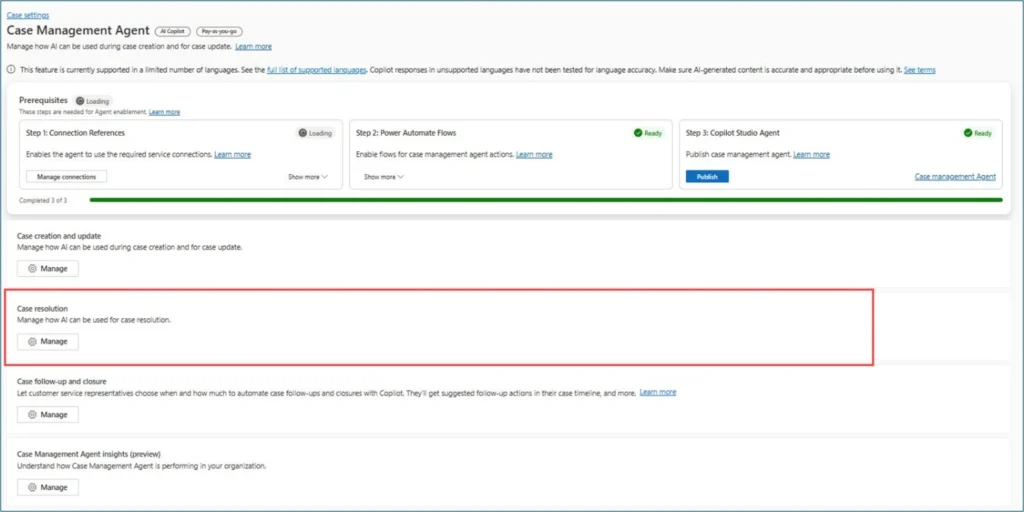
Step 8 — Configure case resolution
Open Case resolution > Manage.
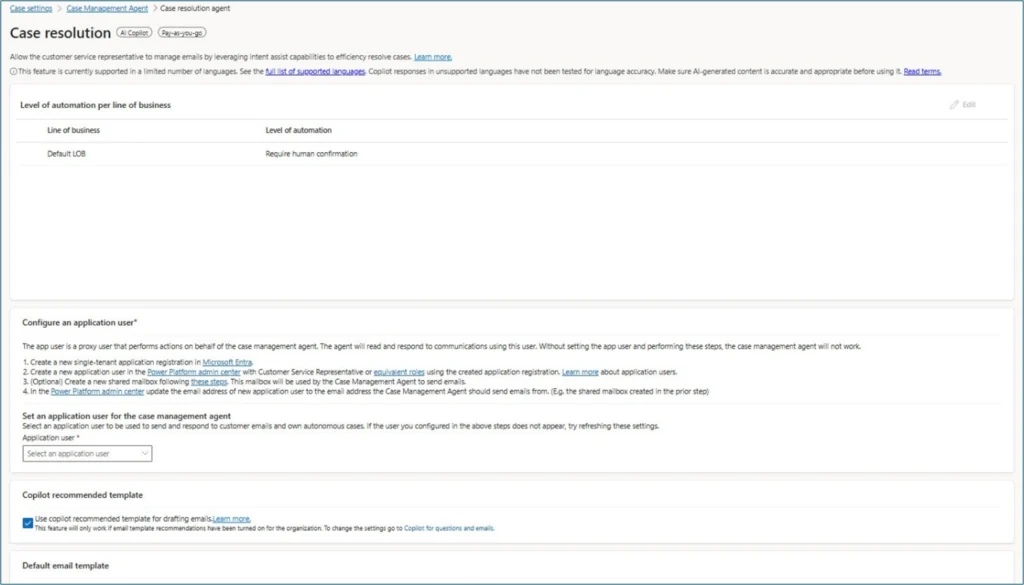
- Level of automation per line of business — set human confirmation or full automation for each.
- Application user — required for full automation. Select the user you created in Microsoft Entra ID and provisioned in the Power Platform admin center.
- Default email template — pick the template the agent should use for resolution emails (English in most rollouts; configurable per language).
Step 9 — Configure case follow-up and closure
Open Case follow-up and closure > Manage.
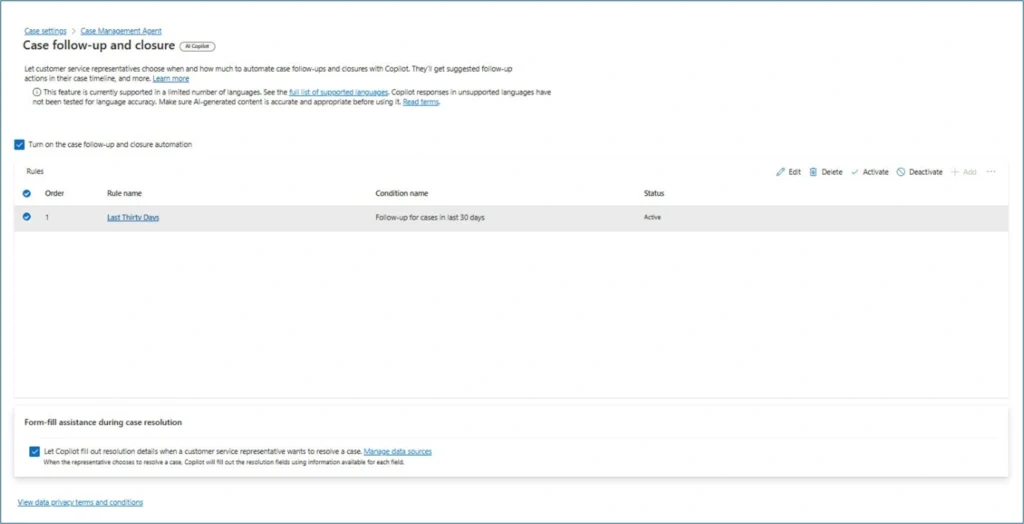
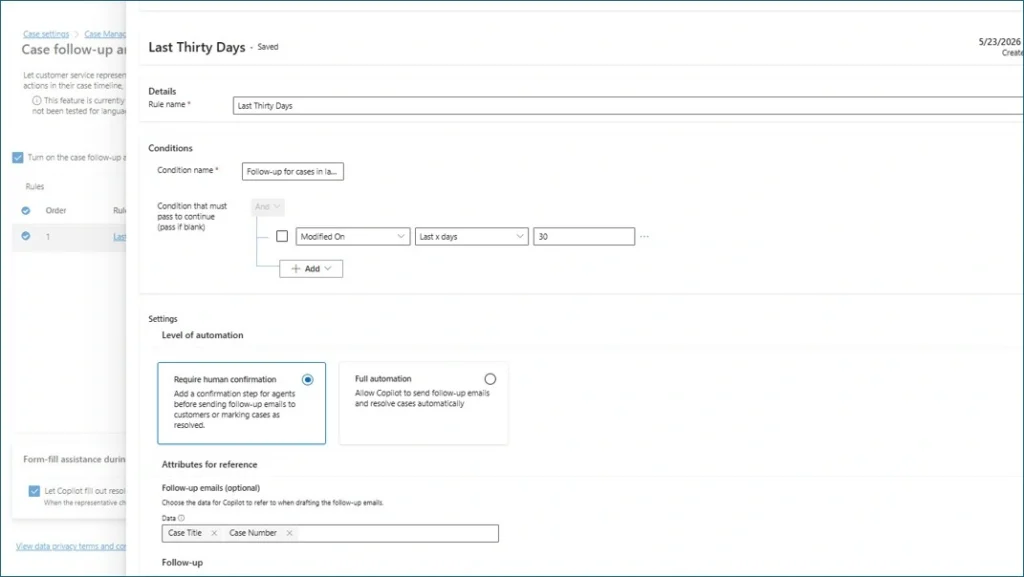
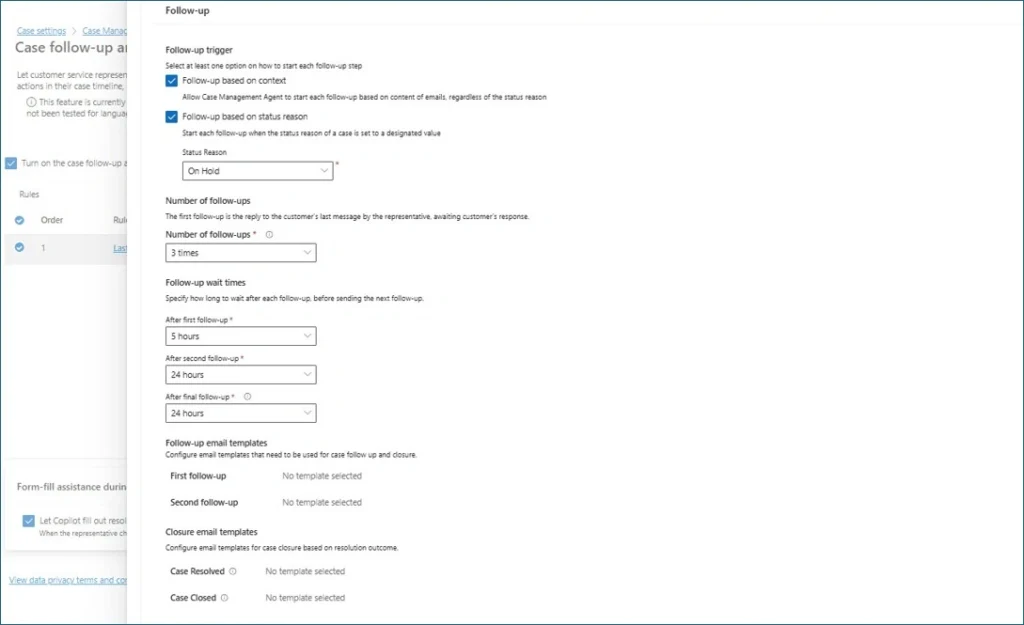
- Trigger — choose follow-up based on case status reason (e.g. On hold), based on email context, or both.
- Number of follow-ups — up to 5. Three is a sensible starting point.
- Wait times — set the delay between follow-ups. A common pattern is 5 hours after the first email, then 24 hours, then 24 hours for the final.
- Follow-up email content — pick the case fields the agent should reference when drafting (typically case title and case number).
- Email templates — optional, but recommended for brand consistency.
- Level of automation — human confirmation or full automation, same as elsewhere.
How it works in practice
Once configured, a customer service interaction looks like this.
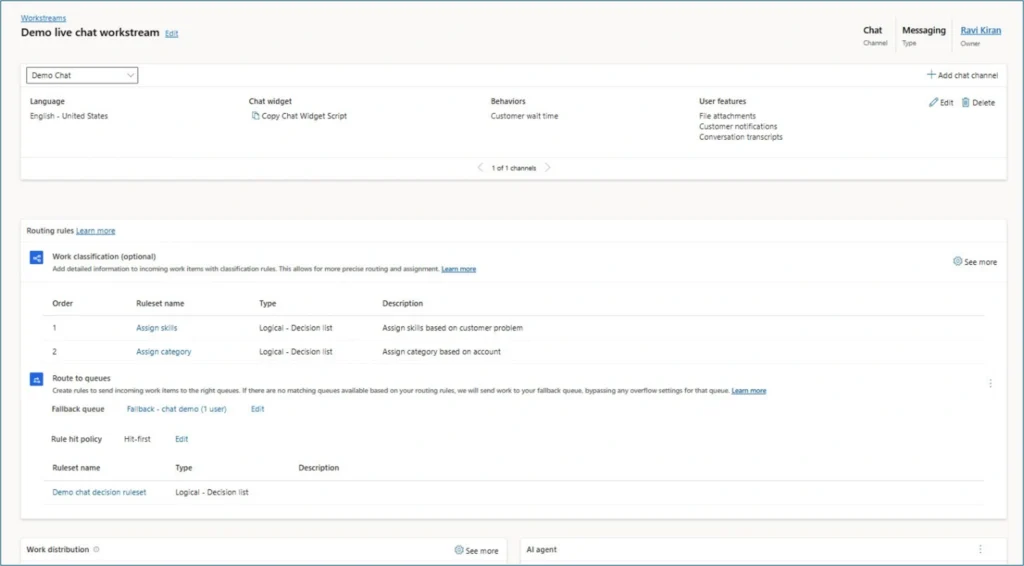
A live chat comes in. A customer enters an unauthenticated or authenticated chat. The Copilot agent attached to the workstream greets them, then escalates to a human representative when the customer asks.
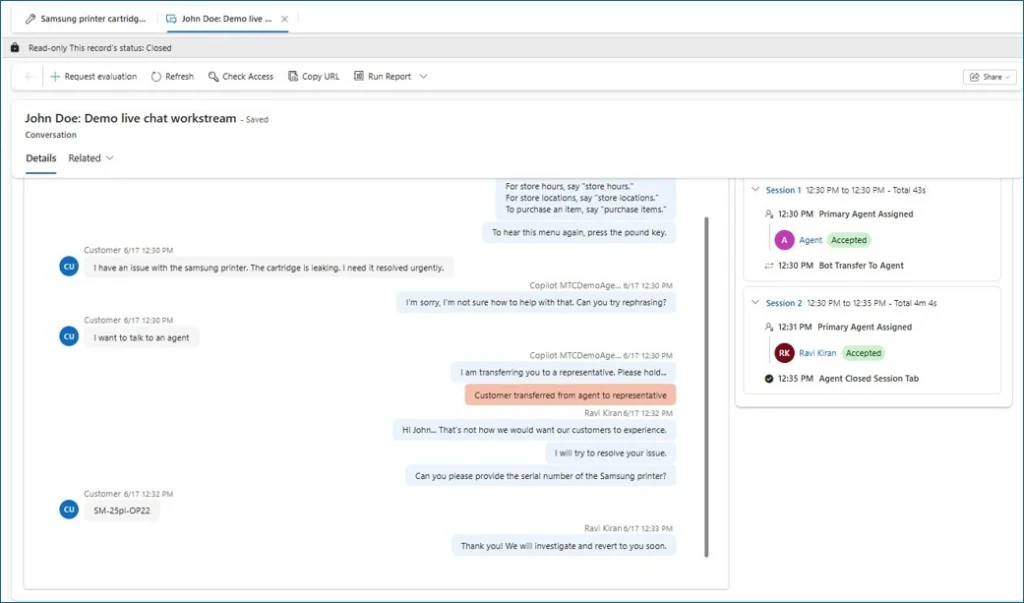
The rep handles the conversation. They focus on the customer — diagnosing the issue, asking clarifying questions, confirming next steps. They do not fill out a case form.
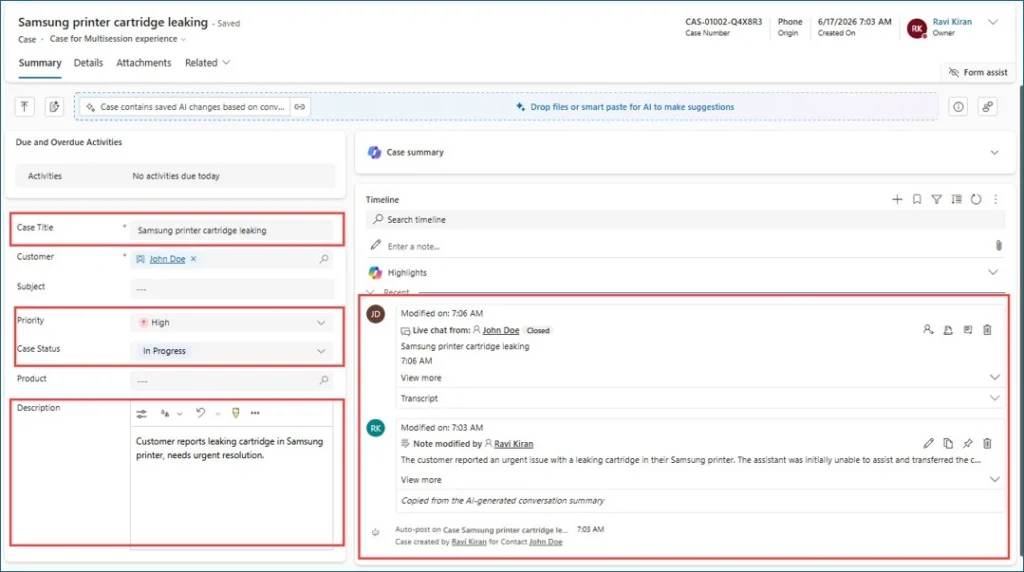
The case is created automatically. When the chat ends, the Case Management Agent reads the conversation, populates the configured fields, and creates the case. If the customer said the issue was urgent, the priority is set to High. The description summarises the issue. The chat transcript and a note are attached to the case timeline.
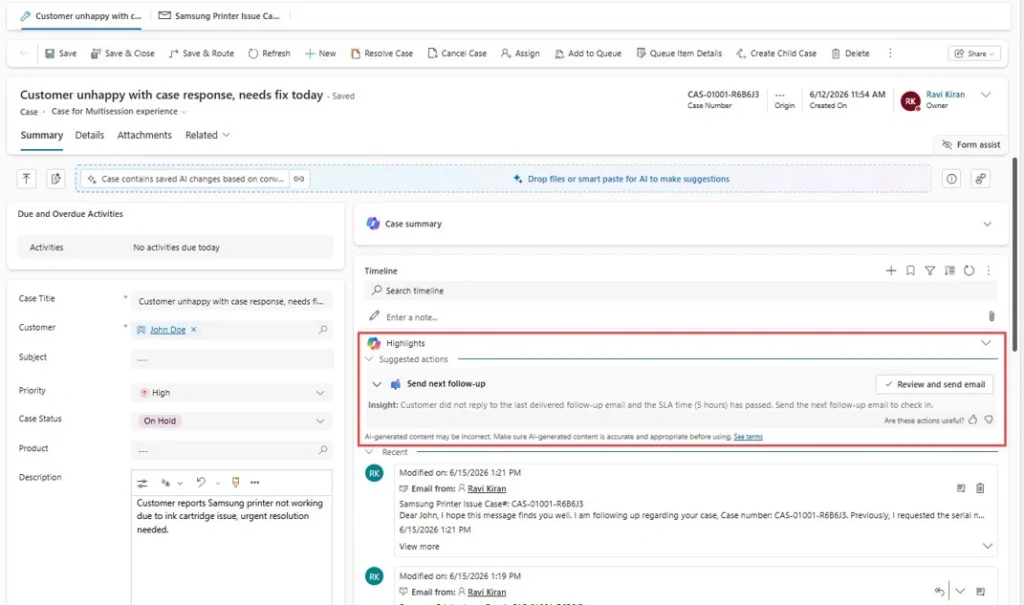
Follow-up runs on its schedule. If the rep emails the customer and the customer goes quiet, the agent waits the configured time, then surfaces (or sends) the drafted follow-up email.
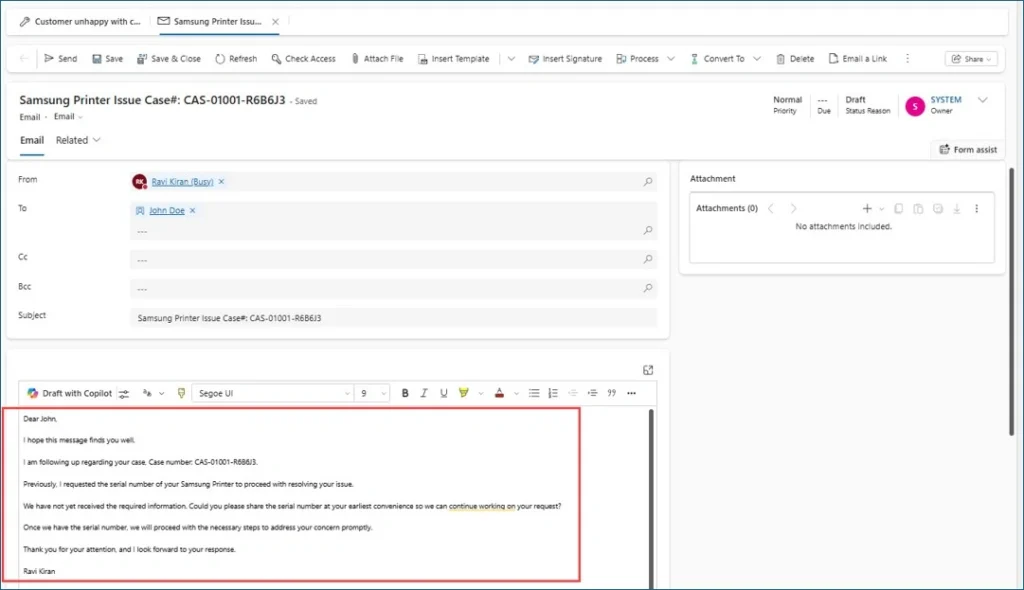
Closure happens cleanly. After the configured number of follow-ups with no reply, the agent either suggests a resolution for the rep to approve, or — in full automation — closes the case itself.
Frequently Asked Questions
What do industry analysts say about AI in customer service?
The headline analyst forecast comes from Gartner. In March 2025, Gartner predicted that by 2029, agentic AI will autonomously resolve 80% of common customer service issues without human intervention, driving an estimated 30% reduction in operational costs. Daniel O’Sullivan, Senior Director Analyst in Gartner’s Customer Service & Support Practice, described agentic AI as a game-changer for customer service, paving the way for autonomous and low-effort customer experiences. Gartner has since added a second related forecast: by the end of 2026, 40% of enterprise applications are expected to integrate task-specific AI agents — up from less than 5% in 2025. The Case Management Agent in Dynamics 365 Customer Service is one of the productised examples of exactly that shift.
Won’t AI replace customer service representatives?
The current analyst position is no, not in the short term — and the rollout patterns we see in practice agree. In March 2026, Gartner forecast that by 2028, over 50% of customer service organisations will double their technology spend without an equivalent reduction in talent. Kathy Ross, VP Analyst in Gartner’s Customer Service & Support Practice, summed it up: technology spend is rising rapidly, yet talent needs are evolving — not disappearing. The Case Management Agent reflects this. It removes the repetitive paperwork around case creation, follow-up, and closure so representatives spend more time on conversations that actually need a human. The level-of-automation setting exists precisely so you can decide, per scenario, where humans remain in the loop.
Does the Case Management Agent only work with live chat?
No. It can create and update cases from live chat, voice calls, email, and other digital messaging channels. Microsoft also requires authenticated chat for automatic case creation from conversations, so configure your chat with authentication when you want this behaviour.
What’s the difference between this and the Sales Qualification Agent?
Both are Copilot Studio agents in Dynamics 365, but they solve different problems. The Sales Qualification Agent researches and qualifies leads on the sales side. The Case Management Agent automates case lifecycle work on the customer service side. They share infrastructure — same Copilot Studio runtime, same licensing model — but the configuration is independent.
Do I need an application user from day one?
Only if you want full automation. If you start with human confirmation across the board, you can skip the application user setup and add it later when you’re ready to move specific scenarios to full automation.
How does this fit with the Contact Center?
Cleanly. If you’re running Dynamics 365 Contact Center alongside Customer Service, the Case Management Agent works on top of your channels. See our comparison of Dynamics 365 Contact Center vs Customer Service for which product owns what.
Conclusion
The Case Management Agent takes the routine paperwork off your customer service reps and lets them focus on the customer. The setup is methodical — enable agents, turn on form-fill, wire up connections and flows, publish the agent, then configure each of the three feature areas — and the payoff is real: faster case creation, consistent follow-up cadence, and fewer cases stuck in limbo. Start with human confirmation, validate the agent’s behaviour against your service standards, then move targeted scenarios to full automation as confidence builds.
Rolling out Copilot agents in Dynamics 365 Customer Service? MTC configures and deploys Case Management, Customer Intent, and other Dynamics 365 Copilot agents — including the application user, governance, and integration work that makes them production-ready. Explore our Dynamics 365 services or email salesteam@mtccrm.com.