Contracts live at the centre of most B2B relationships in Dynamics 365 — sales agreements, service agreements, master services agreements, supplier contracts, licensing terms, non-disclosure agreements, statements of work. Each carries signed documents, amendments, exhibits, condition-of-goods photos, and a paper trail that needs to stay attached to the right record for as long as the contract is live. This post walks through a practical pattern for managing contract-heavy workflows inside Dynamics 365 using two of MTC’s AppSource add-ons — CRM Picture and Multifile Uploader — alongside native Dynamics 365 capabilities.
If your team is still evaluating whether to build contract management natively, in SharePoint, or with AppSource add-ons on top, see the companion post Contract Management in Dynamics 365: Native, SharePoint or AppSource? — this post picks up after that decision is made.
What you’ll learn:
- The four failure modes native Dynamics 365 contract handling runs into
- Where CRM Picture fits and where Multifile Uploader fits
- A concrete setup: contract record, uploaded documents, condition photos, SharePoint storage
- How to keep contract audit trails clean without inflating Dataverse storage costs
- The security model applied to sensitive contract data
Why native Dynamics 365 contract handling struggles
Standard Dynamics 365 lets you attach files to records via Notes. That works fine for a handful of documents on a handful of contracts. It falls over as soon as volume, structure, or audit expectations grow. Four specific failure modes we see across contract-heavy clients:
- Single-file upload becomes the bottleneck. Contracts arrive as bundles — signed original, initialled amendments, exhibits A through E, condition photos, insurance certificates, supplier attestations. Uploading them one at a time through the Notes control kills productivity for whoever manages the contract lifecycle.
- Photos and images end up in the wrong places. Condition-of-goods photos, site photos, signature captures, and asset condition evidence are as much part of a contract as the signed PDF. They usually end up in personal phones, email attachments, or unrelated SharePoint folders — nowhere near the contract they belong to.
- Dataverse storage cost climbs fast. Every file stored in Notes consumes Dataverse database storage, which is significantly more expensive per GB than SharePoint or Azure Blob. For clients with high contract volume, the storage bill grows quickly, and there is no easy way to shift historical files off Dataverse once they are there.
- No structured metadata on contract documents. Files stored in Notes have a name and a description. That is not enough for a contract audit trail. You cannot filter for “all amendments” or “all condition photos” or “all supplier attestations” without a real metadata model.
The two AppSource add-ons below solve the first three cleanly, and support the fourth when combined with a well-modelled Dataverse schema.
Where CRM Picture fits
CRM Picture is configurable on any Dataverse table, which means it works cleanly on the Contract record itself, or on a custom child table (Contract Item, Contract Amendment, Contract Evidence — whichever your data model uses). It handles the photo side of contract capture:
- Multiple photo upload in one action — condition photos, site photos, evidence shots against a single contract record
- Preview before upload — confirm the right photos are attached to the right contract before committing them
- Reset — remove selected photos from the preview panel before upload
- Flexible storage — SharePoint, Azure Blob, or Notes depending on the client’s document strategy
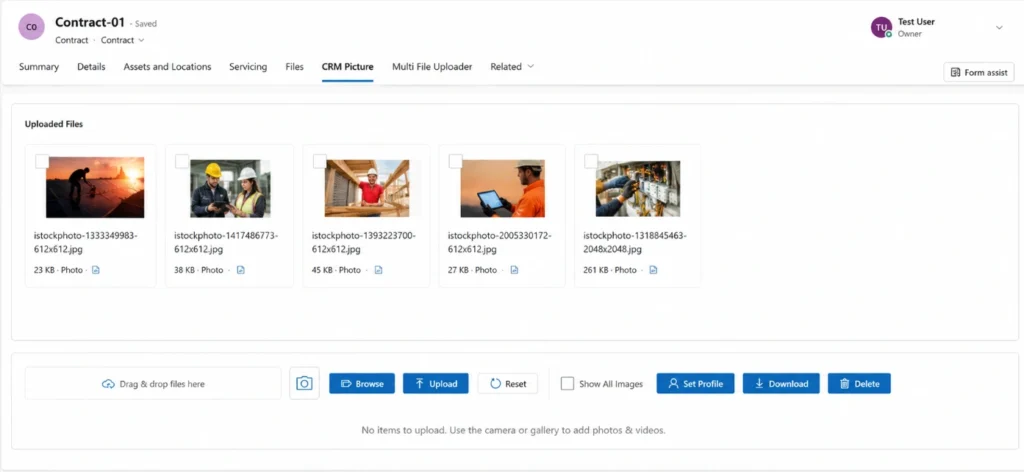
For contracts that involve physical assets or property (leasing, equipment supply, construction, facility management), the photo layer is not optional. It is part of the contractual record. CRM Picture keeps it attached to the right contract, tagged by type, and stored where it belongs.
Where Multifile Uploader fits
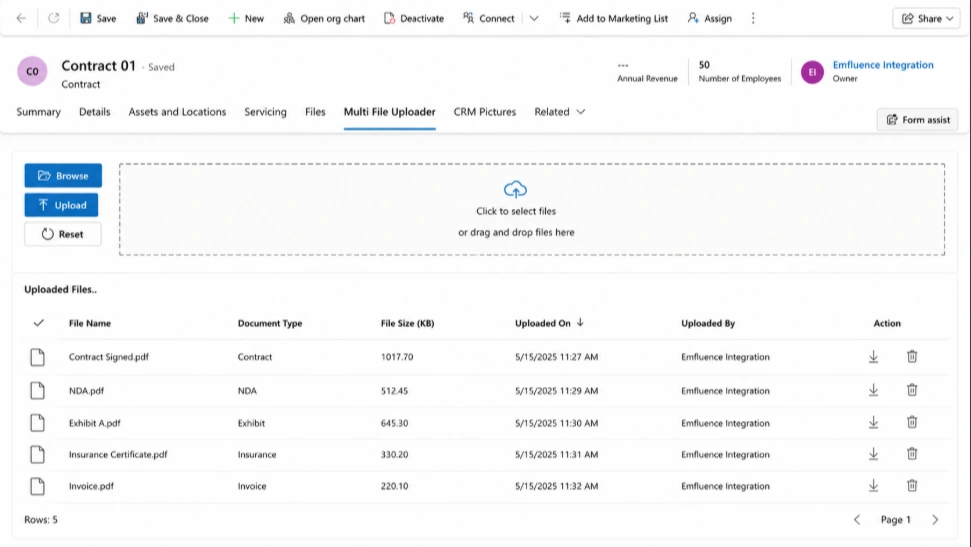
Multifile Uploader handles the document side — everything that is not a photo. Signed contracts, amendments, exhibits, insurance certificates, supplier attestations, correspondence. It complements CRM Picture rather than overlapping with it:
- Multiple document upload in one action — the contract bundle goes up as a bundle, not one file at a time
- Direct to SharePoint — keeps Dataverse storage costs flat while documents stay accessible against the contract record
- Metadata tagging — sign each file with a document type (signed original, amendment, exhibit, certificate) so the audit trail is filterable
- Works on any Dataverse table — same pattern applies to Contract, Contract Amendment, or any custom entity in the model
Combined with the SharePoint storage pattern from our Move Dynamics 365 Attachments to SharePoint Automatically guide, you get a contract document workflow where files go to SharePoint the moment they are uploaded — no daily batch, no historical migration to run later, no Dataverse cost surprise.
A concrete setup — how the pieces fit together
Here is a working contract management setup we deploy for contract-heavy clients. Adjust to your own data model.
The data model
- Contract — the parent record (native Dynamics 365 Contract entity or a custom Contract table depending on the client’s process)
- Contract Amendment — child table capturing each amendment with its own effective date, signed status, and file attachments
- Contract Evidence — child table for photos, site imagery, condition evidence
- Contract Party — the counterparty account or contact
- Contract Term — payment terms, renewal terms, SLA, warranty period
Where each control goes
- Multifile Uploader — on the Contract form, on Contract Amendment forms, on Contract Party forms (for insurance certificates, KYC documents). Files land in SharePoint, tagged by document type.

- CRM Picture — on the Contract form and Contract Evidence form. Photos attach against the specific record, previewed before upload, stored per the client’s storage strategy.
- Dynamics 365 native fields — every structured attribute (dates, amounts, parties, terms, status) stays as Dataverse columns, because they need to be reportable, filterable, and driven by workflow.
The lifecycle in practice
- Sales team drafts the contract, attaches the signed original and exhibits via Multifile Uploader → SharePoint
- Contract goes into Draft → Under Review → Signed status via the native Business Process Flow
- On execution, site photos and condition evidence are captured via CRM Picture on the Contract Evidence record
- Amendments arrive over the contract lifecycle → new Contract Amendment records, each with its own signed document via Multifile Uploader

- Renewal or termination triggers a Power Automate flow that surfaces expiring contracts to the responsible manager
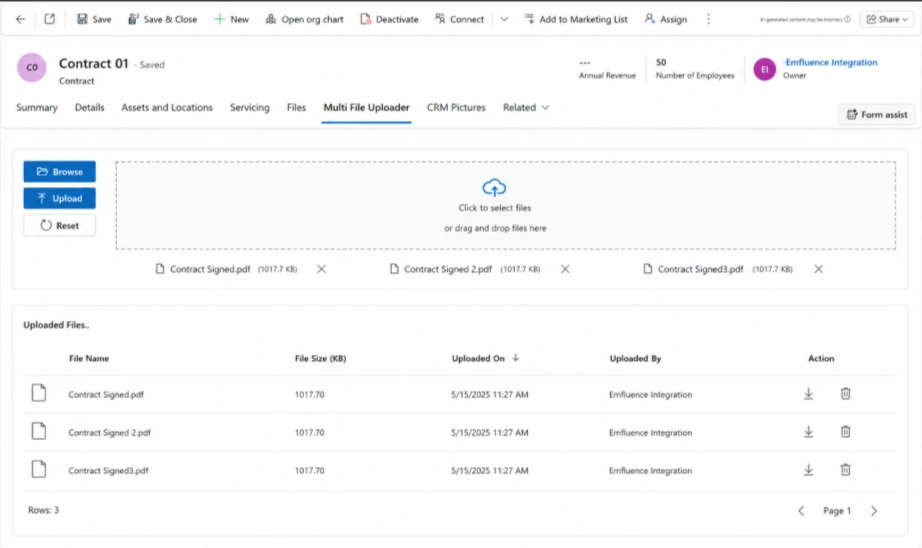
At every stage, the full document and photo trail sits against the right record, in the right storage tier, with the right metadata. Auditors get a clean chronological view. Finance sees invoice-linked contracts. Legal sees signed originals and amendments.
Security applied to contract data
Contract data is usually the most sensitive thing on a Dynamics 365 tenant. Two protections we always recommend:
- Field-level security on sensitive terms — commercial values, payment schedules, penalty clauses. Restrict visibility to the roles that genuinely need them.
- Access team model on the Contract entity — grant per-contract access to the specific users who need it, without over-granting through security roles.
For contracts surfaced through a Power Pages portal (supplier portal, customer contract portal), the web role and table permission model does the same job. See our Power Pages Security guide for the full model.
What this pattern is not
Worth being clear about the boundaries:
- This is not a full CLM (Contract Lifecycle Management) platform. If you need clause libraries, AI-driven redlining, e-signature integration at scale, and legal workflow automation, evaluate a dedicated CLM tool alongside Dynamics 365. Icertis, DocuSign CLM, or Conga CLM are the usual candidates.
- This is not a document management replacement. SharePoint remains the storage tier. What this pattern gives you is the capture and attachment layer, not the collaboration layer.
- This is a good fit for contract-heavy operational workflows — service agreements, master services agreements, supplier contracts, equipment leases — where the contract sits alongside a real Dynamics 365 process (sales, service, procurement).
Conclusion
Contract management in Dynamics 365 works well when the pattern is right. Native Dynamics 365 for structured attributes and workflow. SharePoint for document storage. CRM Picture for photo capture against the right record. Multifile Uploader for bulk document upload with SharePoint routing. Security applied where the data warrants it. Nothing exotic — just the right tools in the right places.
Building contract management on Dynamics 365? MTC delivers implementations across contract-heavy verticals including field service, manufacturing, supplier management, and equipment leasing. Explore our Dynamics 365 services, see CRM Picture on AppSource, see Multifile Uploader on AppSource, or email salesteam@mtccrm.com.